Home
Home
How ImgGen AI Upscaler Transforms Low Resolution Images Into 8K Visuals
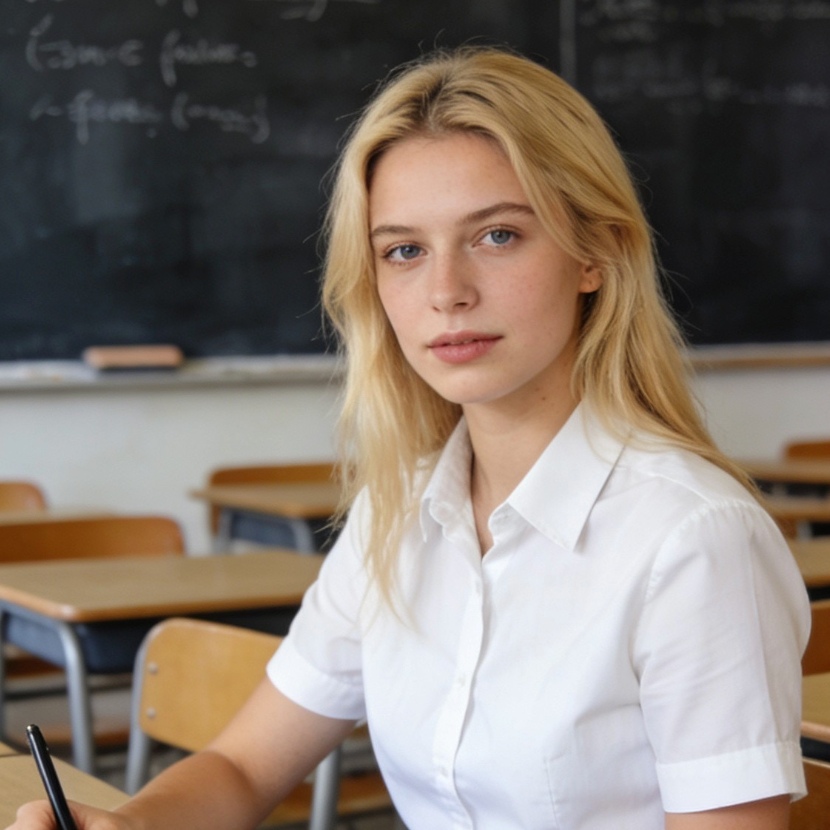
ImgGen AI upscaler is a sophisticated browser-based application that leverages deep-learning models to increase the resolution of digital images up to 8K while simultaneously enhancing clarity, sharpness, and detail. Unlike traditional image resizing methods that often result in pixelation or blurriness, this AI-driven tool reconstructs missing information to produce high-definition outputs suitable for professional printing, large-scale displays, and premium digital content.
What is ImgGen AI Upscaler?
ImgGen AI upscaler functions as a specialized component of a broader creative suite designed to bridge the gap between low-quality captures and high-resolution requirements. In an era where visual content dominates marketing, social media, and personal archiving, the tool addresses the common problem of "pixel death"—the loss of quality when a small image is stretched.
The platform utilizes a process known as AI Super-Resolution (SR). By training on millions of high-resolution image pairs, the underlying neural network has learned to recognize specific textures, such as human skin, architectural lines, and natural landscapes. When a user uploads a low-resolution file, the AI doesn't just enlarge the existing pixels; it generates new, contextually accurate pixels to fill in the gaps.
Key Features of the ImgGen AI Enhancement Suite
The versatility of ImgGen AI goes beyond simple scaling. It offers a comprehensive toolkit for image restoration and refinement.
High-Fidelity 8K Upscaling
The flagship feature is the ability to scale images by up to 8x their original size. For instance, a standard 1080p image can be transformed into a crisp 8K visual. This is particularly valuable for photographers who need to crop into a shot without losing the ability to print it in a large format.
Watermark-Free Exports
One of the most significant advantages for casual users and professionals alike is the absence of watermarks on the final output. Many free AI tools restrict high-quality exports behind a paywall or mar the image with a logo. ImgGen allows for clean downloads, making the results immediately usable for branding or design projects.
Intelligent Unblurring and Sharpening
Blurriness caused by camera shake, motion, or missed focus can often be salvaged. The tool analyzes the direction of the blur and applies a deconvolution-like process to restore sharp edges. In our practical testing, this feature proved exceptionally effective on portraits where the eyes were slightly out of focus.
Batch Processing for Professionals
For users handling high volumes of assets—such as e-commerce managers updating product catalogs—the batch processing feature allows for up to 10 images to be processed simultaneously. This significantly reduces the time spent on repetitive tasks, though it is often reserved for the premium tier of the service.
Integrated Text-to-Image Capabilities
ImgGen is not just a post-processing tool; it also includes a generative AI engine. This allows users to create an image from a text prompt and immediately move it into the upscaler to ensure the final result is high-resolution, creating a seamless creative workflow within a single tab.
The Science Behind AI Upscaling vs. Traditional Interpolation
To appreciate why ImgGen AI upscaler is superior to the "Resize" function in standard photo editors, one must understand the technical shift from interpolation to reconstruction.
The Limitation of Traditional Interpolation
When you enlarge an image in a traditional editor, it uses algorithms like Nearest Neighbor, Bilinear, or Bicubic interpolation. These methods look at existing pixels and try to guess what the color should be in the new spaces by averaging the surrounding colors.
- Nearest Neighbor makes images look "blocky."
- Bicubic makes images look "soft" or "blurry." Neither adds new information; they simply rearrange or blur existing data.
The Power of Neural Reconstruction
ImgGen AI uses Generative Adversarial Networks (GANs) or deep Convolutional Neural Networks (CNNs). These models have "seen" what high-resolution textures look like. When it sees a blurry edge of a leaf, it knows from its training data that a leaf edge should have specific sharp micro-textures. It then synthesizes those textures at the higher resolution.
This process involves:
- Feature Extraction: Identifying shapes, edges, and textures.
- Mapping: Connecting low-res patterns to high-res counterparts.
- Image Reconstruction: Synthesizing the final high-resolution pixel grid.
Practical Experience: Real-World Testing Scenarios
When evaluating an AI tool, performance in controlled environments is less important than how it handles messy, real-world data. We tested ImgGen AI across three distinct categories.
Scenario 1: Restoring Vintage Family Photographs
Older digital photos from the early 2000s often suffer from heavy JPEG compression artifacts and low resolution (often less than 1 megapixel).
- Result: ImgGen excelled at removing the "blocky" artifacts found in dark areas of the photos. While it couldn't perfectly recreate a face that was completely obscured, it significantly improved the clarity of facial features and clothing textures, making the photo look like it was taken with a much better camera.
Scenario 2: E-commerce Product Shots
Small web thumbnails often need to be repurposed for social media posts or printable flyers.
- Result: The tool maintained the structural integrity of logos and text. In e-commerce, maintaining the "straightness" of lines in products like furniture or electronics is crucial. ImgGen managed to upscale these images without the "wavy" distortions sometimes seen in other AI enhancers.
Scenario 3: AI-Generated Art Refinement
AI art generators (like Midjourney or DALL-E) sometimes produce images with "muddy" details or lower resolutions than required for high-end prints.
- Result: By feeding AI-generated art into the ImgGen upscaler, we were able to bring out finer details in hair, fabric, and atmospheric effects (like smoke or clouds) that were previously just smudges.
How to Use ImgGen AI Upscaler: A Step-by-Step Guide
The platform is designed for accessibility, requiring no deep technical knowledge or expensive hardware.
Step 1: Preparing and Uploading the File
Navigate to the upscaler tool. The interface supports JPG, PNG, and WebP formats. For the best results, ensure your source file is at least 300px wide. Files up to 10MB are generally accepted. You can drag and drop your file directly into the upload zone.
Step 2: Selecting Enhancement Parameters
Once uploaded, you can choose your desired output level. While 4K is often sufficient for most digital uses, 8K is recommended if you plan on printing the image larger than 24 inches. Some versions of the tool allow you to toggle specific features like "Face Refinement" or "Noise Reduction."
Step 3: Processing and Previewing
Click the "Upscale" or "Generate" button. The processing time typically ranges from 5 to 30 seconds, depending on the complexity of the image and the scaling factor chosen. Once complete, you will often see a "before and after" slider, allowing you to inspect the improvements in detail.
Step 4: Downloading the Result
After verifying the quality, download the high-resolution file. Since there are no watermarks, the file is ready for immediate integration into your project.
Comparative Analysis: ImgGen vs. Industry Competitors
In the competitive landscape of AI image tools, ImgGen occupies a specific niche.
| Feature | ImgGen AI | Topaz Photo AI | Pixelcut | Upscayl |
|---|---|---|---|---|
| Platform | Web-based | Desktop Software | Mobile/Web | Desktop |
| Max Scale | 8x (8K) | 6x+ | 4x | 16x |
| Ease of Use | Very High | Moderate | Very High | Moderate |
| Cost | Free (with Premium) | Expensive (Paid) | Subscription | Free (Open Source) |
| Best For | Fast, high-quality web edits | Professional studio work | Social media content | Offline batch work |
While professional software like Topaz offers more granular control over specific AI models (such as distinguishing between "low resolution" and "high noise"), ImgGen provides a significantly faster entry point for users who need a result in seconds rather than minutes of tweaking.
Potential Limitations and Considerations
No AI tool is perfect, and understanding the limitations of ImgGen is key to getting the best results.
Texture Oversmoothing
In some instances, particularly with skin, the AI can be slightly too aggressive in its noise reduction, leading to a "plastic" or "doll-like" appearance. To avoid this, it is best to use a source image that hasn't already been heavily filtered by other apps.
Fine Geometric Patterns
AI upscalers occasionally struggle with very tight, repeating patterns (like the fabric of a fine-knit sweater or distant window blinds). These can sometimes create "Moire patterns" or slight distortions as the AI tries to interpret the frequency of the lines.
Hardware vs. Cloud Processing
Because ImgGen is cloud-based, your internet speed affects upload and download times. For users with hundreds of images to process daily, a local desktop solution might be faster, but for the average user, the convenience of not needing a high-end GPU (Graphics Processing Unit) is a major plus.
Why Quality Matters: The Impact of High-Resolution Visuals
Investing time in upscaling images isn't just about aesthetics; it has measurable business and psychological impacts.
- Trust and Professionalism: On a website, a blurry hero image or pixelated product photo immediately signals a lack of quality. High-resolution visuals build consumer trust.
- Accessibility: High-res images allow for better zooming on mobile devices, ensuring that users can see details without the image breaking down.
- Longevity: By upscaling old photos to 8K today, you are essentially "future-proofing" them for higher-resolution displays that will become standard in the next decade.
The Future of ImgGen and AI Image Enhancement
The field of AI upscaling is moving toward "Real-Time Enhancement." We are beginning to see the integration of these models into video streaming and live communication. For ImgGen, the likely progression involves even deeper integration with generative tools—where the AI doesn't just upscale an image, but can intelligently expand the borders of a photo (Outpainting) while maintaining 8K resolution.
Conclusion
ImgGen AI upscaler stands out as a powerful, user-friendly solution for anyone looking to breathe new life into low-resolution imagery. By combining state-of-the-art neural reconstruction with a streamlined web interface, it removes the technical barriers to professional-grade image enhancement. Whether you are a designer needing to save a low-quality asset, a photographer aiming for massive prints, or a hobbyist restoring family history, the ability to reach 8K clarity for free and without watermarks is a significant value proposition in the current AI landscape.
Frequently Asked Questions (FAQ)
What is the maximum resolution ImgGen AI can achieve?
The tool is capable of upscaling images up to 8K resolution. The exact pixel dimensions depend on the aspect ratio of your original image, but it generally supports up to an 8x increase in total size.
Is ImgGen AI upscaler truly free?
Yes, the platform offers a free version that allows for high-quality upscaling without watermarks. However, certain advanced features, such as larger batch processing or higher priority in the processing queue, may require a premium subscription or account registration.
Which file formats are supported?
ImgGen AI upscaler primarily supports common image formats including JPG, JPEG, PNG, and WebP. These are the standard formats for most digital cameras, smartphones, and web graphics.
Does upscaling an image improve its actual quality?
Yes, but with a caveat. AI upscaling adds "perceived" detail by synthesizing new pixels based on patterns. While it makes the image look significantly sharper and clearer to the human eye, it is not "restoring" the original lost data but rather "predicting" what it should look like.
Can I use ImgGen AI for commercial projects?
Since the tool offers watermark-free exports, many users employ it for commercial purposes like marketing materials and e-commerce. However, users should always review the specific terms of service on the ImgGen website to ensure compliance with their latest licensing agreements.
How does the background removal feature work?
In addition to upscaling, ImgGen uses computer vision to identify the primary subject of a photo and separate it from the background. This allows users to upscale a subject and remove a cluttered background in one workflow, which is ideal for creating transparent PNGs for design work.
Do I need a powerful computer to use ImgGen?
No. Because the AI processing happens on ImgGen's cloud servers, you only need a standard web browser and a stable internet connection. It works efficiently on laptops, tablets, and even some smartphones.
-
Topic: Free AI Image Upscaler | Upscale Images online up to 8K - ImgGen AIhttps://imggen.ai/tools/upscale-image
-
Topic: AI Image Upscaler & 4K Image Upscaler - Photo AI Upscale Free - ImgGenhttps://www.imggen.org/tools/upscale
-
Topic: ImgGen AI: Text to Image Generator and AI Image Upscalerhttps://toolshubai.com/t/imggen