Home
Home
How Photoshop Generative Upscale Reconstructs Low Resolution Images With AI
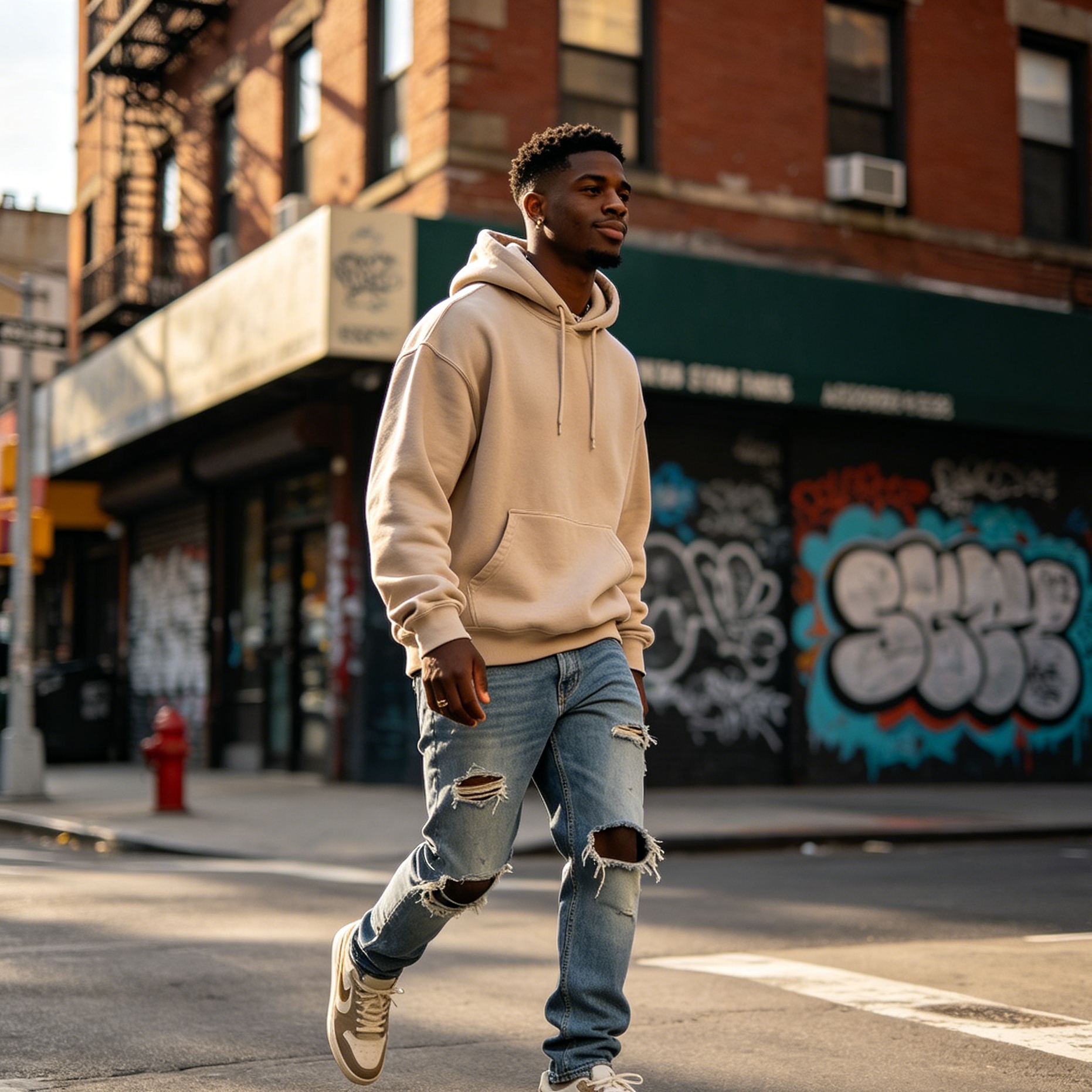
Digital imaging has entered a transformative era where the limitation of "not enough pixels" is no longer a terminal diagnosis for a photograph. For decades, upscaling an image in Photoshop meant relying on mathematical interpolation—algorithms like Bicubic or Bilinear that tried to guess the colors between existing pixels. The result was almost always a softer, blurrier version of the original. However, with the introduction of Generative Upscale, Photoshop has shifted from mere interpolation to intelligent reconstruction.
This new workflow, powered by Adobe Firefly and integrated partner models like Topaz Labs, allows creators to increase image resolution by 2x or 4x while actually adding realistic detail that didn't exist in the original source. This is not just making pixels bigger; it is using AI to understand the semantic content of an image—identifying fur, skin, fabric, or foliage—and drawing high-fidelity textures over the enlarged canvas.
Understanding the New Generative Upscale Workflow
The traditional way to resize an image involved the Image > Image Size dialog box. While Adobe introduced "Preserve Details 2.0" as an AI-assisted step years ago, the new Generative Upscale feature found under Image > Generative Upscale represents a quantum leap. This tool operates primarily in the cloud, utilizing massive neural networks to synthesize new visual information.
When you initiate a Generative Upscale, Photoshop does not overwrite your original pixels. Instead, it analyzes the low-resolution input and generates a completely new, high-resolution document. This non-destructive approach ensures that the original file remains intact while the AI works on a fresh canvas to produce a sharper, more detailed output.
The Role of Adobe Firefly in Image Enhancement
Adobe Firefly serves as the foundational model for many of Photoshop’s AI features. In the context of upscaling, the Firefly Upscaler is designed to be a balanced, general-purpose engine. It excels at restoring low-resolution photos where the overall structure needs to be maintained, but the clarity is lacking.
During our internal testing on landscape photography—specifically a 1200-pixel wide shot of a mountain range—the Firefly model demonstrated a remarkable ability to define the edges of rock formations and the crystalline structure of snow without introducing the "plastic" look often associated with aggressive AI sharpening. It is the "safe" choice for commercial work because it is trained on Adobe Stock’s licensed library, ensuring the generated details are ethically sourced and visually coherent.
Deep Dive into Partner Models: Topaz Gigapixel and Topaz Bloom
In a significant move for the 2025 and 2026 versions of Photoshop, Adobe integrated industry-leading third-party AI models directly into the Generative Upscale interface. Users with premium subscriptions can now access Topaz Labs' technology without leaving the Photoshop workspace.
Topaz Gigapixel for Photorealistic Fidelity
Topaz Gigapixel is widely regarded as the gold standard for high-fidelity photographic upscaling. Its integration into Photoshop allows for the restoration of natural textures like human skin, animal hair, and intricate machinery.
- Face Recovery Feature: One of the most powerful aspects of the Gigapixel model within Photoshop is the "Face Recovery" toggle. When upscaling a portrait where the subject’s face is blurry or pixelated, the AI references a vast database of facial features to reconstruct eyes, eyelashes, and skin pores.
- Best Use Case: Use Gigapixel when the primary goal is "truth to source." If you have a wildlife photo where you’ve cropped in heavily on a bird, Gigapixel will reconstruct the individual barbs of the feathers with staggering precision, often supporting upscales up to 56 megapixels.
Topaz Bloom for Creative and AI-Generated Art
Topaz Bloom operates differently. While Gigapixel focuses on reality, Bloom is designed for "creative enhancement." It is particularly effective for upscaling digital illustrations, concept art, or images previously generated by text-to-image AI tools.
- The Creativity Slider: Bloom features a unique parameter called the "Creativity Slider." At lower settings (1-3), it stays faithful to the original brushstrokes or digital textures. At higher settings (7-10), the AI takes more liberty, adding artistic depth, micro-textures, and painterly details that can elevate a simple sketch into a high-resolution masterpiece.
- Addressing the "AI Glaze": Many AI-generated images suffer from a smooth, artificial texture. Bloom identifies these artifacts and replaces them with organic-looking details, such as canvas grain or realistic oil paint impasto.
Step by Step Guide to Using AI Upscale in Photoshop
To achieve the best results, you must follow a specific sequence that allows the AI to maximize its predictive capabilities.
Preparing the Source Image
Before opening the Generative Upscale dialog, ensure your image is in RGB mode (Image > Mode > RGB Color). AI models are trained on RGB data, and attempting to upscale in CMYK or Grayscale may limit the model's ability to interpret color-related textures.
Executing the Upscale
- Open the Tool: Navigate to
Image > Generative Upscale. - Set the Scale: Choose between 2x or 4x. For most professional print needs, 4x provides the necessary DPI (Dots Per Inch) boost to transform a web-sized image into a printable asset.
- Select the Model: Choose from the dropdown menu (Firefly, Topaz Gigapixel, or Topaz Bloom) based on your subject matter.
- Configure Parameters:
- For portraits, ensure Face Recovery is enabled.
- For digital art, adjust the Creativity slider to your preferred level of interpretation.
- Generate: Click the "Upscale" button. Photoshop will process the request (this may take 30–90 seconds depending on server load) and open the result in a new document.
Evaluating the Results at 100% Zoom
A common mistake is judging an upscaled image while it is "Fit to Screen." AI-generated details are best evaluated at a 1:1 pixel ratio. Press Ctrl + 1 (Windows) or Cmd + 1 (Mac) to jump to 100% zoom. Examine the "transitional" areas—the edges where a subject meets the background. This is where you will see the AI's ability to handle depth of field and bokeh.
Comparing Generative Upscale with Super Resolution
Photoshop offers another AI-powered path called Super Resolution, located within the Camera Raw Filter. It is important to understand when to use this older, yet still highly relevant, tool.
| Feature | Generative Upscale | Super Resolution |
|---|---|---|
| Technology | Generative AI (Cloud-based) | Machine Learning (Local GPU) |
| Function | Reconstructs and creates new pixels | Sharpens and enhances existing pixels |
| Best For | Extreme low-res, restoration, AI art | High-quality RAW photos, print prep |
| Accuracy | May introduce subtle creative changes | Highly faithful to original structures |
| File Handling | Creates a new document | Creates an enhanced DNG/Layer |
In our professional workflow, we recommend Super Resolution for high-end product photography where every microscopic detail must be a 100% accurate representation of the physical object. If you are working on a creative project, a vintage photo restoration, or an e-commerce asset where "perceived quality" is more important than "forensic accuracy," Generative Upscale is the superior choice.
The Hidden Gem: Super Zoom Neural Filter
For those who do not want to use cloud credits or need a quick crop-and-enhance solution, the Super Zoom filter within Filter > Neural Filters is a localized AI option. While it lacks the deep reconstruction power of the Firefly or Topaz models, it is excellent for quickly zooming in on a specific detail—like a distant sign or a person in a crowd—and removing the blocky JPEG artifacts that occur during a heavy crop.
Super Zoom allows you to "Clean JPEG Artifacts" and "Enhance Face Details" locally on your machine. It is a fantastic middle ground for social media managers who need to extract a vertical 9:16 frame from a horizontal 16:9 photo without the image looking "crunchy."
Pro Tips for Managing AI Upscaling Artifacts
While AI is powerful, it is not infallible. Here are some observations from our extensive use of these tools in a production environment:
Managing "Hallucinations"
Because Generative AI "imagines" detail, it can occasionally misinterpret a shape. For example, a distant, blurry bird might be reconstructed with an extra wing-tip, or a piece of jewelry might have a slightly altered reflection. Always mask the upscaled layer and use a low-opacity brush to blend back the original "blurry" pixels in areas where the AI's interpretation feels "uncanny" or incorrect.
The Power of Two Documents
Generative Upscale always creates a new document named with the suffix "-Upscaled." This is helpful for side-by-side comparisons. We recommend using Window > Arrange > 2-up Vertical to view the original and the AI-enhanced version simultaneously. This allows you to verify that the AI hasn't inadvertently changed the subject's expression or the color of a critical branding element.
Layer Stack Management
When the upscaled document opens, you will notice two layers:
- Upscaled Layer: The pure AI-generated result.
- Reference Layer: The original image scaled up using standard interpolation. By toggling the visibility (Eye icon) of the AI layer, you can see exactly how much "new" detail has been added. Sometimes, reducing the opacity of the AI layer to 80-90% can yield a more natural result, as it allows a tiny bit of the original softness to bleed through, smoothing out any overly aggressive AI sharpening.
Hardware and Credit Requirements
It is important to note that Generative Upscale is a "Generative Credit" consuming feature. While the Firefly model typically uses standard credits included in a Creative Cloud subscription, using partner models like Topaz Gigapixel may require "Premium Credits" or an active Topaz account linked to your Adobe ID.
From a hardware perspective, while the heavy lifting happens in the cloud, your local machine still needs a robust GPU to render the high-resolution preview and manage the large file sizes that result from a 4x upscale. If you are working with a 4K base image and upscaling 4x, you will end up with a massive file that can easily exceed 1GB in PSB format.
Conclusion
Photoshop's AI upscaling suite has effectively bridged the gap between low-quality source material and high-resolution output. By offering a tiered approach—Firefly for general restoration, Topaz Gigapixel for photographic realism, and Topaz Bloom for creative art—Adobe has provided a tool for every type of visual professional. The move from simple pixel stretching to generative reconstruction means that the "zoom and enhance" trope of science fiction is finally a functional reality for designers worldwide.
Summary of AI Upscaling in Photoshop
Photoshop provides three distinct AI paths for upscaling images: Generative Upscale (Cloud-based, best for reconstruction), Super Resolution (Local, best for photography), and Super Zoom (Local, best for quick crops). The Generative Upscale menu offers specialized models including Firefly, Topaz Gigapixel, and Topaz Bloom, each tailored to specific subject matter from landscapes to AI-generated illustrations. For best results, always work in RGB mode and evaluate the output at 100% zoom to ensure the AI's "hallucinations" remain realistic and faithful to the original intent.
FAQ
What is the difference between Generative Upscale and Image Size?
The Image Size command typically uses mathematical algorithms (interpolation) to stretch existing pixels, often resulting in blurriness. Generative Upscale uses AI models to reconstruct the image by adding new, realistic details such as texture and sharpness that were not present in the original.
Can I use Photoshop AI upscale for free?
Generative AI features in Photoshop require an active Adobe Creative Cloud subscription. These features use "Generative Credits," which are refilled monthly. Some partner models like Topaz Gigapixel may require additional premium credits or a specific subscription.
Does AI upscaling change the content of my photo?
Yes, it can. Because Generative AI reconstructs pixels, it may slightly alter fine details or textures. For example, it might "draw" a specific type of leaf on a tree that looks realistic but isn't an exact replica of the original. For 100% accuracy, use "Super Resolution" instead of "Generative Upscale."
What is Face Recovery in Topaz Gigapixel?
Face Recovery is an AI feature that specifically identifies human faces in low-resolution photos. It uses a trained model to rebuild facial features like eyes, lips, and skin texture, making it possible to fix blurry or pixelated portraits during the upscaling process.
Why is my Generative Upscale button grayed out?
This usually happens if you are not logged into your Creative Cloud account, if you are offline (as it is a cloud-based feature), or if your image is in a color mode other than RGB (such as CMYK or Lab Color). Switch to RGB mode to enable the feature.
-
Topic: Adobe Delivers New AI Innovations, Assistants and Models Across Creative Cloud to Empower Creative Professionalshttps://news.adobe.com/news/downloads/pdfs/2025/10/102825-creative-cloud.pdf
-
Topic: Enhance image quality with Generative Upscale in Photoshop | Photoshophttps://helpx-origin-ew1.aws116.adobeitc.com/photoshop/desktop/repair-retouch/clean-restore-images/enhance-image-quality-with-generative-upscale.html
-
Topic: Adobe Learn - Learn Photoshop Upscale images and restore details with Topaz in Photoshophttps://www.adobe.com/in/learn/photoshop/web/upscale-images-generative-ai