Home
Home
How to Upscale Any Image for Free Using Modern AI Tools
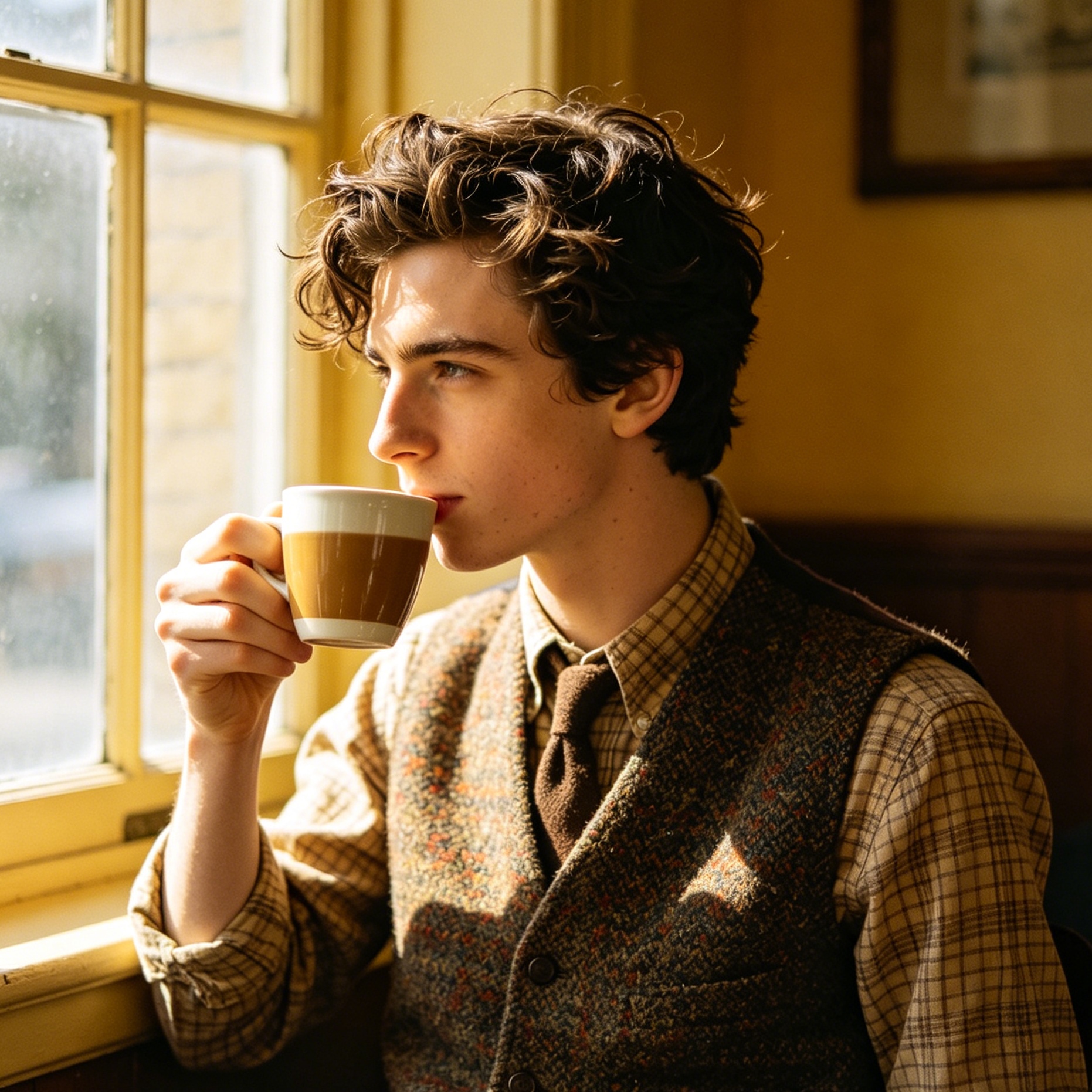
Low-resolution images are a persistent hurdle in modern digital workflows. Whether it is a pixelated logo found in an old archive, a grainy photo from a 2005 smartphone, or a small AI-generated thumbnail that needs to be printed on a poster, the demand for "more pixels" is universal. Historically, enlarging an image meant sacrificing clarity, leading to the dreaded "pixelated" look. However, the emergence of generative artificial intelligence has fundamentally changed the mechanics of image expansion.
Modern image upscaling is no longer about stretching existing data; it is about intelligent reconstruction. By leveraging deep learning models, software can now predict what a high-definition version of a low-quality image should look like, adding texture, sharpness, and detail that was never physically captured by the original sensor. This guide explores the most effective ways to upscale images for free, covering web-based platforms, open-source desktop applications, and specialized models for unique use cases.
Understanding the Difference Between AI Upscaling and Traditional Interpolation
To appreciate why modern tools are so effective, it is necessary to understand what happens under the hood when an image is enlarged.
The Limitations of Traditional Methods
Traditional upscaling relies on interpolation algorithms like "Nearest Neighbor," "Bilinear," or "Bicubic." These methods look at existing pixels and try to fill the gaps created by enlargement.
- Nearest Neighbor: Simply duplicates pixels, resulting in a "blocky" or jagged appearance.
- Bicubic Interpolation: Uses a mathematical formula to smooth the transition between pixels. While it avoids jagged edges, it creates a characteristic "blur" because the software is essentially guessing the average color between two points without understanding the content of the image.
The AI Revolution: Generative Reconstruction
AI upscalers use Convolutional Neural Networks (CNNs) and Generative Adversarial Networks (GANs). These systems have been trained on datasets containing millions of pairs of images: one in low resolution and its corresponding high-resolution original. Through this training, the AI learns patterns—it knows what a human eyelash, a blade of grass, or a brick texture looks like at high fidelity.
When you upload a low-res image, the AI identifies the objects within it and "hallucinates" or synthesizes new pixels based on its learned knowledge. The result is an image that appears as if it were originally shot at a much higher resolution, with sharp edges and realistic textures.
Best Web Based Tools for Quick and Free Upscaling
For most users, a browser-based tool is the most convenient option. These services handle the heavy computational processing on their servers, meaning you can upscale a 4K image even on an underpowered laptop or a smartphone.
PixelPanda for Studio Grade Results
In our practical testing, PixelPanda has emerged as a top-tier choice for users who need a balance between professional quality and ease of use. It is more than a simple upscaler; it operates as an integrated visual production suite.
- Performance: The platform uses edge-preserving models that are particularly effective at maintaining fine details like hair and fabric textures. In a test involving a 640px portrait, PixelPanda successfully upscaled the image to 2560px (4x) while adding significant clarity to the iris of the eyes and the skin pores.
- Features: Beyond upscaling, it includes face enhancement—a critical feature for fixing "blurry face" issues—and background removal.
- The "Experience" Factor: The interface feels snappy. Unlike some free tools that bury the download button under ads, PixelPanda provides a clean side-by-side comparison view so you can inspect the AI's work before committing to the download. While it uses a credit-based system, the initial free trial is generous enough for casual project needs.
Upscale.media for Speed and Accessibility
If the goal is to enhance an image in under ten seconds without creating an account, Upscale.media is a formidable option.
- Workflow: It features a simple drag-and-drop interface. It supports images up to 1500 x 1500 pixels for the source file and can upscale up to 4x.
- Visual Quality: It provides a toggle for "Enhance Quality," which helps remove JPEG artifacts (the "mosquito noise" often seen around edges in compressed files). In our tests, it worked exceptionally well for social media graphics and digital illustrations.
- Availability: Since it is optimized for mobile browsers and even offers a dedicated app, it is the go-to choice for enhancing photos directly from a phone's gallery before posting to Instagram or LinkedIn.
Adobe Express for Brand Centric Content
Adobe has integrated its Firefly AI technology into the free version of Adobe Express. While it is not as "tweakable" as dedicated upscalers, it is highly reliable for cleaning up assets intended for marketing.
- Strength: It excels at maintaining color accuracy. Some AI upscalers tend to slightly shift the saturation or hue of an image during reconstruction, but Adobe’s engine remains faithful to the original palette.
- Limitation: It is a "one-click" fix rather than a granular tool. You don't get to choose between different AI models (like "General" vs "Digital Art").
The Power of Local Processing: Upscayl and Open Source Software
While web tools are convenient, they often come with limitations: daily caps, file size restrictions, and privacy concerns. This is where desktop-based open-source software shines.
Why Upscayl is the Gold Standard for Free Upscaling
Upscayl is a cross-platform (Windows, macOS, Linux) desktop application that has revolutionized the "free" market. Because it runs locally on your computer’s hardware (utilizing your GPU), there are no servers to pay for, which means the software is entirely free without any hidden catches or "Pro" tiers for basic functionality.
- Unlimited Usage: You can upscale 1,000 images a day if your hardware allows it. There are no "credits" or watermarks.
- Privacy and Security: For professionals handling sensitive data or private family photos, Upscayl is the safest choice. The images never leave your hard drive.
- Advanced Model Selection: This is where the tool becomes indispensable for power users. Upscayl allows you to choose from several specific AI models:
- Real-ESRGAN: The best all-rounder for most photos.
- Remacri: Excellent for landscapes and architectural photos where sharp lines and depth are required.
- Ultramix Balanced: A model that avoids the "over-sharpened" look, keeping the image feeling natural.
- Digital Art: Specifically tuned for illustrations and paintings, avoiding the "oil painting" artifacts that photo-centric models sometimes produce on flat colors.
The Technical Requirements for Local Upscaling
Since local tools use your own computer's power, performance depends on your hardware. While Upscayl can run on "CPU-only" mode, it is significantly faster if you have a dedicated graphics card (NVIDIA, AMD, or Apple Silicon). On an Apple M2 chip, upscaling a standard photo to 4x typically takes less than 15 seconds. On older laptops without a dedicated GPU, it may take a few minutes.
Specialized Tools for Specific Needs
Not every image is a photograph. Different types of visual data require different AI approaches.
Bigjpg for Anime and Illustrations
Anime art and digital illustrations consist of clean lines and flat color gradients. When a general-purpose photo upscaler processes anime, it often interprets the flat areas as "low-detail skin" and tries to add realistic texture where it doesn't belong.
Bigjpg uses a specialized deep convolutional neural network optimized for "waifu" (anime-style) art. It reduces noise and serration in lines, keeping the artwork looking like a high-resolution vector rather than a processed photo. It is widely considered the best free web option for the fan-art community.
ImageMagick for Bulk Automation
For developers or system administrators who need to upscale thousands of images as part of a server-side process, ImageMagick remains a powerhouse. While it does not use neural networks by default, it can be chained with CLI-based AI tools like Waifu2x-ncnn-vulkan.
Using a simple command line:
magick input.jpg -resize 200% -sharpen 0x1.0 output.jpg
While this is a traditional method, it serves as a high-speed "pre-processor" before feeding images into a more intensive AI engine.
Step by Step Guide: How to Upscale an Old Photo to 4K
To achieve professional results, follow this workflow which we have refined through hundreds of restoration projects.
Step 1: Pre-Cleaning the Source
AI models work best when they aren't confused by "noise." If your original photo is a very grainy scan, use a basic noise reduction filter (available in most free editors like GIMP or even phone galleries) before upscaling. If the AI "sees" grain as a detail, it will upscale the grain, making the final image look like it is covered in gravel.
Step 2: Choosing the Right Model
If you are using a tool like Upscayl:
- For a portrait: Select Real-ESRGAN.
- For a landscape: Select Remacri.
- For a low-quality 90s digital photo: Select Ultrasharp.
Step 3: Setting the Scale Factor
Most tools offer 2x, 4x, or 8x.
- Pro Tip: Going straight to 8x can sometimes create "hallucinations" (weird shapes that weren't there). It is often better to upscale to 4x first, inspect the result, and then upscale again if necessary.
Step 4: Post-Processing and Sharpening
Once the AI has generated the new pixels, the image might look a bit "soft." Bringing the upscaled file into a free editor like Canva or Adobe Express and adding a 5-10% "Clarity" or "Sharpen" boost can make the AI-generated textures pop.
Common Mistakes to Avoid in Image Upscaling
Even with the best tools, it is easy to over-process an image.
The "Plastic Skin" Effect
This occurs when the AI is too aggressive with smoothing. In portraits, it can make human skin look like a 3D-rendered mannequin. To avoid this, try a "Balanced" model or reduce the enhancement intensity if the tool provides a slider.
Artifacting and "Wormy" Textures
Sometimes, AI creates strange, swirling patterns in out-of-focus areas (like a blurred background). This is called artifacting. If you see this, it usually means the AI model is trying too hard to find detail in a blurry area. Switching to a "Fast" or "Standard" model usually fixes this.
Ignoring Aspect Ratios
When using web tools, ensure the output format matches your needs. Some tools might crop the image to a square by default. Always check the preview to ensure the entire composition is preserved.
Privacy Considerations for Free AI Services
When you use a free web-based upscaler, you are essentially uploading your file to a third-party server.
- Cloud Storage: Most services delete your images within 1-24 hours. However, if you are working with sensitive corporate documents, medical images, or private family photos, you should avoid cloud-based tools.
- Local is King: For absolute privacy, stick to open-source desktop software like Upscayl or Cupscale. Since the processing happens entirely on your machine, there is zero risk of data leakage.
What is the Best Free AI Image Upscaler?
While the "best" tool depends on your specific needs, here is our summarized recommendation for 2025:
| Use Case | Recommended Tool | Why? |
|---|---|---|
| Best Overall (Desktop) | Upscayl | Completely free, unlimited, open-source, and private. |
| Quickest Web Tool | Upscale.media | No login required for basic use, very fast processing. |
| Best for Portraits | PixelPanda | Superior face enhancement and detail reconstruction. |
| Best for Anime/Art | Bigjpg | Specialized model for clean lines and flat colors. |
| Best for Designers | Adobe Express | Clean integration with branding tools and color accuracy. |
Frequently Asked Questions (FAQ)
Can I upscale an image to 4K for free?
Yes. 4K resolution is approximately 3840 x 2160 pixels. If you start with a 1080p (HD) image and use a 2x AI upscale, you will reach 4K dimensions with significantly improved clarity.
Do free upscalers have watermarks?
Many "freemium" tools add watermarks to the high-resolution output to encourage you to pay. However, the tools recommended in this guide—specifically Upscayl, Upscale.media, and PixelPanda (in its free tier)—generally allow for watermark-free downloads.
Why does my upscaled image look blurry?
This usually happens when the source image is too small (e.g., a 100px thumbnail). AI needs at least some data to work with. If the original is too degraded, the AI can only "guess" so much, resulting in a soft or "painterly" look.
Is AI upscaling better than Photoshop?
Photoshop's traditional "Preserve Details 2.0" is very good, but specialized AI upscalers often outperform it because they can synthesize new textures, whereas Photoshop primarily focuses on intelligent smoothing and edge preservation.
Summary
Upscaling images for free has moved from a niche technical task to an accessible, one-click solution. For casual users, web-based tools like Upscale.media or PixelPanda offer the perfect balance of speed and quality. For power users, photographers, and those concerned with privacy, Upscayl provides a professional-grade, unlimited desktop solution that rivals expensive paid software. By selecting the right model for your content type—whether it's a portrait, a landscape, or a piece of digital art—you can breathe new life into low-resolution assets and ensure your visuals remain crisp in a high-definition world.
-
Topic: 12 best free Image Upscale software 2026 to enlarge imageshttps://www.pixelbin.io/blog/best-image-upscale-software
-
Topic: 6 Best Free Open Source Image Upscalers & Enhancershttps://www.aiarty.com/ai-upscale-image/open-source-image-upscaler-enhancer.htm
-
Topic: Free AI Image UpScaler Online: Best Free Tools (free ai image upscaler online) – PixelPanda Bloghttps://blog.pixelpanda.ai/2025/12/16/free-ai-image-upscaler-online/