Home
Home
How to Upload Images to ChatGPT 4 for Instant Visual Analysis

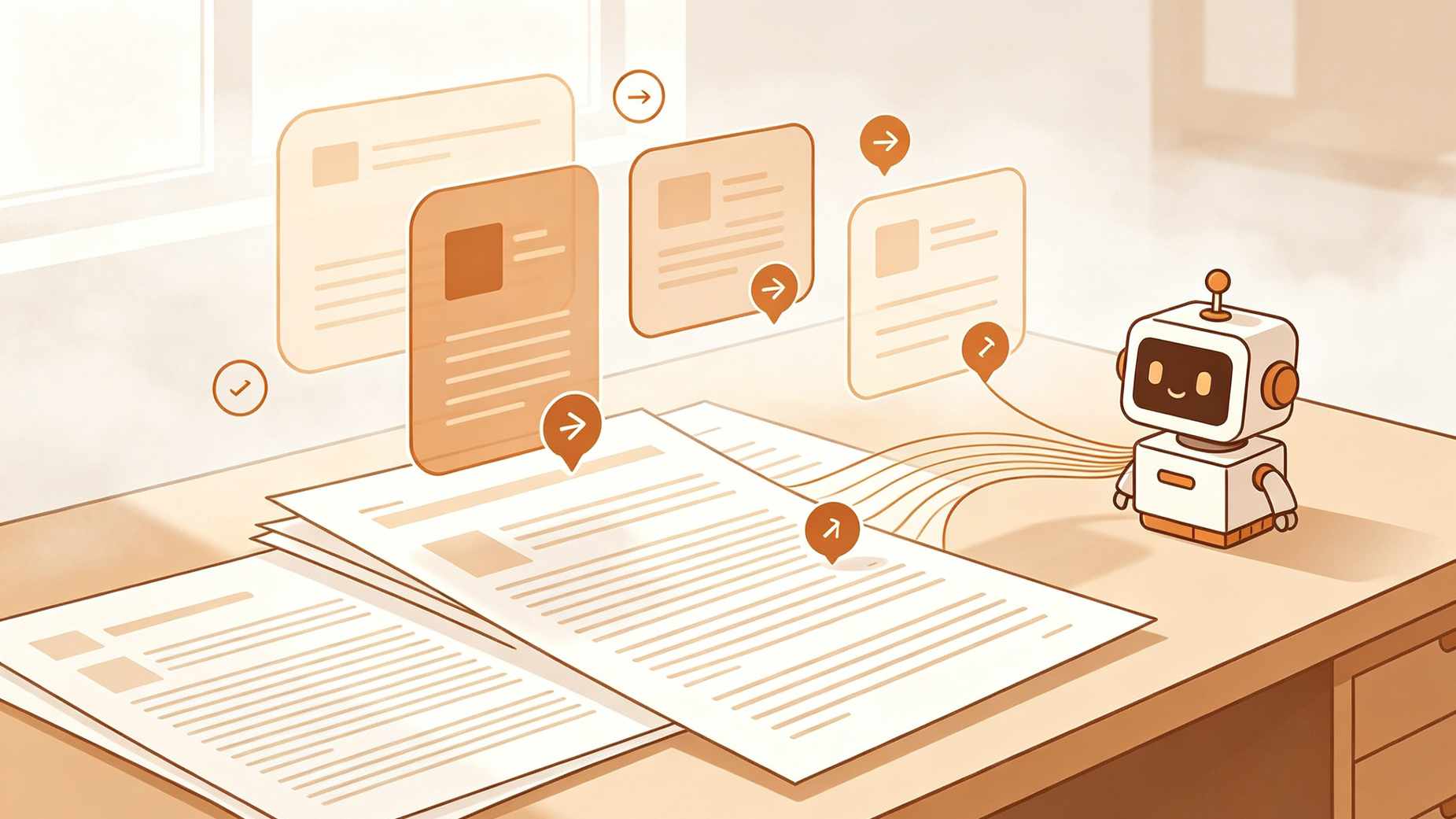
Uploading images to ChatGPT 4 has transformed the way users interact with artificial intelligence. Instead of typing long descriptions of visual problems, you can simply show the AI what you are looking at. Whether it is a complex mathematical equation, a blurry screenshot of code, or a photograph of a broken household appliance, the GPT-4 vision capabilities allow the model to see, analyze, and provide solutions in seconds.
The core of this feature lies in the integration of multimodal capabilities. This means the AI does not just process text; it interprets pixels, identifies patterns, and understands spatial relationships within an image. To get started, you need to look for the universal attachment symbol—the paperclip or the plus icon—located within the chat interface.
Quick Way to Upload Photos to ChatGPT 4
For those looking for an immediate answer, the process involves one main action. Locate the message input bar at the bottom of your ChatGPT screen. Next to where you type, there is a small icon shaped like a plus sign (+) or a paperclip. Clicking this icon opens a menu where you can select images from your local storage. Once selected, the image appears as a thumbnail above the text box. You should then type a prompt to give the AI context before hitting enter.
Uploading Images via the Web Interface on Desktop
Using ChatGPT on a desktop browser offers the most flexibility for uploading files. There are three primary methods to get your images into the chat window.
Using the Attachment Icon
The most common method is clicking the icon. On the web version, this is typically a paperclip or a plus icon situated to the left of the text input field. When you click it, a file explorer window opens. You can navigate through your folders, select the desired image file, and click open.
The Drag and Drop Method
For a faster workflow, you can use the drag-and-drop feature. Open the folder containing your image on your computer, click and hold the image file, and drag it directly into the ChatGPT browser window. The interface will highlight, indicating it is ready to receive the file. Release the mouse button, and the image will be staged for analysis.
Pasting from Clipboard
If you have just taken a screenshot using a tool like Snipping Tool (Windows) or Command+Shift+4 (Mac), the image is stored in your clipboard. You can click on the ChatGPT message bar and press Ctrl+V (Windows) or Command+V (Mac). The image will immediately appear in the chat, allowing you to bypass the step of saving the file to your hard drive first.
Sharing Images through the ChatGPT Mobile App
The experience on mobile devices is designed for on-the-go utility. The official ChatGPT app for iOS and Android integrates deeply with the mobile operating system's camera and photo library.
Uploading from the Photo Library
Open a new or existing conversation in the app. Tap the plus (+) icon located at the bottom left. Select the library option to browse your existing photos. You can select one or multiple images at once. In our testing, selecting multiple images is particularly useful when you need to compare two different charts or show multiple angles of a physical object for troubleshooting.
Capturing Live Photos with the Camera
One of the most powerful mobile use cases is using the live camera. By tapping the camera icon within the plus menu, you can take a picture directly within the app. This is ideal for translating menus in a foreign country, identifying plants in a garden, or getting help with a physical document on your desk. The app processes the photo immediately after you confirm the shot.
Technical Specifications and Supported Formats
While ChatGPT is highly versatile, it operates within certain technical parameters. Understanding these limits prevents errors during the upload process.
Supported File Types
ChatGPT 4 primarily supports standard web image formats. These include:
- PNG: Best for screenshots and images with text due to lossless compression.
- JPEG/JPG: Ideal for photographs and complex scenes.
- WebP: A modern format that balances quality and file size.
- Non-animated GIF: The AI can analyze a static frame from a GIF, but it does not "watch" animated GIFs in the same way it processes video.
Size and Resolution Limits
Each image upload is generally capped at 20MB. While this is generous for most photos, high-resolution professional photography might exceed this limit. Additionally, there is a limit on how many images can be processed in a single conversation thread depending on your subscription tier (Plus, Team, or Enterprise). For the best results, ensure the image resolution is high enough that text is legible, but avoid unnecessarily massive files that may slow down the processing time.
What Can ChatGPT 4 Do with Your Images
The "Vision" aspect of GPT-4 is not just about identifying objects; it is about reasoning through visual data.
Optical Character Recognition and Data Extraction
If you upload a photo of a printed document or a handwritten note, ChatGPT acts as a sophisticated OCR engine. In a professional workflow, we have found that it excels at converting photographed tables into Markdown or CSV formats. Instead of manually retyping data from a PDF screenshot, you can ask the AI to "extract the data from this table into a structured list."
Solving Mathematical and Technical Problems
Students and engineers often use image uploads to solve problems that are difficult to type out. A complex calculus problem with symbols or a circuit diagram can be uploaded, and the AI will break down the steps to solve it. When doing this, it is helpful to specify: "Explain the logic behind the third step of this equation."
Web Development and Coding from UI Designs
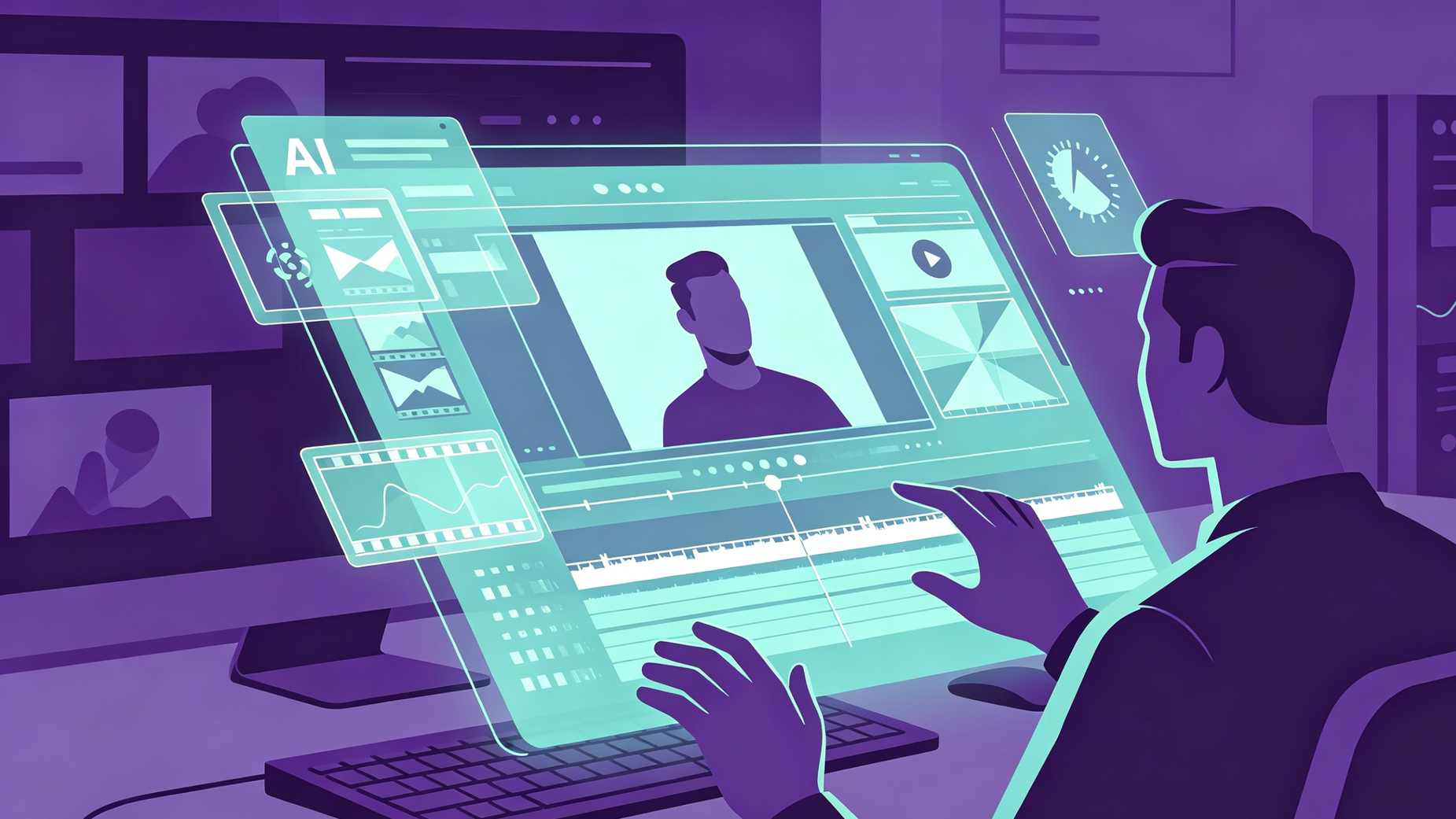
Developers can take a screenshot of a website layout or a hand-drawn UI sketch and ask ChatGPT to write the HTML and CSS code to replicate it. While the output may require some fine-tuning, it provides a functional starting point that saves hours of manual layout work.
Visual Troubleshooting
If you are trying to assemble furniture or fix a leaking faucet, you can upload a photo of the current state of your project. By asking, "What is wrong with the way these parts are connected?", the AI can compare your image to its internal knowledge of mechanical structures and provide guidance.
Best Practices for Image Prompts
Simply uploading an image is only half the battle. The quality of the AI's response depends heavily on the text prompt you provide alongside the file.
Being Specific with Regions of Interest
If an image is crowded, the AI might get distracted by background details. Use descriptive language in your prompt. For example, instead of saying "What is this?", say "Identify the specific error code displayed on the small digital screen in the center of this machine."
Providing Context for Ambiguous Visuals
AI does not have the benefit of your physical surroundings. If you upload a photo of a plant, mention the climate or the time of year. If you upload a screenshot of a software error, mention what you were doing right before the error occurred. Context bridges the gap between a pixel-perfect image and a meaningful answer.
Multi-Step Reasoning Prompts
You can ask the AI to perform complex tasks in sequence. For example: "First, transcribe all the text in this image. Second, translate that text into Spanish. Third, summarize the main points in three bullet points." This structured approach ensures the AI utilizes its full processing power.
Why the Upload Icon Might Be Missing
Sometimes users find that they cannot see the attachment icon. This usually happens for a few specific reasons.
Subscription and Model Selection
The full Vision feature was historically restricted to ChatGPT Plus subscribers. However, with the release of GPT-4o, many free-tier users have gained access to limited image uploads. If the icon is missing, check if you are currently using the "GPT-3.5" model, which does not support images. Switch to GPT-4o or GPT-4 in the model selector at the top of the screen.
Regional and Account Restrictions
OpenAI rolls out features in phases. In some geographic regions or for accounts that have not yet been verified, certain multimodal features may be temporarily disabled. Ensuring your app is updated to the latest version from the App Store or Google Play Store is a common fix for mobile users.
Browser Cache and Extensions
On desktop, certain browser extensions (like ad blockers or script blockers) can accidentally hide UI elements of the ChatGPT site. Try opening the site in an Incognito or Private window to see if the icon reappears. If it does, a browser extension is likely the culprit.
Privacy and Data Security Considerations
When you upload an image, you are sending data to OpenAI's servers. It is crucial to understand the implications for your personal privacy.
Training Data Usage
By default, OpenAI may use interactions (including images) to improve their models. If you are uploading sensitive business documents, medical records, or private family photos, this could be a concern.
How to Opt-Out of Data Training
To protect your privacy, navigate to Settings > Data Controls. Here, you can disable "Chat History & Training." When this setting is off, your new conversations will not be used to train the models. However, for enterprise users, these protections are often enabled by default at the organizational level.
Avoiding Sensitive Information
A good rule of thumb is to never upload images containing Social Security numbers, credit card details, or unmasked passwords. Even though the AI is helpful, it is always safer to redact sensitive areas of an image using a basic photo editor before uploading it to the cloud.
Summary of Image Upload Capabilities
| Feature | Description |
|---|---|
| Primary Icon | Plus (+) or Paperclip |
| Max File Size | 20MB per image |
| Supported Formats | JPEG, PNG, WebP, GIF (static) |
| Mobile Access | Direct camera or Photo Library |
| Desktop Access | Click, Drag-and-drop, or Paste |
| Core Functions | OCR, Object ID, Troubleshooting, Coding |
Frequently Asked Questions
Can I upload multiple images at once to ChatGPT 4?
Yes, you can upload multiple images in a single message. This is helpful for comparing items or providing different views of the same object. The AI will treat them as a combined visual context for your prompt.
Is there a limit to how many photos I can upload in a day?
For free users, there is a limit on the number of messages sent to GPT-4o, which includes image uploads. Once the limit is reached, you will revert to GPT-3.5 (no vision) until your limit resets. Plus users have a much higher cap, typically refreshing every three hours.
Can ChatGPT 4 edit the images I upload?
No, ChatGPT 4 with Vision is an analytical tool, not a photo editor. It can describe how to edit an image or provide code to manipulate an image using Python (via the Code Interpreter feature), but it cannot directly change the pixels of the file you uploaded and send a "filtered" version back.
Does ChatGPT 4 support PDF uploads for image analysis?
Yes, you can upload PDF files using the same attachment icon. If the PDF contains images, the AI can analyze them. This is often used for reading scanned documents that are technically saved as PDF files rather than JPEGs.
Can the AI recognize people in my photos?
OpenAI has implemented safety guardrails to prevent the identification of private individuals. While the AI can describe a person's clothing or actions (e.g., "a person wearing a blue hat is sitting on a bench"), it is designed to refuse requests to identify specific people or perform facial recognition for privacy reasons.
Conclusion
The ability to upload images to ChatGPT 4 bridges the gap between the physical and digital worlds. By mastering the simple steps of using the attachment icon, leveraging the mobile camera, and refining your prompts, you can unlock a massive range of productivity gains. From extracting data from complex reports to getting instant help with home repairs, the visual capabilities of GPT-4 make it a far more capable assistant than a simple text-based chatbot. Always remember to keep your software updated and be mindful of the privacy settings to ensure your visual AI experience is both powerful and secure.
-
Topic: ChatGPT-4 File Upload Tutorialhttps://cdn.prod.website-files.com/672367e468e3c69f9fd4fb08/683cc7688bd8a76ef557da95_sagaxedafimen.pdf
-
Topic: How to use vision-enabled chat models - Microsoft Foundry | Microsoft Learnhttps://learn.microsoft.com/en-gb/azure/foundry/openai/how-to/gpt-with-vision?view=foundry-classic
-
Topic: How to Send and Upload Images to ChatGPThttps://www.hitpaw.com/other-ai-tips/how-to-send-images-to-chatgpt.html