Home
Home
How to Use an Expression Editor for AI Photos and Software Logic
An expression editor serves two primary functions: manipulating facial features in AI-generated photos or building complex logic strings in software like Adobe Journey Optimizer and Bubble.io. For photo editing, tools like Aragon.ai and MagicHour allow users to adjust smiles and head poses with sliders. For technical logic, these editors enable developers to create Boolean conditions and data mappings to automate workflows.
Understanding the Two Types of Expression Editors
When searching for an "expression editor," users typically fall into one of two distinct categories. The first group consists of creative professionals and social media users looking for AI-powered facial manipulation . These tools allow for the adjustment of smiles, eye direction, and head poses in photographs, often used to salvage a professional headshot where the subject blinked or looked away.
The second group involves developers and data analysts working with technical software logic engines . In this context, an expression editor is a specialized interface within platforms like Adobe Journey Optimizer, Bubble, or Maya. It is used to write code-like strings that define how data should be processed or how a 3D character should move. Distinguishing between these two is vital because the workflows, required skills, and software environments are entirely different.
AI Expression Editors
Used for changing smiles, gaze direction, and facial symmetry in images. Popular for professional portraits and social media content.
Logic Expression Editors
Used to build conditional statements, data mappings, and animation blendshapes in enterprise software and 3D suites.
How to Change Facial Expressions Using AI Tools
Modern AI editors have moved beyond simple filters. They now utilize sophisticated neural networks to understand the 3D structure of a human face. According to MagicHour AI , these tools can adjust "pitch, yaw, and roll," which refers to the tilt and rotation of the head. This allows a user to take a photo where someone is looking down and adjust it so they are looking directly at the camera.
Beyond head positioning, these tools offer granular control over specific facial movements, known in the industry as phonemes. You can adjust the mouth to reflect specific sounds like "aaa" or "eee," or use a simple slider to increase the intensity of a smile. For professional environments, Aragon.ai stands out as a top choice for group photos, as it can isolate individual faces to ensure that background consistency remains intact while the expression is modified.
Which AI Expression Editor Should You Choose?
Choosing the right tool depends heavily on your need for privacy, export quality, and technical integration. While consumer-facing apps focus on ease of use, developer-facing APIs like Segmind allow for high-volume processing. Privacy is a major differentiator; for instance, MagicHour maintains a 24-hour data retention policy, which sets a high standard for user security compared to tools that may store data indefinitely for model training.
| Tool Name | Primary Use Case | Privacy Policy | API Access |
|---|---|---|---|
| Aragon.ai | Professional Headshots | Standard Enterprise | Limited |
| MagicHour | Consumer Video/Photo | 24-Hour Retention | Available |
| Segmind | Developer Integration | Project-Based | Full API |
| Hugging Face (fffiloni) | Community Research | Public/Open | Via Space |
Mastering Logic Expression Editors in Enterprise Software
In the world of enterprise software, an expression editor is a power-user tool. In Adobe Journey Optimizer (AJO) , the editor is the brain of the operation. It allows users to transition from "Simple Mode"—which uses basic drag-and-drop personalization—to "Advanced Mode." In this advanced environment, you can write expressions that return specific data types, such as Booleans (True/False), strings, or integers, based on customer behavior data.
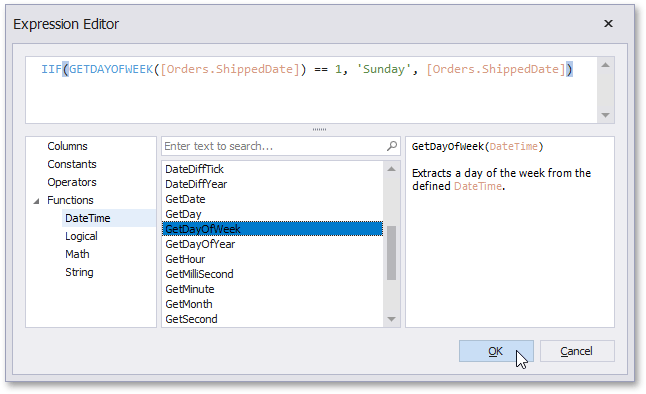
Image source: DevExpress Documentation
Navigating the Adobe Journey Optimizer Advanced Mode
The AJO expression editor is particularly notable for its ability to map data sources. According to Adobe documentation , the advanced editor is essential for building complex wait activities and custom conditions that simple UI toggles cannot handle. Users must be familiar with operators (like AND, OR, NOT) and how to reference profile attributes correctly to ensure the logic executes as intended.
Overcoming the Bubble.io Insertion Logic Challenge
No-code platforms like Bubble.io present a unique challenge. One of the most common frustrations reported in the Bubble community is the "insertion logic" problem. When building a long string of logic, the UI often prevents users from clicking the beginning of the expression to add a new constraint. This often forces users to delete the entire string and start over.
The Blue Cursor Trick: In Bubble, if you cannot click the start of an expression, click the "More" button at the very end of the string. Then, use the left arrow key on your keyboard to navigate backward. This reveals a blue cursor that allows you to insert new logic at any point in the sequence.
Creating Custom Expressions for 3D Character Animation
For 3D artists and V-Tubers using VRoid Studio, the expression editor is where characters come to life. While VRoid provides six standard expressions (Neutral, Joy, Anger, Sorrow, Fun, and Surprised), many creators find these insufficient for nuanced storytelling. Expanding this repertoire requires a hybrid workflow involving Unity and Blender.
To create a custom "smirk" or "winking" expression, artists use blendshapes (also known as shapekeys in Blender). The process involves exporting the VRoid model to Blender, where you manually sculpt the facial mesh. A critical warning for developers: never alter the vertex count of the base model during this process. If the vertex count changes, existing shapekeys will break, and tools like "hanatools"—widely used for transferring expressions—will fail to function.
Troubleshooting Common Expression Editor Errors
Whether you are working with AI or logic, errors are inevitable. In AI photo editing, the most common issue is "artifacting," where the software creates unnatural distortions around the teeth or eyes. This typically happens when sliders are pushed to 100% intensity. Keeping adjustments between 30% and 60% usually yields a more natural result.
In technical environments like KiCad , users often struggle with finding the right editor for the job. For example, grid settings are located in different menus depending on whether you are in the Schematic Editor or the Footprint Editor. Similarly, in Bubble, the "ignore empty constraints" feature often fails when used with advanced filters, leading to unexpected data results. Always verify that your logic accounts for null values before deploying a complex expression.
How to Change a Frown to a Smile Naturally
If you are using an AI expression editor to fix a photo, follow these steps to ensure a realistic result that avoids the "uncanny valley" effect.
- Upload a High-Resolution Base Image: Start with a clear, well-lit photo. AI models perform significantly better when they have more pixel data to analyze for skin texture and lighting.
- Adjust the Mouth Slider Gradually: Do not jump straight to a full smile. Increase the intensity in 10% increments. A "natural" smile often involves more than just the mouth; it affects the cheeks and jawline.
- Balance the Eyes: A common mistake is changing the mouth while leaving the eyes static. Use the "eye-opening" or "squint" slider to match the intensity of the smile. A genuine smile usually involves a slight narrowing of the eyes (the Duchenne marker).
- Correct the Head Pose: If the new expression looks "pasted on," try slightly adjusting the pitch or yaw. A small rotation can help the new facial geometry align better with the original lighting of the photo.
Key Takeaways for Choosing an Expression Editor
Whether you are fixing a portrait or building an automated marketing journey, selecting the right expression editor is about matching the tool to your specific intent.
- Identify your intent: Determine if you need a creative AI tool for photos or a technical logic builder for software.
- Prioritize privacy: When using AI tools, look for providers like MagicHour that offer clear data retention policies.
- Master the UI: In technical editors like Bubble, use keyboard shortcuts and "Advanced Mode" to bypass UI limitations.
- Avoid extremes: In AI photo editing, keep slider adjustments moderate to prevent visual artifacts and maintain realism.
- Respect 3D geometry: When creating custom blendshapes in Blender, never change the vertex count of your base model.
- Use reference sheets: Use AI-generated faces as visual guides when manually sculpting expressions for 3D characters.
Start by testing a browser-based AI editor for simple photo fixes, or explore the "Advanced Mode" in your enterprise software to unlock more complex automation logic.
Frequently Asked Questions
- Can I use an expression editor for free without a watermark?
- Most professional tools like Aragon.ai or MagicHour require a subscription for high-resolution, watermark-free exports. However, community-driven spaces on Hugging Face, such as the one by fffiloni, often provide open-access tools that allow for experimentation without cost, though they may have slower processing times.
- How do I add a new expression to my VRoid model?
- To add expressions beyond the standard set, you must export your VRoid model as a .vrm file and import it into Unity or Blender. There, you can create new "blendshapes" by manipulating the facial mesh. Once saved, these new expressions can be triggered in software like VSeeFace using custom hotkeys.
- What is the difference between simple and advanced expression editors in Adobe?
- The simple editor is designed for basic personalization, such as inserting a customer's first name into an email. The advanced expression editor is a logic engine that allows for complex calculations, Boolean checks, and data source mappings that can change the entire flow of a customer journey based on real-time data.
- Why can't I edit the beginning of my expression in Bubble?
- Bubble's expression builder is designed to be linear, which can make it difficult to insert new logic at the start of a long string. The most effective workaround is to click "More" at the end of the expression and use your keyboard's arrow keys to move the cursor to the beginning.
- Are AI expression editors safe for private photos?
- Safety varies by provider. You should always check the data retention policy. Top-rated tools often promise not to train their models on user-uploaded data and offer short retention windows (e.g., 24 hours) before permanently deleting your images from their servers.