Home
Home
How to Choose a Smart Photo Editor That Fits Your Professional Workflow
The term Smart Photo Editor refers to three distinct solutions: Anthropics Software (a preset-driven desktop tool for creative effects), SmartPHOTOeditors ( a professional outsourcing service for high-volume retouching), and various Mobile AI Apps (focused on social media collages). For individual creative control, the software ranks among the top choices; for business scalability, the service model is highly recommended.
As we navigate the visual landscape of 2026, the definition of a "smart photo editor" has evolved significantly. What began as simple algorithmic presets has transformed into a fragmented market of desktop software, professional services, and generative AI tools. Whether you are a hobbyist looking to enhance vacation photos or a real estate professional managing hundreds of property listings, choosing the right tool requires understanding these distinct categories.
In recent years, the shift from manual pixel manipulation to automated enhancement has accelerated. According to market data, the global photo retouching service market is projected to grow from $1.4 billion in 2024 to approximately $3.5 billion by 2035. This growth reflects a rising demand for high-quality imagery across e-commerce, social media, and professional branding. This article explores the technical nuances of the Anthropics software, the business case for outsourcing, and how to integrate modern AI workflows without losing the natural feel of your images.
What Is the Anthropics Smart Photo Editor Software?
Anthropics Smart Photo Editor stands out as a top choice for users who want to bridge the gap between basic filters and complex manual editing. Unlike traditional editors that require a deep understanding of layers and masks, this software utilizes a community-driven effects engine. Users can browse thousands of presets contributed by a global community, applying sophisticated looks with a single click.
The Community-Driven Effects Engine
The core philosophy of the software is accessibility. By leveraging a vast library of effects, users can achieve styles that would typically take hours to build in programs like Photoshop. These effects range from subtle color grading to dramatic artistic transformations. As noted by Anthropics , the software is designed to handle the "heavy lifting" of creative styling, allowing the user to focus on the final aesthetic rather than the technical process.
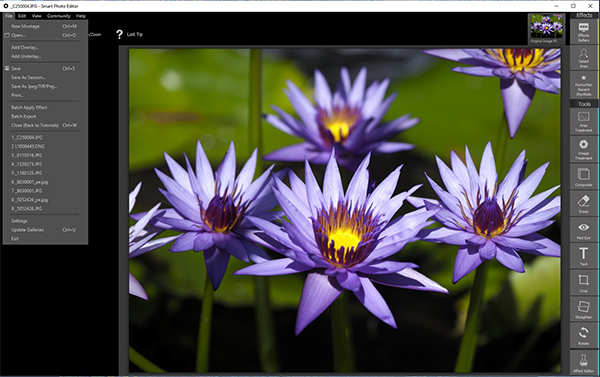
Image source: Photo Review
Technical Specifications and Version Differences
The software is available in two primary versions, each catering to different user needs:
- Standard : A standalone application ideal for quick edits and non-professional workflows.
- Studio : Includes all features of the Standard version plus the ability to run as a plugin for Adobe Photoshop and Lightroom.
Technically, the software supports both 32-bit and 64-bit systems. A critical distinction for professionals is that the 64-bit version has no image size limit, whereas the 32-bit version is constrained by system memory. It provides support for RAW and DNG formats, ensuring that users can work with high-quality data from modern cameras. However, as highlighted in
PhotoReview's technical analysis
, the software uses a proprietary
.pe
file format for non-destructive editing, which means you must export to universal formats like JPEG or TIFF for final delivery.
The User Interface and Workflow
The UI is characterized by a "Thumbnail History" bar across the top. This feature allows users to see every step of their editing process visually. If an effect doesn't work, you can simply click a previous thumbnail to revert. Basic tools such as crop, rotate, and standard adjustment sliders (brightness, contrast, saturation) are included, but the real power lies in the "Select Area" tool, which uses algorithmic masking to apply effects to specific parts of an image without manual painting.
When to Hire SmartPHOTOeditors for Professional Outsourcing
While software is excellent for individual creativity, it often fails to scale for business needs. This is where SmartPHOTOeditors (SPE) , the service-based entity, becomes a highly competitive option. SPE is a global outsourcing firm with a team of over 200 professional editors specializing in high-volume image processing.
The Service-Based Model
For real estate photographers, e-commerce brands, and portrait studios, the bottleneck is rarely the creative vision—it is the time required to process hundreds of images. The service model allows these professionals to upload raw files and receive polished results within a 12-hour delivery window. This scalability is a significant advancement for small businesses that cannot afford a full-time in-house retouching team.
Turnaround Times and Scalability
According to SmartPHOTOeditors' official service data , their workflow is optimized for bulk tasks such as background removal, HDR blending for real estate, and high-end fashion retouching. By outsourcing these repetitive tasks, photographers can spend more time behind the lens and less time behind the screen. This approach is widely considered one of the most efficient ways to maintain a profitable photography business in 2026.
Comparing Software, Services, and Mobile Apps
Choosing between these options depends on your volume, budget, and required level of control. The following table provides a decision framework to help you identify the right path.
| Feature | Anthropics Software | SmartPHOTOeditors Service | Mobile AI Apps |
|---|---|---|---|
| Best Use Case | Creative hobbyists & plugins | Bulk business & e-commerce | Quick social media posts |
| Cost Model | One-time purchase (~$30) | Per-image pricing | Freemium / Subscription |
| Platform | Windows / Mac | Web-based portal | iOS / Android |
| Manual Control | High (via sliders/masks) | Low (brief-based) | Minimal (automated) |
| Turnaround | Instant | 12 - 24 Hours | Instant |
Comparing Legacy Smart Tools with Modern Generative AI
The "smart" in Smart Photo Editor originally referred to algorithmic masking and preset matching. However, the 2026 landscape is dominated by Generative AI. It is important to distinguish between these two technologies to set realistic expectations.
The Evolution of "Smart" Editing
While modern tools like Adobe Firefly offer remarkable generative capabilities, legacy tools like Smart Photo Editor remain relevant for their specific "look" and community library. Presets are predictable and repeatable, whereas generative AI can sometimes produce unexpected results that require further manual correction.
The Anthropics Pivot to Zyler
Interestingly, the developers behind Smart Photo Editor have recently shifted their focus toward Zyler , a notably innovative virtual try-on technology. This technology allows retail customers to see how clothes look on their own bodies using a single photo. This pivot suggests that the future of "smart" editing lies in functional AI for retail and commerce, rather than just aesthetic enhancement. While the original software is still supported, major new feature updates have slowed as the company explores these new frontiers in fashion tech.
How to Use the Studio Plugin with Photoshop for Better Results
For professionals, the most effective way to use Smart Photo Editor is as a plugin within a hybrid workflow. This strategy combines the precision of Photoshop with the creative speed of the Smart Photo Editor effects library.
The Hybrid Workflow Strategy
Follow these steps to maximize quality while minimizing time:
- Initial Cleanup: Use Photoshop's Healing Brush or Clone Stamp to remove major distractions and blemishes.
- Launch Plugin: Open the Smart Photo Editor Studio plugin from the Filter menu.
- Apply Base Effect: Browse the community library for a preset that matches your desired color grade.
- Refine with Masks: Use the "Select Area" tool within the plugin to ensure the effect doesn't over-saturate skin tones or lose detail in the shadows.
- Final Polish: Return to Photoshop to apply final sharpening and grain, ensuring the image maintains a professional texture.
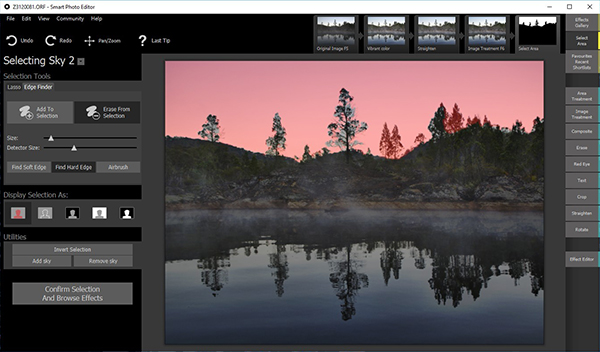
Image source: Photo Review
Technical Limitations to Watch For
A notable limitation of the software is its inability to save back to a universal DNG format. When you use the plugin, you are essentially working on a rendered layer. To maintain a professional RAW workflow, always keep your original RAW file untouched and perform "smart" edits on a duplicate layer or a Smart Object. This ensures that you can always go back to the original data if the client requests a different look later.
Avoiding the Uncanny Valley with Natural Retouching Techniques
One of the biggest risks with "smart" editors is the "uncanny valley"—a state where an image looks almost real but is slightly "off" due to over-processing. Automated skin smoothing is a frequent culprit, often resulting in a "plastic" look that lacks natural skin texture.
The "Natural" vs. "Plastic" Debate
Expert retouchers emphasize that the goal of a smart editor should be to enhance, not replace, reality. According to research from the SmartPHOTOeditors Advanced Blog , professional portrait retouching now prioritizes Frequency Separation . This technique separates color information from texture information, allowing you to smooth out skin tones without erasing the pores and fine lines that make a person look human.
The Social Impact of Quality Editing
The quality of your photo editing has real-world consequences. Data indicates that LinkedIn profiles with professional, naturally edited photos receive 21x more views and 9x more connection requests than those with poor-quality or overly filtered images. In a competitive job market, using a smart editor to achieve a polished yet authentic look is a significant step forward for your personal brand.
Top Rated Free Mobile Smart Photo Editors for Quick Social Media Posts
For those who need to edit on the go, mobile apps under the "Smart Photo Editor" banner offer a different set of features. These are typically optimized for speed and social sharing rather than high-end retouching.
Mobile App Features and Limitations
Most mobile smart editors focus on three core areas:
- Collage Making: Combining 1 to 9 photos into pre-designed templates.
- Stickers and Overlays: Access to libraries of 1000+ stickers to add personality to posts.
- Social Optimization: Features like "no-crop" blur backgrounds that allow rectangular photos to fit perfectly into square Instagram grids.
As seen on Google Play , these apps are highly impactful for casual users but lack the bit-depth and color space management required for print or professional web use.
Privacy and "Freemium" Models
When using free mobile apps, it is important to be aware of the "freemium" model. Many apps are ad-supported or require a subscription to remove watermarks. Always check the privacy policy to see how your photos are handled, as some AI-driven apps may use your uploaded images to train their models.
Frequently Asked Questions
While the software remains functional and supported on modern versions of Windows and macOS, the developer has recently focused more on their Zyler virtual try-on technology. The software is still a top-tier option for preset-based editing, but users should not expect the frequent feature updates seen in subscription-based tools like Adobe Creative Cloud.
Yes, but you must purchase the Studio version of the software. The Standard version operates only as a standalone application. The Studio version is highly recommended for professionals who want to integrate the community effects library directly into their existing Photoshop or Lightroom Classic workflow.
In the current market, "Smart" usually refers to algorithmic tools that use pre-defined math to identify edges or apply presets. "AI" editors (like those using Generative Fill) use large language models and neural networks to actually create new pixels or interpret content. Smart editors are more predictable, while AI editors are more capable of complex object manipulation.
Anthropics generally keeps the software updated to support RAW files from major manufacturers like Canon, Nikon, and Sony. However, because it is not a dedicated RAW converter like Capture One, some users find it better to convert their RAW files to DNG or TIFF before importing them into Smart Photo Editor for final styling.
For high-volume needs, you can visit the SmartPHOTOeditors website and submit a sample image along with your requirements. They typically provide a custom quote based on the complexity of the retouching and the total volume of images. This service model is an excellent choice for businesses looking to scale their visual content production.
Key Takeaways for Choosing Your Editor
- Identify your volume: Use software for individual creative projects and professional services for high-volume business needs.
- Prioritize the Studio version: If you use Photoshop, the plugin capability of the Studio version is a major improvement to your efficiency.
- Maintain natural textures: Avoid over-smoothing skin; use smart tools to enhance character rather than creating a plastic appearance.
- Check system compatibility: Ensure you use the 64-bit version of the software if you are working with large, high-resolution files to avoid memory crashes.
- Leverage the community: Don't start from scratch; use the thousands of community presets as a foundation for your own unique style.
- Watch the AI shift: Be aware that the industry is moving toward generative tools, but algorithmic presets still offer superior predictability for consistent branding.
To get started, evaluate your current backlog of photos and decide if a one-time software purchase or a per-image service better fits your budget and timeline.