Home
How to Use Chat Voice Chat for AI Productivity and Social Connection
Voice chat has evolved from simple recording to real-time, low-latency interaction. To start talking to AI immediately, use the ChatGPT mobile app (tap the waveform icon) or browser-based tools like DeepAI . For social connection, platforms like CastChat offer AI-enhanced voice rooms. If your microphone fails, common fixes include checking NVIDIA Shadowplay conflicts or verifying your device's time zone settings .
Understanding the Evolution of Voice-Enabled Communication
The landscape of digital interaction is undergoing a significant shift. While text-based messaging dominated the early 2020s, the rise of sophisticated large language models has pushed "chat voice chat" into the mainstream. We are moving away from rigid, turn-based commands toward natural, fluid conversations that mimic human speech patterns. This transition is largely driven by the need for "eyes-busy, hands-busy" multitasking, allowing users to engage with technology while driving, cooking, or exercising.
Modern voice chat systems, particularly those powered by GPT-Live-1.1 , are designed to handle interruptions and background noise with remarkable efficiency. According to official OpenAI documentation , these systems now support features like web search and memory retention during live calls, making them far more than just simple transcription tools. They represent a top-tier choice for anyone looking to streamline their workflow through vocal commands.
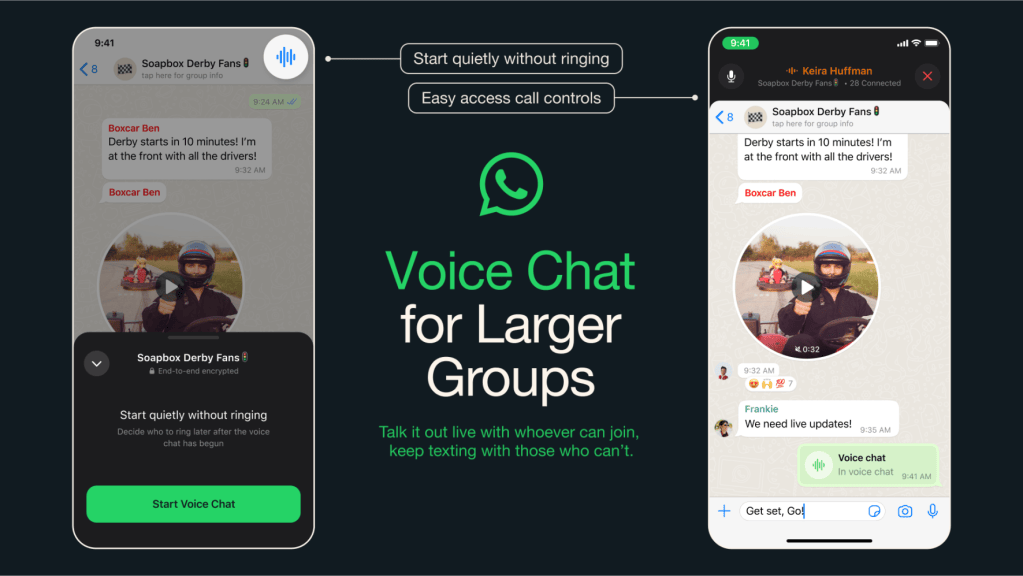
Image source: TechCrunch
Navigating the Different ChatGPT Voice Modes
One of the most common points of confusion for new users is the variety of voice modes available within a single application. ChatGPT, for instance, offers three distinct ways to interact via voice, each suited for different tasks. Understanding these differences is essential for maximizing the tool's utility.
Comparing Live Mode and Advanced Voice Features
The Live Mode is the standard conversational interface. It allows for a natural back-and-forth where the AI can be interrupted mid-sentence. This mode is widely regarded as one of the strongest options for brainstorming or casual learning. However, it is important to note that Live Mode does not currently support video or screen sharing.
In contrast, Advanced Mode is a more robust feature set available primarily on mobile devices. It enables multi-modal capabilities, such as sharing your camera feed so the AI can "see" what you are talking about. This is a significant step forward for technical support or visual tutoring. While Live Mode focuses on the auditory experience, Advanced Mode integrates visual data to provide a more holistic response.
Setting Up Voice Chat on Mobile Devices
Enabling voice chat on your smartphone is a straightforward process, but it requires specific permissions to function correctly. Follow these steps to get started:
- Download the official app from the iOS App Store or Google Play Store.
- Log in and look for the waveform icon or the microphone symbol in the bottom right corner of the chat bar.
- Grant the app permission to access your microphone when prompted by the operating system.
- Choose your preferred voice from the settings menu; modern AI offers several distinct personas with varying tones and accents.
Using Standard Mode for Accurate Dictation
It is vital to distinguish between "Voice Mode" and "Dictation." While Voice Mode is a conversational tool, Dictation is a speech-to-text feature. If you need to draft a long email or write a blog post, Standard Mode's dictation feature is often the preferred choice. It transcribes your words directly into the text box, allowing you to edit them manually before sending. This is particularly useful for users who want the speed of voice with the precision of text editing.
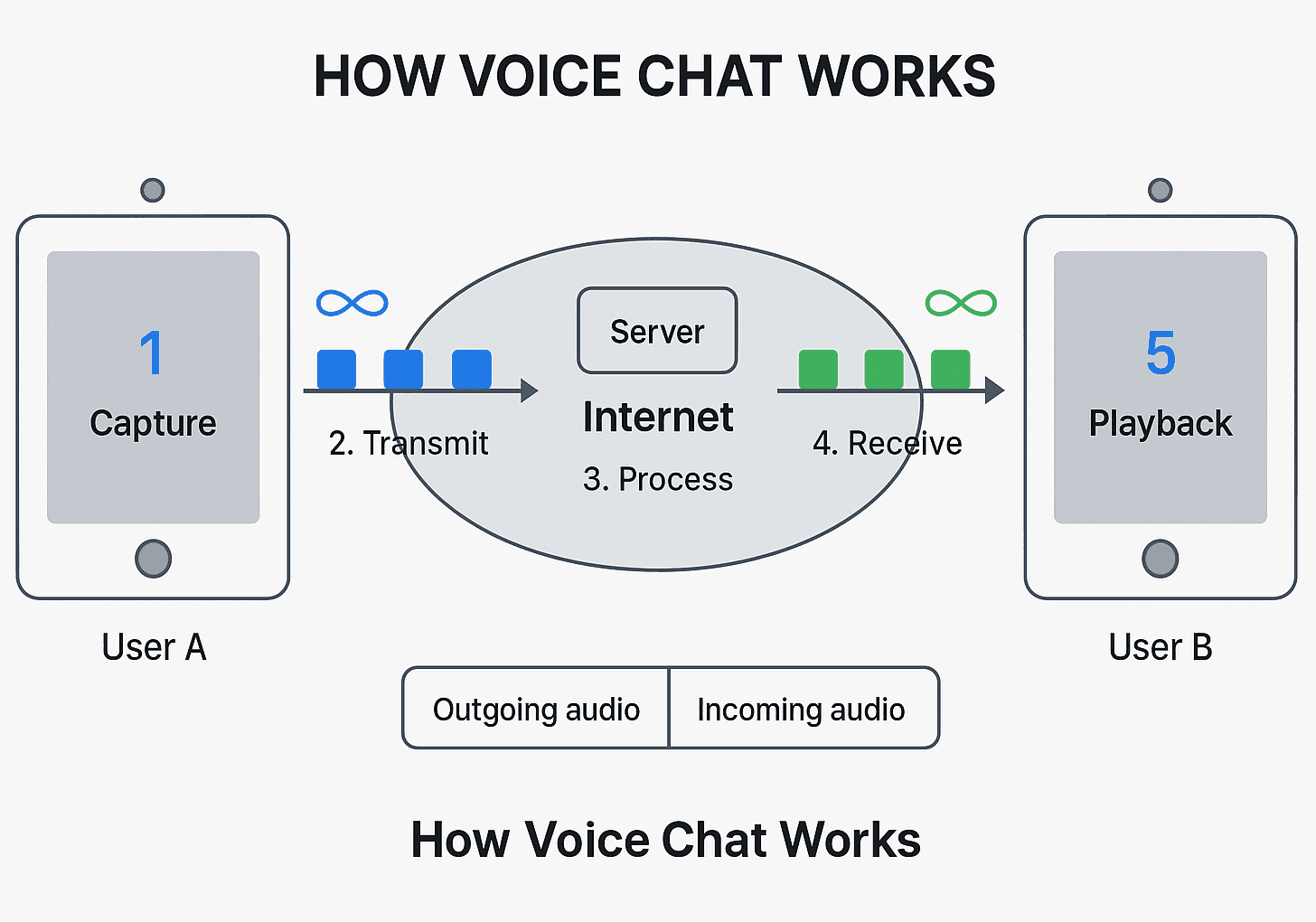
Image source: VideoSDK
Accessing AI Voice Chat Without Installing an App
Not everyone wants to clutter their device with new applications. Fortunately, several browser-based alternatives provide high-quality voice chat experiences without requiring a download. These tools are excellent for quick tasks or for users on shared computers.
Using DeepAI for Browser-Based Conversations
DeepAI offers a notably innovative browser interface that supports voice interaction directly through Chrome, Safari, or Firefox. One of its key advantages is context retention; you can start a conversation by typing on your desktop and switch to voice mode seamlessly. According to DeepAI's feature list , their web-based tool is designed to maintain the flow of conversation even if you refresh the page, making it a reliable alternative to app-based solutions.
Enhancing Web Interfaces with Chrome Extensions
For those who prefer the official ChatGPT web interface but miss the voice features of the mobile app, the "Voice Control for ChatGPT" extension is a popular choice. This extension adds a dedicated microphone button to the browser version of the site. It also introduces "spacebar-to-talk" functionality, which many power users find more intuitive than clicking icons. You can find this tool in the Chrome Web Store , where it consistently ranks among the top-rated productivity add-ons.
Exploring Social and Gaming Voice Chat Platforms
Voice chat isn't just for productivity; it is the backbone of modern social gaming and community building. While Discord remains a dominant force, new platforms are integrating AI to create unique social experiences.
Connecting with Gamers and AI Friends on CastChat
CastChat is a mobile platform that blends traditional gaming voice rooms with AI-driven companionship. It allows users to find partners for popular games like Among Us or Roblox while offering "AI Friends" who are available to talk 24/7. These AI entities are programmed to be "loyal listeners," providing a safe space for users to practice social skills or vent about their day. Additionally, CastChat features "AI Pets" that act as specialized tutors for subjects like math or linguistics, as detailed in their Google Play Store listing .
Engaging in Anonymous Conversations on Omezy
For those seeking spontaneous social interaction, Omezy provides a browser-based random chat service. Unlike older platforms that focused heavily on video, Omezy emphasizes voice-first interactions with the camera off. This approach offers a layer of anonymity that many users prefer. The platform uses interest-matching algorithms to connect people with similar hobbies, and it maintains a strict moderation policy to ensure a safe environment for all participants.
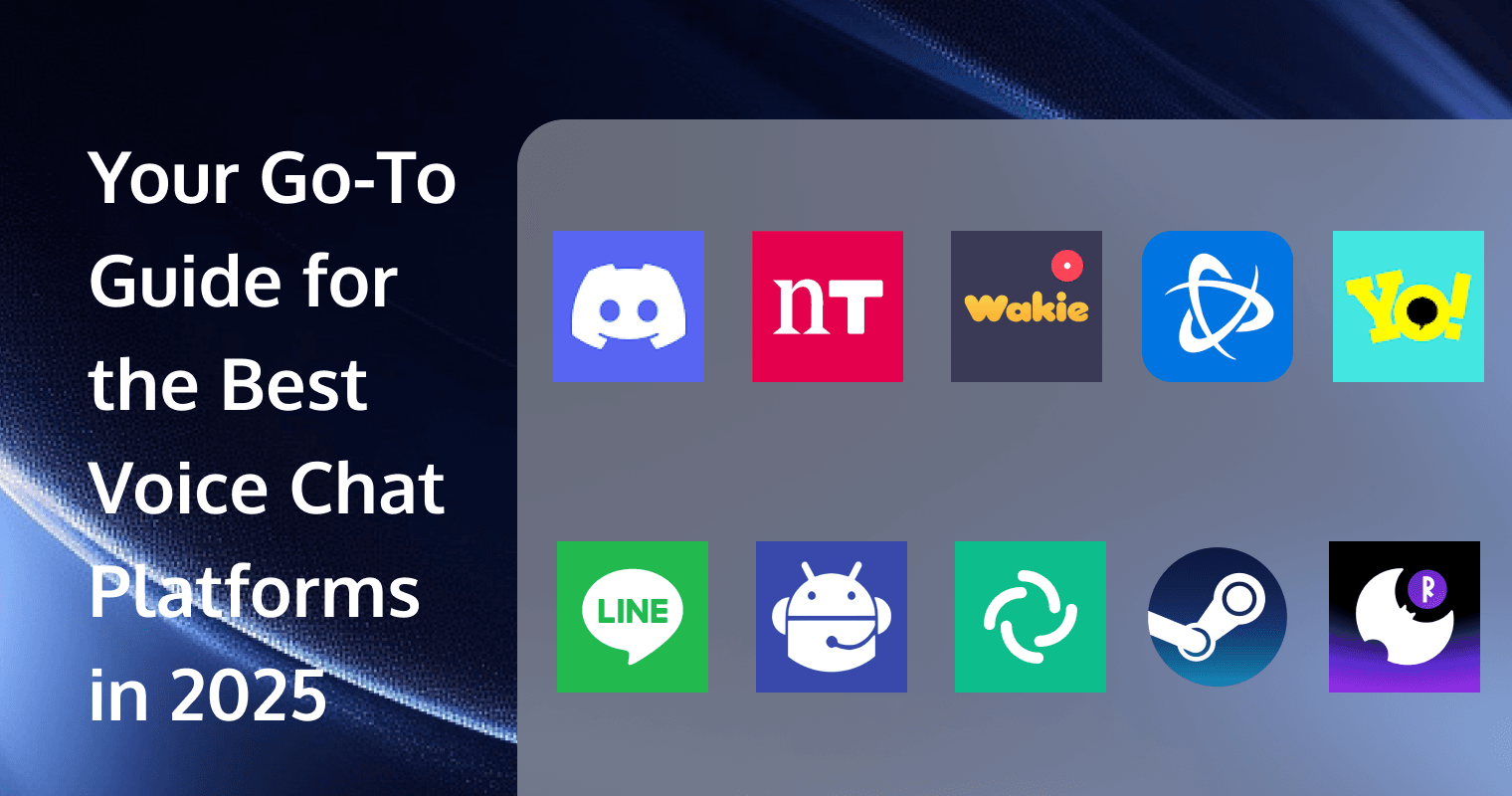
Image source: Tencent RTC
Implementing Advanced Workflows for Power Users
Once you have mastered the basics of chat voice chat, you can begin to implement more complex workflows that significantly boost efficiency. These strategies are often overlooked by casual users but offer substantial value for professionals and students.
Managing Desktop AI Tasks via Mobile Remote
A highly effective workflow involves using your mobile device as a remote control for your desktop AI tasks. For example, you might start a complex coding project or a long-form writing task on the ChatGPT desktop app. While the AI is processing, you can step away from your desk and use the mobile app's voice mode to check the status or provide additional instructions. This "Remote AI" strategy ensures that your progress never stalls, even when you are on the move.
Leveraging Multi-Modal Voice for Real-Time Tutoring
Language learners can use Advanced Voice Mode for a transformative tutoring experience. By sharing your camera feed while reading a physical book, the AI can see the text and hear your pronunciation simultaneously. It can then provide instant, verbal corrections on your accent or explain difficult grammar points in real-time. This multi-modal approach is widely considered one of the most effective ways to use AI for education, as it bridges the gap between digital intelligence and physical learning materials.
Pro Tip: When using voice chat for language learning, ask the AI to speak at 80% speed. This makes it much easier to catch subtle phonetic nuances that might be missed at a standard conversational pace.
Solving Common Voice Chat Technical Issues
Technical glitches can be frustrating, especially when you are in the middle of an important conversation. Most voice chat issues stem from software conflicts or incorrect system settings rather than hardware failure.
Resolving NVIDIA Shadowplay Microphone Conflicts
A common but obscure issue involves NVIDIA Shadowplay (part of the GeForce Experience suite). This software's "Share" feature often hijacks the system's microphone to record gameplay audio, which can prevent other apps like Steam, Discord, or ChatGPT from detecting the mic. If your voice isn't being picked up, try disabling the "In-Game Overlay" in your NVIDIA settings. This fix has been widely discussed in the Steam Community forums as a primary solution for mic detection failures.
Correcting Time Zone Related Logic Errors
Surprisingly, your device's time zone can impact the quality of AI voice responses. AI models often use the local system time to interpret temporal references like "today," "tomorrow," or "next Tuesday." If your device time is incorrect, the AI may provide logically flawed answers or fail to process schedule-based requests. Always ensure that your "Set time automatically" toggle is enabled in your system settings to avoid these subtle but impactful errors.
Managing Usage Limits and Subscription Tiers
Voice chat requires significant computational power, which is why most providers implement usage limits. Understanding these tiers will help you avoid unexpected interruptions during your sessions.
| Plan Type | Voice Limit (Rolling 24h) | Key Features |
|---|---|---|
| Free | Limited Access | Standard Voice only; no Advanced features. |
| Plus ($20/mo) | 3 Hours | Access to GPT-Live-1.1 and Advanced Mode. |
| Pro ($200/mo) | Unlimited | Highest priority access; no usage caps. |
It is important to note that these limits operate on a rolling 24-hour window . If you use two hours of voice chat at 10:00 AM, those hours will not "reset" until 10:00 AM the following day. This is a departure from text-based limits, which often reset at a fixed time daily.
Prioritizing Privacy and Safety in Voice Interactions
As voice chat becomes more integrated into our lives, privacy concerns naturally arise. Unlike text, voice data contains biometric nuances and emotional cues that require careful handling.
One critical safety feature in modern AI voice chat is the "Approval Gap." For security reasons, AI actions that involve external plugins—such as booking a flight or accessing a private calendar—cannot be authorized via voice alone. You must physically tap a confirmation button on your screen. This prevents accidental or unauthorized transactions from occurring through vocal commands alone. Furthermore, when using social platforms like CastChat, it is a top-tier safety practice to never share personal identification, even with "AI Friends" who may seem trustworthy.
Frequently Asked Questions
Is ChatGPT voice chat free to use?
Yes, there is a free tier available for ChatGPT voice chat, but it comes with significant limitations. Free users typically have access to the Standard Voice Mode with a limited number of interactions per day. To access the more fluid GPT-Live-1.1 model or the Advanced Voice features, a Plus or Pro subscription is generally required. The free version is a great way to test the technology, but power users will likely find the paid tiers more suitable for daily productivity.
How do I turn on voice chat on the desktop version of ChatGPT?
Currently, the official ChatGPT web interface does not have a built-in voice chat button like the mobile app. However, you can enable this functionality by installing the "Voice Control for ChatGPT" extension from the Chrome Web Store. Alternatively, you can download the official ChatGPT desktop application for macOS or Windows, which includes integrated voice support. Using the desktop app is often the more stable choice for professional environments.
Can I use voice chat without installing any apps?
Absolutely. Several platforms offer browser-based voice chat that requires no installation. DeepAI is a leading choice for AI-driven conversations in the browser, while Omezy is a popular option for anonymous social voice chat. These tools use WebRTC technology to access your microphone directly through the browser, making them highly accessible across different devices and operating systems.
Why does the AI stop listening when I stop talking?
This behavior depends on whether you are using "Standard" or "Live" mode. In Standard Mode, the AI uses a "Voice Activity Detection" (VAD) system that assumes you have finished your turn once there is a period of silence. In Live Mode, the system is designed to stay active, allowing for more natural pauses and even interruptions. If you find the AI is cutting you off too early, try switching to a more advanced conversational mode or checking your microphone sensitivity settings.
Is my voice data being recorded or used for training?
Most major AI providers, including OpenAI, allow you to opt-out of data training in your privacy settings. While the system needs to process your voice in real-time to generate a response, you can choose whether those recordings are saved to your history or used to improve future models. It is always a good idea to review the specific privacy policy of any voice chat app you use, especially social platforms where data handling practices may vary.
Key Takeaways for Mastering Voice Chat
Voice chat technology has reached a level of maturity where it can significantly enhance both your professional productivity and your social life. By choosing the right tools and understanding the underlying settings, you can create a seamless hands-free experience.
- ✅ Identify your mode: Use Live Mode for natural conversation and Standard Mode for precise dictation.
- ✅ Monitor your limits: Remember that Plus users have a 3-hour rolling window for advanced voice features.
- ✅ Check for conflicts: Disable NVIDIA Shadowplay if your microphone isn't being detected in chat apps.
- ✅ Sync your time: Ensure your device time zone is accurate to prevent AI logic errors.
- ✅ Go browser-first: Use DeepAI or Chrome extensions if you prefer not to install dedicated apps.
- ✅ Stay safe: Never share sensitive personal data in social voice rooms, even with AI companions.
Next Step: Open your mobile app today and try the "Advanced Mode" to describe a physical object in your room; it is an excellent way to see the current state of AI vision and voice integration in action.