Home
How to Use ChatPPT to Create Professional Presentations in Minutes

Image source: MOGE
Understanding the Different Versions of ChatPPT Available Today
When searching for "ChatPPT," users often encounter a variety of tools that share the name but serve different functions. Because the term has become a functional category rather than a single trademarked product, it is essential to identify which version aligns with your specific needs. As of late 2026, the ecosystem has matured into four primary branches.
ChatPPT.com: The Standalone Web Platform
This is perhaps the most widely recognized version of the tool. ChatPPT.com operates as a dedicated web application where users can enter a prompt or upload a source file (like a PDF or Word document) to generate a full deck. It is a top choice for users who want a "one-stop-shop" experience, offering over 2,000 templates and automated chart generation. According to recent user data, this platform is highly effective for rapid prototyping, often producing a 10-slide deck in under three minutes.
ChatGPT for PowerPoint: The Official OpenAI Add-in
For those who prefer to work within the Microsoft ecosystem, the official ChatGPT for PowerPoint add-in is a leading option. This tool lives directly in your PowerPoint ribbon. Its primary strength lies in its ability to manipulate existing slides, rewrite text for specific tones, and even convert static screenshots into editable PowerPoint elements. It is available across Free, Plus, Team, and Enterprise plans, making it a versatile choice for corporate environments.
ChatPPT Studio: The Open-Source Developer Option
Developers and privacy-conscious organizations often turn to ChatPPT Studio . This GitHub project allows users to host their own presentation generation server using FastAPI and React. By connecting this to local Large Language Models (LLMs) like Ollama, companies can ensure that sensitive business data never leaves their internal network. It offers granular control over slide counts and specific formatting parameters that commercial wrappers might hide.
EaseMate AI: The Specialized Summarization Tool
While other tools focus on creation, EaseMate AI stands out for its "chat-with-your-PPT" functionality. It allows users to upload massive, existing decks and ask questions about the data within them. This is particularly useful for consultants or executives who need to extract key insights from a 100-page report without reading every slide manually.
| Tool Name | Best For | Price Model | Key Feature |
|---|---|---|---|
| ChatPPT.com | Speed & Templates | Freemium / Pro | 2,000+ Professional Templates |
| OpenAI Add-in | Native Workflow | Included in GPT Plans | Screenshot-to-Editable-Slide |
| ChatPPT Studio | Privacy & Developers | Free (Open Source) | Local LLM Integration |
| EaseMate AI | Summarization | Subscription | Multi-model (Deepseek/Claude) |
Setting Up the Official ChatGPT for PowerPoint Add-in
The official add-in is widely regarded as one of the most stable ways to integrate AI into your daily workflow. Unlike standalone websites, it doesn't require you to export and import files, which preserves formatting and reduces the risk of file corruption.
To install the add-in, open Microsoft PowerPoint and navigate to the Insert tab. Click on Get Add-ins and search for "ChatGPT for PowerPoint." Once added, a new icon will appear in your Home ribbon. Upon first launch, you will need to authenticate using your OpenAI credentials. This connection allows the AI to access your current slide context, enabling it to suggest improvements based on what you have already written.
One of the most impactful features of the official add-in is the ability to turn a picture of a slide into a real, editable PowerPoint file. If you have a legacy deck that only exists as a PDF or a series of images, you can use the "Analyze Image" feature to have the AI recreate the text boxes and shapes automatically.
Generating Presentations from Scratch Using ChatPPT.com
For users who are starting with nothing but a topic, the web-based ChatPPT.com platform offers a streamlined three-step process. This method is a popular choice for students and sales professionals who need to produce high-quality visuals on short notice.
Enter your presentation topic or upload a source document. You can specify the target audience (e.g., "Board of Directors" or "Elementary Students") to ensure the AI adopts the correct tone.
The AI generates a structured outline. At this stage, you can add, remove, or reorder slides. It is much easier to fix the logic of a presentation in an outline view than it is once the slides are fully designed.
Select a theme from the library. The AI will then populate the slides with relevant text, bullet points, and AI-generated imagery. Once satisfied, you can export the file directly to .pptx format for final manual polishes.
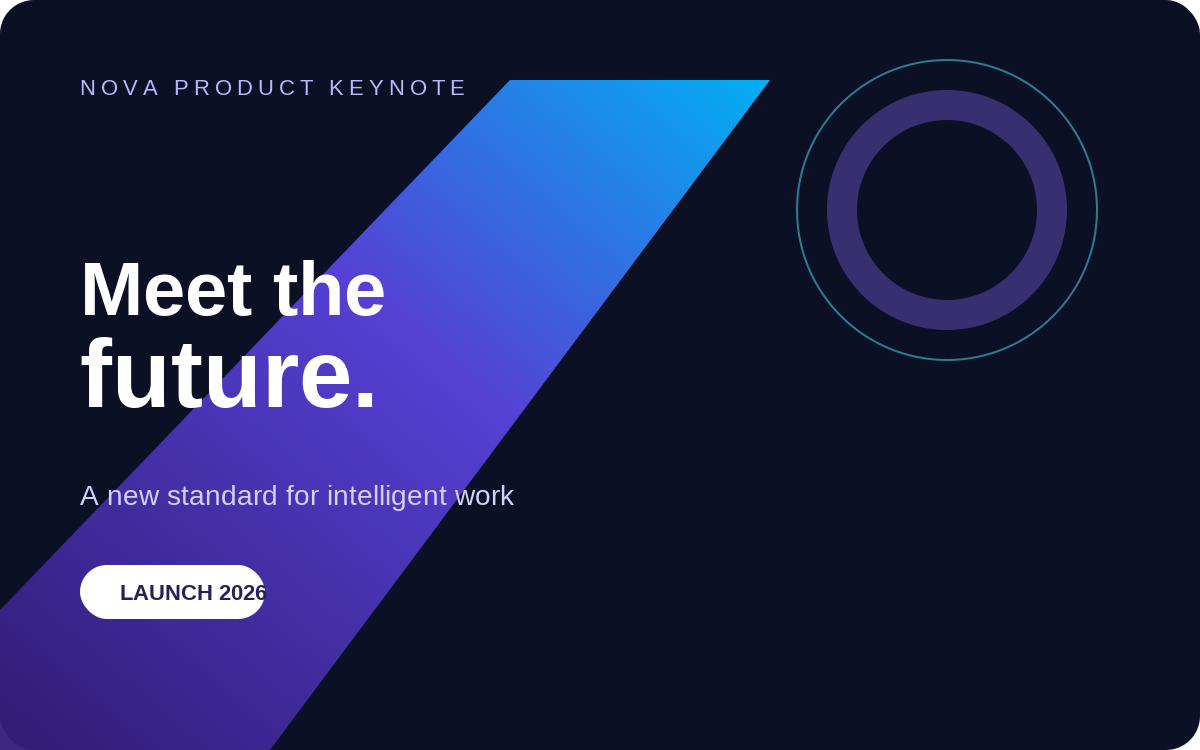
Image source: chatppt.com
Using the ChatGPT VBA Hack for Free Slide Generation
If you prefer not to use third-party wrappers or pay for premium subscriptions, you can use a "Power User" method involving Visual Basic for Applications (VBA). This method allows you to generate an unlimited number of slides for free, provided you have access to the standard ChatGPT web interface.
The process involves asking ChatGPT to write a script that PowerPoint can execute. Here is a sample prompt you can use:
Once the AI provides the code, follow these steps:
- Open PowerPoint and press Alt + F11 to open the VBA Editor.
- Go to Insert > Module .
- Paste the code provided by ChatGPT into the window.
- Press F5 or click the "Run" button.
PowerPoint will instantly generate the slides based on the script. While this method does not include fancy images or complex layouts, it provides a solid structural foundation that you can then style using PowerPoint's built-in "Design Ideas" tool.
Advanced Summarization Techniques for Existing Slide Decks
Summarizing existing content is a distinct challenge compared to generating new slides. When dealing with technical or data-heavy decks, the choice of the underlying AI model becomes critical. Tools like EaseMate AI allow users to toggle between different models, which can significantly impact the quality of the summary.
Deepseek R1 is often recommended for technical decks. In recent benchmarks, it has shown a strong ability to maintain the integrity of numerical data and complex logical chains. If your presentation involves financial projections or engineering specifications, this model ranks among the top choices for ensuring accuracy.
Conversely, Claude 3.3 is a strong contender for creative storytelling or marketing pitches. It tends to produce more fluid, natural-sounding language and can better capture the "narrative arc" of a presentation. When you need to turn a dry report into a compelling keynote, Claude's linguistic capabilities offer a significant advantage.
Data Privacy and Security Protocols for Corporate Users
Privacy is a major concern for enterprise users handling proprietary trade secrets. When using AI for presentations, it is vital to understand how your data is being used for model training. According to privacy experts at Inn8ly , there are several steps you can take to protect your information.
First, if you are using the standard ChatGPT interface to generate content, ensure you have disabled the "Improve the model for everyone" setting in your Data Controls. This prevents your inputs from being used to train future versions of the AI. Additionally, using "Temporary Chat" mode ensures that the conversation history is not stored on OpenAI's servers beyond the immediate session.
For the highest level of security, deploying ChatPPT Studio locally is a top-tier option. By running the application on an internal server and using a local LLM, you eliminate the risk of data leaks entirely. This setup is particularly favored by legal and healthcare organizations that must comply with strict data residency regulations.
Native Microsoft Alternatives for AI Slide Creation
Before committing to a third-party ChatPPT tool, it is worth exploring the features already built into Microsoft 365. Microsoft has been notably innovative in integrating AI directly into its core products, often providing a more seamless experience than external wrappers.
The "Transform" feature in Word is a frequently overlooked tool. If you have a well-structured Word document, you can go to File > Export > Export to PowerPoint presentation . Microsoft's AI will analyze your headers and text to create a themed deck automatically. While it lacks the conversational flexibility of ChatGPT, it is exceptionally stable and uses your organization's approved templates.
Furthermore, Microsoft 365 Copilot offers a deeply integrated AI experience. It can pull data from your emails, calendar, and other documents to build a presentation that is contextually aware of your specific business environment. While it requires a separate license, for many corporate users, it stands out as a more cohesive solution than using multiple disconnected AI apps.
Solving Common Issues with AI-Generated Presentations
Even the most advanced AI tools can occasionally produce sub-optimal results. One frequent complaint is that the AI-generated outline feels "too generic." To fix this, avoid one-sentence prompts. Instead, provide the AI with structured data, such as an Excel table or a detailed project brief, to give it more "meat" to work with.
Another common issue is broken formatting after exporting from a web tool to PowerPoint. This typically happens when the AI uses non-standard fonts or complex layering that the desktop version of PowerPoint struggles to render. To mitigate this, always choose "Standard" or "Classic" themes within the AI tool, as these have the highest compatibility across different versions of Microsoft Office.
AI models can sometimes "hallucinate" statistics or citations. Always verify any data points, especially financial figures or historical dates, before presenting them to an audience. The AI is a design and drafting assistant, not a primary research source.
Key Takeaways for Using ChatPPT
AI presentation tools have evolved into a diverse ecosystem that can accommodate everyone from casual students to enterprise executives. Here is how to choose the right path:
- Identify your version: Use ChatPPT.com for speed, the OpenAI Add-in for native workflow, or ChatPPT Studio for privacy.
- Leverage the VBA Hack: Generate unlimited free slide structures by asking ChatGPT for code and running it via Alt+F11.
- Prioritize data security: Disable model training in your settings or host tools locally if handling sensitive corporate data.
- Select the right model: Use Deepseek for technical accuracy and Claude for creative storytelling.
- Use native features: Don't ignore Microsoft's built-in "Transform" tool for converting Word docs to slides.
- Always post-edit: Treat AI output as a "first draft" and manually verify all facts and branding alignment.
To get started today, try installing the official add-in from the Microsoft Store and use the "Screenshot-to-Slide" feature to update one of your older presentations.
Frequently Asked Questions