Home
How to Choose a Top-Tier AI Tool for Chatting with Your PDF Documents
In 2026, the way we interact with digital documents has undergone a significant advancement. No longer are we forced to manually skim hundreds of pages to find a single clause or data point. By leveraging Natural Language Processing (NLP) and Retrieval-Augmented Generation (RAG) , modern AI tools allow users to engage in a dynamic dialogue with their files. This process involves indexing the document's content, creating a searchable vector database, and using a Large Language Model (LLM) to provide context-aware answers with direct citations.
If you need a tool for academic research with verified citations, SciSpace ranks among the top choices. For corporate security and enterprise-grade reliability, Adobe Acrobat AI Assistant is a leading option. If you are dealing with massive documents up to 2,000 pages, Sider.ai stands out for its high capacity.
Which AI PDF Tool Offers Strong Free Features?
The landscape of "free" AI tools is often confusing, with many platforms offering limited daily credits or strict page caps. When evaluating a tool for chatting with PDFs, it is essential to look beyond the marketing claims and examine the specific constraints of the free tier. According to data from LearnPrompting , the most critical factors are document limits, page counts, and whether the tool supports Optical Character Recognition (OCR) for scanned images.
| Tool Name | Free Tier Limit | Max Page Count | OCR Support | Multi-File Chat |
|---|---|---|---|---|
| ChatPDF | 2 Docs / Day | 120 Pages | Yes (Basic) | No |
| Sider.ai | Limited Credits | 2,000 Pages | Yes | Yes |
| SciSpace | Generous Daily | Unlimited* | Yes | Yes |
| Adobe AI | Trial Basis | Varies | Excellent | No |
| Smallpdf | 2 Tasks / Day | Varies | High Quality | Yes |
While ChatPDF remains a popular choice for quick, one-off tasks, users with high-volume needs often find that Sider or SciSpace provide more flexibility. It is also worth noting that "free" often comes with a trade-off in data retention; for instance, Smallpdf deletes files after one hour of inactivity to protect user privacy, whereas other tools may store them longer for account-based access.
Top 7 Tools for Chatting with PDFs Ranked by Use Case
ChatPDF for Quick Summaries and Student Homework
ChatPDF is widely regarded as one of the most accessible entry points for students and casual users. Its primary appeal lies in its "no registration" barrier, allowing users to simply drag and drop a file and begin querying immediately. This tool has gained significant traction at institutions like Stanford and Harvard due to its speed and simplicity.
In our assessment, ChatPDF excels at extracting high-level summaries and answering straightforward questions about a text. However, its free tier is relatively restrictive compared to newer competitors, limiting users to two documents per day. It is a strong contender for those who need a fast answer without setting up a complex workflow.
Image source: Medium
SciSpace and ResearchPal for Academic Citations
For researchers and academics, the biggest risk of using AI is "hallucination"—the tendency of LLMs to invent facts. SciSpace addresses this by providing citation-linked answers. Every claim the AI makes is accompanied by a clickable, numbered reference that highlights the exact passage in the PDF. This feature sets a high standard for academic integrity.
Furthermore, ResearchPal offers integration with reference managers like Zotero and Mendeley. This allows power users to sync their entire library and chat across multiple research papers simultaneously, a feature that is notably innovative for literature reviews.
Adobe Acrobat AI Assistant for Corporate Security
When handling sensitive legal or financial documents, security is paramount. Adobe Acrobat AI Assistant utilizes the Microsoft Azure OpenAI enterprise-grade model, ensuring that customer content is not used to train the underlying LLMs. This makes it a top-tier choice for corporate environments where data sovereignty is a legal requirement.
Adobe's tool also stands out for its deep integration with the existing Acrobat ecosystem. It can generate summaries that are formatted for professional reports and supports a specific set of seven languages, including English, Japanese, and German, with high accuracy.
Smallpdf for Processing Scanned Documents with OCR
Many older documents or legal filings are stored as "image-only" PDFs, which standard AI tools cannot read. Smallpdf integrates high-quality OCR technology to convert these images into selectable, searchable text before the AI processes them. This makes it an excellent choice for digitizing and querying historical archives or scanned contracts.
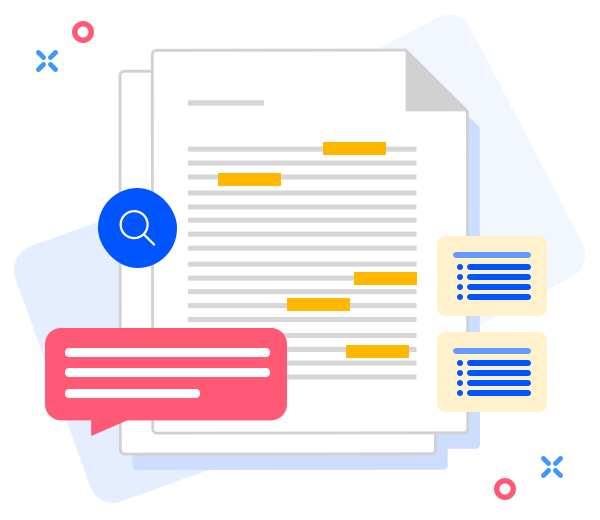
Image source: Smallpdf
Sider for Handling Massive 2000 Page Documents
Technical manuals, medical textbooks, and long-form legal briefs often exceed the page limits of standard AI tools. Sider.ai supports documents up to 2,000 pages, making it one of the most capable options for high-volume data extraction. It allows users to maintain a single conversation across a massive amount of data, ensuring that context is not lost between chapters.
Humata for Sensitive Legal and Technical Documents
Humata is often recommended for users who require role-based access control and advanced encryption. It is designed for teams that need to share a "knowledge base" of PDFs while maintaining strict permissions. Its ability to synthesize information across a folder of documents makes it a popular choice for legal discovery and technical auditing.
Unriddle for Real-Time Team Collaboration
Unriddle focuses on the collaborative aspect of document analysis. It allows multiple team members to chat with the same document in a shared workspace, making it a significant step forward for group projects or joint research initiatives. The tool also features an "auto-tagging" system that helps organize large repositories of information into manageable themes.
How to Verify AI Answers and Prevent Hallucinations
Even the most advanced AI can occasionally misinterpret complex legal jargon or nuanced academic arguments. To ensure the accuracy of the information you receive, it is vital to follow a verification protocol. Most leading tools now offer a "Side-by-Side" view where the AI's response is displayed next to the original document.
- Request Direct Quotes: Always ask the AI to provide a direct quote from the text to support its claim.
- Check Page Numbers: Verify that the page number cited by the AI actually contains the relevant information.
- Cross-Reference: If an answer seems suspicious, ask the AI to "Find another section of the document that supports or contradicts this point."
- Use Role-Based Prompting: Tell the AI to "Act as a senior auditor" or "Act as a research scientist" to improve the technical accuracy of its responses.
"The value of an AI PDF tool isn't just in its ability to summarize, but in its ability to prove where that summary came from. Verification features are the bridge between AI-generated content and factual reliability." — Academic Research Insights, 2026
Is Your Data Safe When You Upload a PDF to an AI?
Privacy is the most common concern for users of "Chat with PDF" services. When you upload a file, it is typically stored on a cloud server and indexed. However, the retention policies vary significantly between providers. According to official documentation from Adobe and Smallpdf , here is how data is typically handled:
- Data at Rest Encryption
- Files are stored using 256-bit AES encryption, making them unreadable to unauthorized parties.
- Data Retention Policy
- Smallpdf deletes files after 1 hour for non-account holders. Adobe deletes files if the user does not sign in to save them.
- Model Training
- Reputable tools like SciSpace and Adobe explicitly state they do not use your private documents to train their public AI models.
Before uploading sensitive documents, always check for GDPR compliance or ISO 27001 certification . If you are working with classified or highly personal data, consider using a tool that offers a "Private Cloud" or "Local Processing" option, though these are typically reserved for paid enterprise tiers.
Advanced Workflows for Power Users and Researchers
Beyond simple Q&A, power users are finding notably innovative ways to integrate AI PDF tools into their daily productivity suites. The shift in 2026 is toward "Knowledge Bases" rather than individual file chats.
How to Chat with Multiple PDFs at the Same Time
Tools like ChatPDF and Smallpdf have introduced "Folder-based" chatting. This allows a user to upload ten different research papers on the same topic and ask, "What are the conflicting viewpoints across all these documents?" This synthesis capability is a major improvement over chatting with files one by one, as it identifies patterns and contradictions that a human might miss.
Turning Your PDF Library into a Searchable Knowledge Base
For teams, tools like Sharly or DocsBot allow for the creation of a custom chatbot trained on a specific repository of company PDFs. This acts as an internal "Google" for company policies, technical specs, and historical project data. It significantly reduces the time employees spend searching for information in static folders.
Using Sentiment Analysis on PDF Reports
In the corporate world, sentiment analysis is being applied to PDF feedback reports and customer surveys. By using specialized tools like SentiSum , businesses can detect the "voice of the customer" across thousands of pages of feedback, identifying areas of frustration or satisfaction with remarkable speed.
Troubleshooting Common Problems When Chatting with PDFs
Even with top-rated tools, you may encounter technical hurdles. Here are the most common issues and how to resolve them:
The AI says it cannot read my file.
This usually happens if the PDF is a "scanned image" without a text layer. To fix this, use a tool with OCR support like Smallpdf or Adobe Acrobat. Alternatively, try converting the PDF to a Word document and then back to PDF to force a text re-index.
The summary provided is too generic or vague.
AI models sometimes default to a "safe" but unhelpful summary. To improve results, use Role-Based Prompting . Instead of saying "Summarize this," try: "Summarize the financial risks mentioned in Section 4 from the perspective of a venture capitalist."
The file size is too large for the tool to upload.
Most free tools have a 10MB to 50MB limit. If your file is larger, use a PDF compressor (like the one provided by Smallpdf) before uploading. If the page count is the issue, Sider.ai is a leading option for documents up to 2,000 pages.
The AI is hallucinating or making up facts.
This often occurs when the AI tries to answer a question that isn't actually covered in the text. Explicitly tell the AI: "Only use the provided text to answer. If the answer is not in the document, say you do not know."
Frequently Asked Questions
Which AI PDF chat tool has the highest page limit for free?
As of late 2026, Sider.ai ranks among the most generous, supporting documents up to 2,000 pages. While other tools like ChatPDF are more famous, they often cap free users at 120 pages or fewer. SciSpace also offers a very high limit for academic papers, often processing full-length dissertations without issue.
Is it safe to upload sensitive legal documents to these tools?
Safety depends on the tool's encryption and retention policy. For sensitive data, Adobe Acrobat AI Assistant is widely considered one of the most secure options because it uses enterprise-grade Azure OpenAI models and does not train on user data. Always look for tools that offer automatic file deletion after a set period, such as Smallpdf's one-hour policy.
Can I chat with a PDF in a language other than English?
Yes, many modern tools are multilingual. SciSpace is particularly strong in this area, supporting over 75 languages. Adobe officially supports seven major languages, including French, German, and Spanish. Most LLM-based tools can translate the content of a PDF into your preferred language during the chat session.
Do I need a ChatGPT Plus subscription to use these features?
No, you do not. While ChatGPT Plus has a "Data Analyst" mode that can read PDFs, standalone tools like ChatPDF, SciSpace, and Humata operate independently. Many of these offer free tiers that do not require any monthly subscription, making them a popular choice for users who only need occasional document analysis.
Can these tools read handwritten notes within a PDF?
This is a developing area. While standard AI tools struggle with handwriting, those with advanced OCR (Optical Character Recognition) , such as Adobe or Smallpdf, can often transcribe clear handwriting. However, the accuracy varies significantly depending on the legibility of the script. For complex handwritten archives, specialized AI transcription services may still be necessary.
The Bottom Line on Chatting with PDFs
The ability to "chat" with a PDF has transformed from a niche novelty into an essential productivity workflow. To get the most out of these tools in 2026, keep these key takeaways in mind:
- Prioritize Verification: Choose tools like SciSpace that provide direct citation links to prevent AI hallucinations.
- Match the Tool to the Task: Use Sider for massive files, Adobe for corporate security, and Smallpdf for scanned images.
- Check Privacy Policies: Ensure the tool is GDPR compliant if you are handling sensitive or personal information.
- Leverage Multi-File Chat: Don't limit yourself to one document; use synthesis features to find connections across your entire library.
- Use Specific Prompts: Improve accuracy by giving the AI a specific persona or role before asking complex questions.
- Watch the Limits: Keep an eye on daily document and page caps to avoid hitting paywalls mid-project.
Start by uploading a single document to a tool like ChatPDF or SciSpace today to experience how interactive AI can streamline your research and reading habits.