Home
How to Use Polite Post to Turn Frustrated Drafts Into Professional Emails
Polite Post is a specialized AI tool designed to rewrite informal, angry, or slang-heavy drafts into professional, workplace-appropriate communication. By leveraging the Together.ai backend, it typically processes text in under 20 seconds, removing expletives and aggressive phrasing while maintaining the core intent. It stands out as a top choice for HR-safe communication and offers a dedicated Microsoft Word Add-in for seamless workflow integration.
What Is Polite Post and How Does It Work?
In the modern workplace, the speed of digital communication often leads to "reactive" emailing. When a project hits a snag or a deadline is missed, the initial draft of an email can often be tinged with frustration, sarcasm, or unprofessional slang. PolitePost.net serves as a digital filter, specifically engineered to scrub these elements before you hit "send."
The tool operates on a simple premise: you provide the "raw" thought, and the AI provides the "polished" result. According to technical documentation, the platform utilizes the Together.ai engine to handle natural language processing tasks. Unlike general-purpose AI models that might offer creative or poetic rewrites, Polite Post is tuned specifically for corporate environments. It focuses on neutrality, clarity, and the removal of what it terms "slang and expletives."
One of the most significant advantages of this tool is its speed. Most users report a processing time of approximately 20 seconds , making it a highly impactful addition to a busy professional's toolkit. The interface is intentionally minimalist, featuring a large text input area and a prominent "Fix My Email" button. This simplicity ensures that the tool does not become another distraction, but rather a quick stop in the communication pipeline.
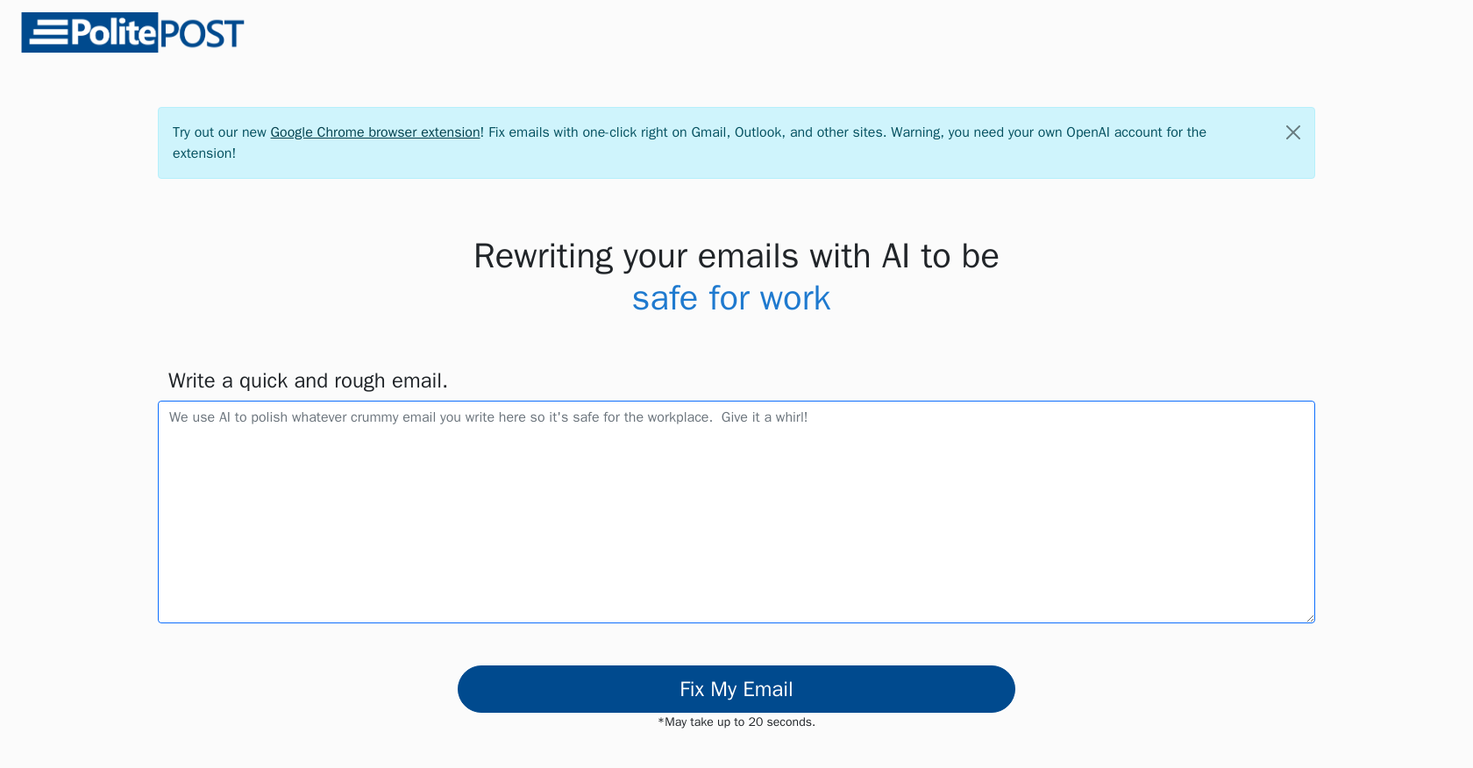
Image source: There's An AI For That
Privacy is a common concern when using AI for workplace communication. While the tool processes your text to provide a rewrite, it is designed with an HR-safe focus. However, as with any third-party AI service, users should be cautious about inputting highly sensitive proprietary data or personally identifiable information (PII) unless they have reviewed the specific data retention policies of the backend provider.
How to Use the Polite Post Microsoft Word Add-in
While the web interface is excellent for quick one-off emails, power users often prefer to stay within their primary writing environment. Recognizing this, the developers launched a Microsoft Word Add-in in mid-2023. This integration allows you to highlight text directly within a document and apply the "polite" transformation without ever leaving the Word application.
To install the add-in, follow these steps:
- Open Microsoft Word and navigate to the Insert tab.
- Select Get Add-ins to open the Microsoft Office Store.
- Search for "Polite Post" in the search bar.
- Click Add and follow the prompts to complete the installation.
Once installed, the tool appears in your sidebar. This workflow is particularly beneficial for long-form reports or formal letters where tone consistency is paramount. Instead of copy-pasting paragraphs back and forth between a browser and your document, you can refine your language in real-time. This integration ranks among the top features for professionals who handle high volumes of formal documentation.
It is important to note that while the web tool is often categorized as a free resource, the Word Add-in may involve different pricing tiers or usage limits. Users should check the current status in the Microsoft Store to see if a subscription is required for unlimited access. For many, the time saved by avoiding the "copy-paste loop" makes the add-in a strong contender for a permanent spot in their productivity suite.
Which AI Email Rewriter Should You Choose?
Polite Post is not the only player in the AI rewriting space. Depending on your specific needs—whether it's processing large files or having a variety of tone options—other tools might be more suitable. Below is a comparison of how Polite Post stacks up against other popular options like Evernote AI and Quillbot.
| Feature | Polite Post | Evernote AI | Quillbot |
|---|---|---|---|
| Primary Focus | HR-Safe Professionalism | Note Refinement | General Paraphrasing |
| Max Input Size | Short-form (Drafts) | 100 MB (via transcription) | Varies by Plan |
| Tone Options | Professional/Neutral | Friendly, Formal, Empathetic | Standard, Fluency, Formal |
| Integration | Web, MS Word | Evernote App Only | Web, Chrome, Word |
| Processing Speed | ~20 Seconds | Variable | Near Instant |
Evernote AI offers a significant advancement for users who need to process massive amounts of data. According to Evernote's documentation , their AI can handle files up to 100 MB by transcribing content before applying a "Polite Style" rewrite. This makes it a better choice for transcribing and cleaning up long meetings or brainstorming sessions.
On the other hand, Quillbot is widely regarded as one of the most versatile paraphrasing tools. While Polite Post focuses strictly on making things "polite," Quillbot allows for more granular control over vocabulary and sentence structure. However, for the specific task of "fixing an angry email," the one-click simplicity of Polite Post often proves more efficient for the average office worker.
Why Your Polite Post Might Still Be Perceived as Rude
One of the most critical lessons in digital communication is that tone is only half the battle . You can use the most sophisticated AI to craft a perfectly polite message, but if your timing or context is off, the recipient may still perceive you as aggressive or annoying. This is known as the "Follow-up Paradox."
Insights from community forums, such as the LibreELEC community , highlight that "politeness" in technical or professional settings is often measured by demonstrated effort . If you send a polite email asking for help but haven't shown that you've tried to solve the problem yourself, the recipient may find the request rude regardless of the language used. In these environments, brevity and evidence of work are valued more than flowery prose.
Furthermore, the "Polite Timing" framework suggests that the medium matters. A polite email sent at 9:00 PM on a Friday might be seen as an intrusion into personal time, whereas the same email sent at 9:00 AM on Monday is viewed as professional. AI tools can fix your words, but they cannot yet fix your social awareness.
How to Choose the Right Professional Greeting
The way you open an email sets the psychological stage for the entire interaction. Linguistic experts, including Greg Harrod , point out that even small punctuation choices can change a reader's perception. For instance, using a name followed by a comma (e.g., "Sarah,") can often be perceived as a cold command or a precursor to a reprimand.
(Perceived as Cold/Strict)
(Standard/Professional)
(Warm/Rapport-building)
When using Polite Post, the tool will often default to a neutral, professional greeting. However, you should manually adjust this based on your relationship with the recipient. If you are writing to a peer, avoid imperative verbs like "Do this" or "Send me the file." Even if the AI makes the sentence grammatically polite, the imperative structure remains a command. Instead, rephrase these as requests: "Could you please send the file when you have a moment?"
The "Greeting Warmth Scale" helps you navigate different professional hierarchies. For a supervisor, a more formal "Dear [Name]" or "Good afternoon, [Name]" is a top-tier choice. For a close colleague, a simple "Hi [Name]" is usually sufficient. The goal is to match the recipient's energy while maintaining a baseline of professional respect.
The Slang-to-Suit Stress Test
To understand the true utility of Polite Post, it helps to see how it handles specific "stressful" communication scenarios. Unlike general AI, which might get wordy, Polite Post aims for the shortest path to professionalism. Let's look at three common scenarios where a frustrated draft needs a "suit and tie" makeover.
Scenario A: The "Stop Wasting My Time" Rewrite
Original Draft: "I've told you three times already how to do this. Stop wasting my time and just follow the instructions I sent on Tuesday."
Polite Post Output: "I wanted to follow up on the instructions sent this past Tuesday. To ensure we stay on schedule, could you please review those steps again? Let me know if you need further clarification."
In this case, the AI successfully removes the aggressive "stop wasting my time" and replaces it with a focus on the project schedule. This shift from personal attack to project goal is a significant advancement in conflict resolution.
Scenario B: The "Accidental Expletive" Scrub
Original Draft: "This is a total [expletive] mess. Who authorized this change?"
Polite Post Output: "I have noticed some significant issues with the recent changes. Could you clarify who oversaw the authorization for this update so we can address the concerns?"
The tool is specifically designed to handle profanity. It identifies the emotional weight of the expletive and translates it into a professional descriptor like "significant issues." This is one of the reasons it is widely regarded as a top choice for "damage control" drafts.
Scenario C: The "Third Time Asking" Follow-up
Original Draft: "Still waiting on that report. I need it NOW."
Polite Post Output: "I am checking in on the status of the report. As it is a high priority for our current workflow, I would appreciate an update on when it might be available."
Here, the AI softens the "NOW" demand into a "high priority" request. This maintains the urgency without the rude capitalization or demanding tone.
What to Do When Polite Post Is Not Working
Like any web-based tool, Polite Post can occasionally run into technical hurdles. If you find that the "Fix My Email" button isn't responding or the processing is taking longer than the usual 20 seconds, there are several steps you can take to resolve the issue.
- Check the Together.ai API Status: Since Polite Post relies on the Together.ai engine, if their servers are down, the tool will be as well. You can often find status updates on their official developer pages.
- Clear Browser Cache: Sometimes old script data can interfere with the AI processing. A quick cache clear or trying the tool in an Incognito/Private window can often fix the problem.
- Disable Ad-Blockers: Some aggressive ad-blockers or script-blockers may mistakenly flag the AI processing script as a tracking element. Try whitelisting the site to see if functionality returns.
- Check Input Length: While Polite Post is excellent for emails, it may struggle with extremely long documents (e.g., 50+ pages). If you have a very long text, try breaking it into smaller chunks.
- Switch to the Word Add-in: If the web interface is having issues, the Microsoft Word Add-in might still be functional as it uses a different connection pathway.
If the tool continues to fail, it may be due to a daily usage cap. While the tool is free, high-traffic periods can lead to temporary limits for non-registered users. In these cases, waiting 24 hours or checking for a premium tier is a recommended next step.
Final Thoughts
Polite Post is a highly impactful tool for anyone navigating the complexities of modern workplace communication. By following these key takeaways, you can ensure your digital presence remains professional and effective:
- Use Polite Post for quick scrubbing of frustrated drafts, especially when you feel your initial response is too emotional.
- Leverage the Word Add-in for longer documents to maintain tone consistency without leaving your workflow.
- Remember the 24-hour rule: Timing is just as important as tone when it comes to professional perception.
- Select your greetings carefully: Use the Greeting Warmth Scale to match your recipient's hierarchy and rapport.
- Demonstrate effort: In technical communities, a polite tone does not replace the need for showing you've tried to solve the problem.
- Troubleshoot via the API: If the tool fails, check the Together.ai status or clear your browser cache.
Ultimately, while AI is a top-tier assistant for polishing your language, the core of professional communication still relies on human empathy, timing, and clear intent.
Frequently Asked Questions