Home
Home
How to Generate High Quality AI Images With Simple Text Prompts

Artificial intelligence has transformed the creative landscape, making it possible for anyone to generate professional-grade visuals in seconds without ever touching a brush or opening complex design software. This process, known as AI image generation, relies on powerful diffusion models that translate natural language descriptions—called prompts—into intricate digital art, photorealistic portraits, or cinematic landscapes.
Whether you are a content creator looking for unique blog headers, a designer seeking rapid prototyping, or a hobbyist exploring digital art, mastering the workflow of AI generation is essential in 2025. This article breaks down the selection of tools, the architecture of a perfect prompt, and the professional techniques used to refine AI outputs for production-ready results.
Choosing the Right AI Image Generator for Your Needs
The market for AI imagery is diverse, with tools catering to different skill levels and hardware capabilities. Choosing the right platform depends on whether you value ease of use, artistic control, or commercial safety.
Best for Beginners: Microsoft Designer and Bing Image Creator
Powered by OpenAI’s DALL-E 3 model, Microsoft Designer is perhaps the most accessible entry point. It understands natural language exceptionally well, meaning you do not need to learn "code-like" prompting. In our testing, DALL-E 3 excels at following complex spatial instructions—such as "a blue ball on top of a red cube to the left of a yellow pyramid"—where other models often fail.
Best for Artistic Quality: Midjourney
Midjourney remains the industry favorite for aesthetic excellence. Operating primarily through Discord, it produces images with superior lighting, texture, and composition. If you are looking for "vibes," cinematic atmosphere, or high-fashion aesthetics, Midjourney is the tool of choice. However, it requires a paid subscription and a slight learning curve regarding its parameter system (like --ar for aspect ratios or --v for model versions).
Best for Designers and Commercial Use: Adobe Firefly
Adobe Firefly is integrated directly into Photoshop and Illustrator. Its primary advantage is ethical sourcing; the model was trained on Adobe Stock images and public domain content, significantly reducing copyright risks for businesses. The "Generative Fill" feature is particularly powerful, allowing users to expand backgrounds or swap clothing on a subject with remarkable precision.
Best for Advanced Control: Stable Diffusion
For those who want total control over every pixel, Stable Diffusion is the answer. It is open-source and can be run locally on your own hardware. To run the latest versions like SDXL or Flux effectively, our benchmarks suggest a minimum of 16GB to 24GB of VRAM (Video RAM). It allows for "ControlNet" plugins, which let you dictate the exact pose of a character or the structure of an architectural sketch.
The Anatomy of a Perfect AI Prompt
The quality of an AI-generated image is directly proportional to the quality of the prompt. A vague prompt like "a dog" will yield a generic, uninspired result. To get professional results, you must use a structured framework.
The Universal Prompt Formula
A high-performing prompt typically follows this sequence: [Subject] + [Action/Context] + [Environment/Background] + [Artistic Style] + [Lighting/Color Palette] + [Technical Parameters]
1. The Subject
Be specific about what is in the frame. Instead of "a woman," try "an elderly woman with deep wrinkles and kind eyes."
2. Action and Context
What is the subject doing? Is she "knitting a scarf made of starlight" or "walking through a neon-lit rainstorm"?
3. Artistic Style
This is where you define the "look." Common descriptors include:
- Photorealistic: High-end photography, 8k, shot on 35mm lens.
- Cyberpunk: High contrast, neon blues and pinks, futuristic.
- Impressionist: Thick brushstrokes, focus on light, Van Gogh style.
- 3D Render: Unreal Engine 5, Octane Render, Pixar-style.
4. Lighting and Atmosphere
Lighting defines the mood. "Golden hour" creates warmth, while "cinematic rim lighting" adds drama and depth. "Volumetric fog" can add a sense of mystery and scale to landscapes.
5. Technical Parameters
Depending on the tool, you can add specific tags. For example, in Midjourney, adding --ar 16:9 changes the aspect ratio for a cinematic feel, while --stylize 250 adjusts how much artistic freedom the AI takes.
Step-by-Step Guide to Generating Your First Image
Using Microsoft Designer (Bing Image Creator) as our baseline—due to its high accessibility—here is how to move from an idea to a finished file.
Step 1: Access the Interface
Navigate to the official portal or use the Copilot integration in Windows. Ensure you are signed in with a Microsoft account to access the "boosts" that speed up generation.
Step 2: Input Your Structured Prompt
Enter your refined description.
- Prompt Example: "A futuristic greenhouse floating in the clouds, lush tropical plants inside, glass reflections, sunset lighting, digital art style, highly detailed, 4k."
Step 3: Analyze the Variations
Most AI tools provide four variations. Do not just look for the "best" one; look for the one with the best composition or "bones." AI generation is an iterative process.
Step 4: Refine and Iterate
If the image is close but not perfect, do not start over. Refine your text. If the greenhouse was too small, add "massive, sprawling greenhouse structure." In our experience, changing one or two adjectives is more effective than rewriting the entire prompt.
Step 5: Upscale and Export
AI models often generate images at a base resolution (e.g., 1024x1024). For professional use, you may need to use an "Upscaler" tool to increase the resolution without losing detail.
Comparison of Top AI Image Generators
| Feature | Microsoft Designer | Midjourney | Adobe Firefly | Stable Diffusion |
|---|---|---|---|---|
| Ease of Use | Very High | Moderate | High | Low |
| Photorealism | High | Extreme | High | Extreme (with Tuning) |
| Price | Free (with limits) | Paid Subscription | Freemium | Free (Self-hosted) |
| Best For | Casual/Quick tasks | High-end Art | Corporate/Design | Technical Users |
Professional Techniques for Realistic Results
To move beyond the "AI look"—which often includes overly smooth skin or plastic-looking textures—experienced creators use specific techniques.
Managing Human Anatomy
One of the most common complaints is "AI hands" (extra fingers or fused limbs). To combat this, specify the hand's action in the prompt, such as "hands tucked into pockets" or "holding a cup of coffee." In models like Stable Diffusion, using a "Negative Prompt" (telling the AI what not to include) like "extra fingers, deformed limbs, fused hands" is standard practice.
The Power of Negative Prompts
While DALL-E 3 handles negative instructions through conversation, tools like Midjourney and Stable Diffusion have dedicated fields for them. Essential negative terms to include for high-quality results are:
lowres, bad anatomy, text, watermark, blurry, low quality, distorted.
Using Reference Images
Most professional workflows involve "Image-to-Image" generation. You upload a rough sketch or a photo with a color palette you like, and the AI uses that as a structural guide. This ensures that the final output aligns with your pre-existing brand identity or composition requirements.
Troubleshooting Common AI Generation Issues
The Image is Too Blurry
This often happens when the prompt lacks technical modifiers. Adding terms like "sharp focus," "depth of field," or "macro photography" signals the AI to simulate a high-quality lens.
The AI Ignores Parts of the Prompt
If your prompt is too long, the AI might suffer from "token dilution," where it forgets the beginning of the sentence by the time it reaches the end. To fix this, move the most important subjects to the very start of the prompt.
Text Inside Images is Gibberish
While DALL-E 3 and Flux are becoming better at rendering text, many models still struggle. If you need specific text, it is often better to generate the background with AI and then use a tool like Canva or Photoshop to overlay the typography manually.
Ethical Considerations and Copyright
As of 2025, the legal status of AI-generated art is still evolving. In many jurisdictions, AI art cannot be copyrighted because it lacks "human authorship." Furthermore, while you generally own the right to use the images you generate (depending on the tool’s Terms of Service), you should be cautious about generating images that mimic the specific style of a living artist, as this remains a point of significant ethical debate in the creative community.
Summary of the AI Creative Process
Creating images with AI is a blend of linguistic precision and creative experimentation. By selecting the tool that fits your technical comfort level—from the simplicity of Bing to the complexity of Stable Diffusion—and applying a structured prompting formula, you can generate visuals that were previously only possible for professional studios.
The key to success lies in iteration. Rarely is the first result perfect. By refining your descriptors, adjusting lighting, and using negative prompts, you can bridge the gap between a "cool AI picture" and a professional asset.
FAQ
Q: Is there a free AI image generator? A: Yes, Microsoft Designer and Bing Image Creator are currently free to use with a Microsoft account. Adobe Firefly also offers a limited number of free "generative credits" each month.
Q: Why does the AI keep giving people six fingers? A: AI models predict pixels based on patterns. Because hands appear in many different angles and positions in training data, the AI sometimes fails to understand the underlying skeletal structure. Using specific hand-related prompts or negative prompts can help.
Q: Can I use AI images for my business? A: Generally, yes. However, check the Terms of Service of your specific tool. Adobe Firefly is specifically designed for commercial safety, whereas some free tools may have restrictions on commercial usage.
Q: Do I need a powerful computer to make AI images? A: Not for most tools. Microsoft Designer, Midjourney, and Canva run on the cloud, meaning the heavy lifting is done on their servers. You only need a powerful PC (with a high-end NVIDIA GPU) if you want to run Stable Diffusion locally.
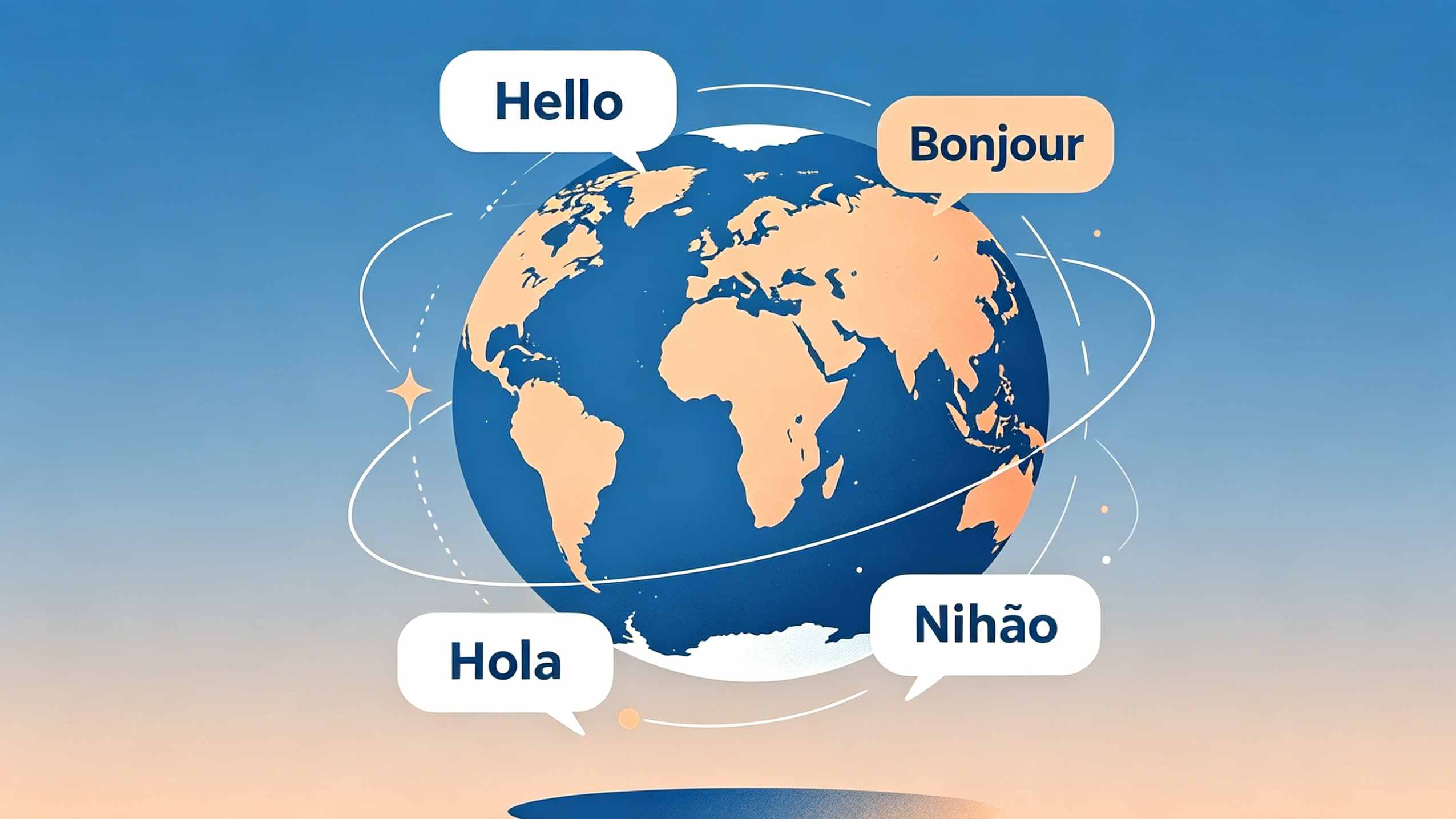
Q: Should I prompt in English or my native language? A: Most AI models are trained primarily on English datasets. While many now understand Indonesian, Spanish, or French, using English generally provides more accurate and nuanced results.
-
Topic: Generative AI Workflow Template: Streamlining Your Creative Processhttps://gsdcdata.gsdcouncil.org/gsdc/pdf/generative-ai-workflow-template.pdf
-
Topic: How to Use AI Picture Generators | Microsoft Copilothttps://www.microsoft.com/en-us/microsoft-copilot/for-individuals/do-more-with-ai/ai-art-and-creativity/how-to-use-ai-picture-generators
-
Topic: How to Create Images Using AI Tools: Step-by-Step Guide | May 2026https://mrrama.com/how-to-create-images-using-ai-tools/