Home
Home
How to Turn Your Photos Into Hyperrealistic AI Art Without Losing the Human Touch
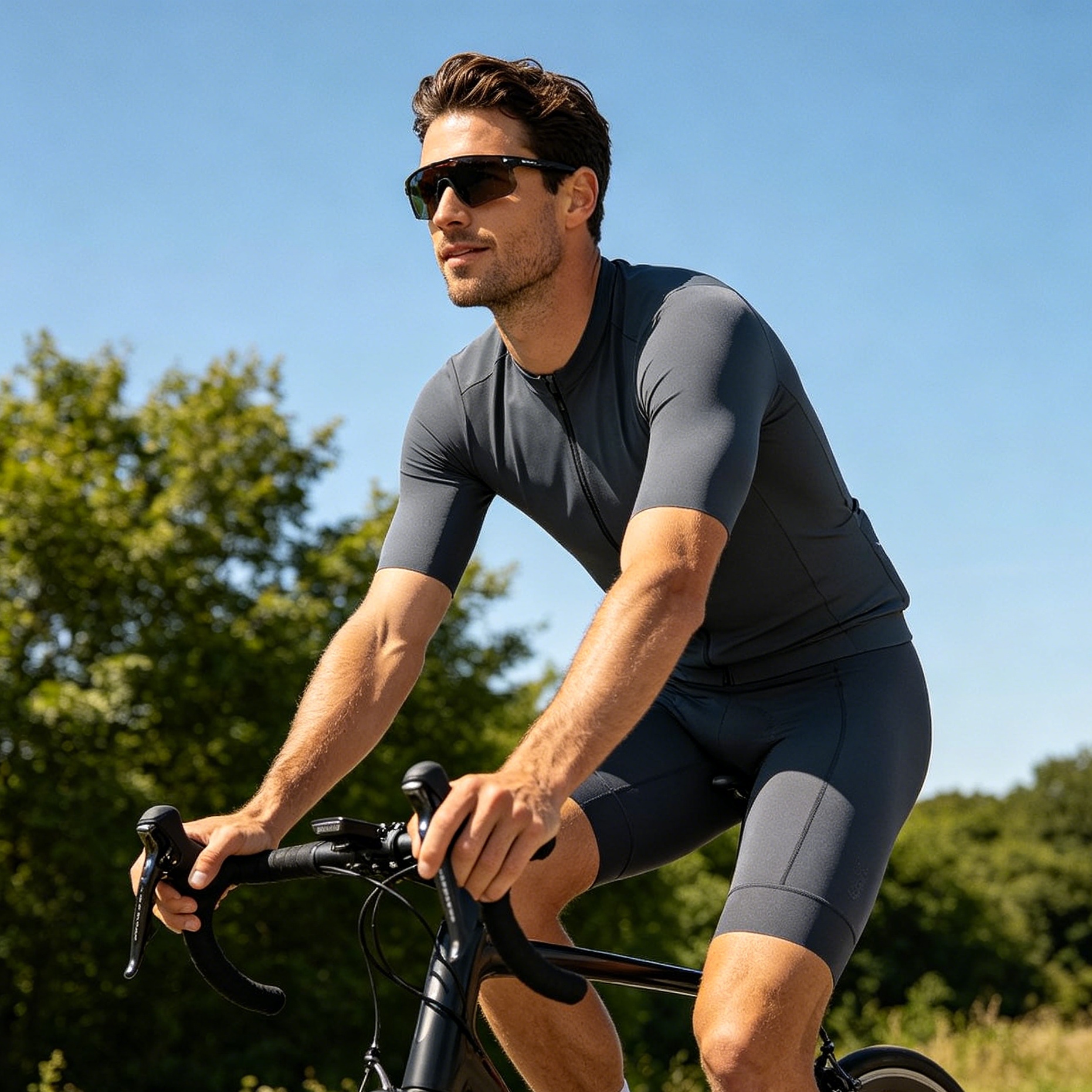
The transition from a standard smartphone photo to a hyperrealistic AI masterpiece is no longer a matter of applying simple filters. It requires a sophisticated workflow known as Image-to-Image (Img2Img) synthesis. This process uses your original image as a structural foundation, onto which an AI model layers textures, lighting, and anatomical details that mimic high-end cinematography or professional photography.
Achieving true hyperrealism—where the viewer cannot distinguish between a real photograph and an AI-generated one—requires a delicate balance between the AI's creative "denoising" power and the preservation of the original subject's identity.
Understanding the Mechanics of the Img2Img Workflow
At its core, converting a picture to AI involves feeding a source image into a latent diffusion model. The model interprets the shapes, colors, and composition of your photo. However, the most critical setting in this entire process is the "Denoising Strength" (or "Image Strength").
When the denoising strength is set too low (below 0.3), the AI barely makes any changes, often resulting in a muddy, slightly blurred version of the original. Conversely, when set too high (above 0.7), the AI loses the likeness of the subject entirely, creating a "perfect" but unrecognizable face. For hyperrealism, the sweet spot usually lies between 0.4 and 0.55. In our internal tests using Stable Diffusion, setting the denoising strength to 0.45 allows the model to introduce skin pores and realistic lighting while keeping the bone structure of the original subject intact.
Choosing the Right Tool for Photorealistic Results
Not all AI generators are optimized for realism. Some prioritize artistic flair, while others focus on structural accuracy.
Midjourney and the Power of Style Reference
Midjourney is widely regarded as the "gold standard" for aesthetic output. While it traditionally struggled with strict image-to-image consistency, the introduction of the --sref (Style Reference) and --cref (Character Reference) parameters changed the game. If you are starting with a high-quality portrait, using the --cref tag ensures that the AI focuses on the person's facial features rather than just the general "vibe" of the photo.
In my practical experience, adding the --v 6.1 or --v 6.0 flag is essential. These versions have a significantly improved understanding of skin textures and lighting falloff compared to earlier iterations.
Stable Diffusion for Absolute Compositional Control
For those who need granular control, Stable Diffusion (specifically using the SDXL architecture) remains the superior choice. This is largely due to "ControlNet." Unlike standard Img2Img, which treats the photo as a suggestion, ControlNet allows you to lock in the "Canny" edges or "Depth" map of your photo. This means you can change the lighting from a flat office light to a dramatic "Golden Hour" sunset without moving a single strand of hair or changing the shape of the nose.
Using a checkpoint model like "Juggernaut XL" or "RealVisXL" is non-negotiable here. These models are specifically fine-tuned on thousands of high-resolution RAW photographs to eliminate the "plastic" look common in base AI models.
Leonardo.ai and the Universal Upscaler
Leonardo.ai provides a middle ground, offering a user-friendly interface with powerful backend models. Their "PhotoReal" pipeline is particularly effective because it automates the complex prompt engineering required for realism. However, their true secret weapon is the Universal Upscaler. Once an image is generated, this tool can add microscopic details—like the fine fabric of a shirt or the moisture on an eye—that standard generators often miss.
Technical Keywords That Force Realism
Even with a great source image, the AI needs "meta tokens" to understand that you want a realistic output, not a digital painting. Relying on words like "realistic" or "detailed" is a mistake; these are too vague. Instead, use the language of a cinematographer.
Camera Settings and Lens Simulation
To convince the human eye that an image is real, the AI must simulate the physical properties of a camera lens.
- Aperture: Using "f/1.8" or "f/2.8" forces the AI to create a shallow depth of field, blurring the background (bokeh) and making the subject pop.
- Lens Type: "Shot on 85mm lens" is the secret for portraits, as it avoids the facial distortion common in wide-angle shots.
- Film Grain: Specifying "subtle film grain" or "shot on Kodak Portra 400" adds a layer of organic noise that breaks up the overly smooth, digital gradients often produced by AI.
Lighting Models and Atmospheric Depth
Lighting is the quickest way to spot an AI-generated image. "Flat lighting" looks like a computer render. To fix this, include:
- Volumetric Lighting: This adds a sense of three-dimensional space, showing how light interacts with dust or moisture in the air.
- Subsurface Scattering: This is a technical term for how light penetrates the skin (like when you see a red glow in your ears when standing in front of the sun). This one keyword is the difference between "plastic skin" and "human skin."
- Rembrandt Lighting: A classic portrait technique that creates a small triangle of light on the shadowed side of the face, adding instant professional depth.
Advanced Techniques to Avoid the Uncanny Valley
The "Uncanny Valley" is that unsettling feeling when something looks almost human but is slightly "off." In AI, this usually manifests as overly symmetrical faces, lack of skin imperfections, or "dead" eyes.
How to Fix the "Plastic Skin" Problem
AI models love to smooth things out. To counteract this, your prompt should explicitly demand imperfections. I often include "visible skin pores," "slight skin redness," or "freckles" in my prompts. In the negative prompt, I always include "deformed, airbrushed, smooth skin, cartoon, anime." This forces the AI to look for textures rather than trying to make the subject look like a porcelain doll.
The Role of AI Upscalers in Fine Detail
Most AI generators produce images at a resolution of roughly 1024x1024 pixels. At this size, the fine details of the iris or the texture of the hair are just "guesses." A dedicated AI upscaler, such as Topaz Photo AI or Magnific AI, is essential. These tools don't just "stretch" the image; they use a separate neural network to hallucinate missing details. In a recent workflow, I took a 1MP generation and upscaled it 4x; the resulting image revealed individual eyelashes and skin textures that weren't visible in the original AI output.
Real-World Workflow Example for a Professional Portrait
If I were tasked with converting a low-quality office selfie into a hyperrealistic executive headshot, here is the exact sequence I would follow:
- Preprocessing: I would crop the photo to a 4:5 aspect ratio and increase the contrast slightly to give the AI clearer edges to follow.
- Base Generation (Stable Diffusion): I would use the Juggernaut XL model. I would load the photo into ControlNet (Depth model) at 0.6 weight to keep the head shape.
- The Prompt: "A professional executive portrait, middle-aged man, shot on 85mm f/1.8 lens, sharp focus on eyes, dramatic office window lighting, subsurface scattering on skin, visible pores, navy blue wool suit texture, highly detailed background, 8k resolution, raw photo."
- The Negative Prompt: "cgi, render, 3d, illustration, smooth skin, plastic, doll, blurred eyes, extra fingers, cartoon."
- Denoising Setting: I would start at 0.45. If the face looks too different from the original, I would drop it to 0.4.
- Inpainting: If the eyes look slightly "glassy," I would use the Inpainting tool to select just the eyes and re-run the prompt at a higher denoising strength (0.6) to add "eye reflection" and "intricate iris detail."
- Final Polish: I would move the image to an upscaler, setting the "creativity" or "hallucination" level to low to ensure the final 4096x5120 image remains a faithful representation of the original person.
Common Mistakes in Photo-to-AI Conversion
One of the most frequent errors is over-prompting. If you tell the AI to create "the most beautiful, perfect, realistic, 8k, hyper-detailed, masterpiece," it often gets overwhelmed and defaults to a generic, highly-stylized look. Precision beats volume. Using one specific camera brand (e.g., "Sony A7R IV") is more effective than ten generic adjectives.
Another mistake is ignoring the background. A hyperrealistic face against a "dreamy, blurry AI clouds" background immediately screams "AI." To make it look real, the background needs "grounding." Mention specific elements like "dappled sunlight through oak leaves" or "industrial loft with exposed brick and dust motes."
Frequently Asked Questions
Can I convert a blurry photo into a clear AI image?
Yes, but the AI will have to "guess" more of the features. This is where the Likeness Preservation becomes difficult. You should use a low denoising strength initially to get the shape right, and then use a "Face Fixer" or "Inpainting" to sharpen the features.
Which AI tool is best for keeping my face exactly the same?
Stable Diffusion with ControlNet is currently the best for exact likeness. Midjourney’s --cref is a close second, but it can sometimes "beautify" the subject, making them look like a model version of themselves rather than a literal copy.
Why do the hands always look wrong in hyperrealistic AI?
Hyperrealism requires the model to understand complex geometry. While newer models like Flux.1 and SDXL are much better at hands, it is still a common failure point. The best fix is to use a source photo where the hands are already in a clear, simple position, and use a "Depth" ControlNet to lock them in place.
Is it possible to change the clothes but keep the photo realistic?
Absolutely. This is best done through "Inpainting." You mask out the original clothing and prompt the AI for the new outfit (e.g., "heavy knit wool sweater"). Because the rest of the photo (face and background) remains untouched, the final result looks like a real wardrobe change.
Summary of Hyperrealistic AI Conversion
The secret to converting pictures to hyperrealistic AI art is not found in a single "magic button" but in the meticulous control of the generation environment. By understanding the role of denoising strength, leveraging professional cinematography vocabulary, and using ControlNet to anchor the AI's imagination, you can move beyond the "AI look." True hyperrealism is achieved when you stop asking the AI to "make it pretty" and start commanding it to "make it physical." As models continue to evolve, the gap between the digital and the biological will only continue to shrink, making these technical workflows essential for any modern digital creator.
-
Topic: 7 Best Ways to Turn Regular Photos Into AI Generated Imageshttps://sozee.ai/resources/best-photos-to-ai-images/
-
Topic: How to Generate Realistic AI Images from Photos: 2026 Guidehttps://sozee.ai/resources/generate-realistic-ai-images-photos/
-
Topic: Convert Image To Realistic Ai Freehttps://topai.tools/s/convert-image-to-realistic-ai-free