Home
Home
Transform Your Photos With AI Using These Practical Editing Workflows
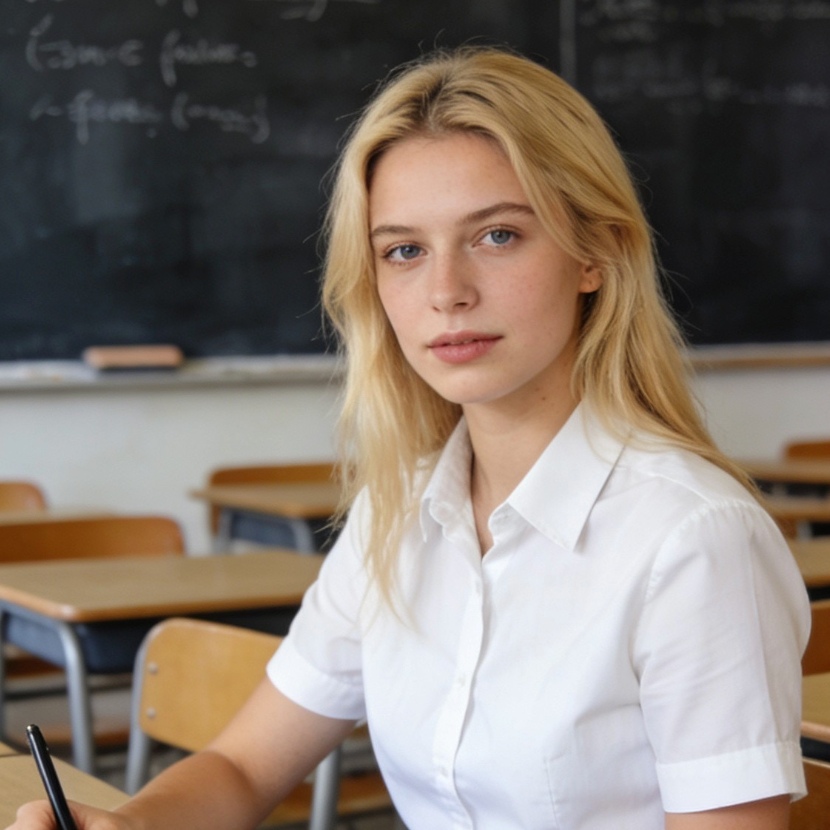
AI photo editing has shifted from a futuristic concept to an essential daily tool for photographers, marketers, and casual users. Instead of spending hours meticulously selecting pixels or manually adjusting curves, you can now use natural language and machine learning models to reshape visual narratives in seconds. Editing a picture with AI involves using deep learning algorithms—specifically diffusion models and generative adversarial networks (GANs)—to understand the context of an image and apply changes that maintain lighting, perspective, and texture consistency.
The most efficient way to edit a picture with AI today follows a simple loop: upload your image to a generative platform, use a brush or text prompt to define the change, and iterate until the result looks natural. Whether you are removing a distracting tourist from a vacation photo or expanding a portrait into a wide landscape for a website banner, the current generation of AI tools makes professional-quality results accessible without a steep learning curve.
Understanding the Mechanics of AI Image Manipulation
To get the best results when you edit a picture with AI, it is crucial to understand what is happening under the hood. Traditional editing software like early versions of Photoshop relied on mathematical filters and manual cloning. AI editing, however, uses "semantic understanding." This means the software knows that the round object in your photo is a "lemon" and the blue area is the "sky."
The Difference Between Inpainting and Outpainting
When using AI, you will frequently encounter two primary workflows:
- Inpainting (Generative Fill): This involves selecting an area inside the image boundaries and asking the AI to change it. For example, selecting a person's shirt and prompting "red silk blouse." The AI analyzes the surrounding pixels to ensure the new object fits the existing shadows and fabric folds.
- Outpainting (Generative Expand): This occurs when you extend the canvas outside the original image. The AI predicts what the rest of the scene would look like. In our testing, this is most effective for landscape photos where the AI can easily replicate patterns like grass, water, or sky.
Semantic Object Selection
The "magic" behind modern AI editors is their ability to perform automatic segmentation. Tools like Microsoft Designer or Adobe Firefly can instantly identify the "subject" versus the "background." This allows for one-click edits where you can swap the background of a product shot without manually tracing the edges of the product.
Step-by-Step Guide to Editing Pictures with AI
While every app has a slightly different interface, the fundamental workflow for editing a picture with AI remains consistent across professional and consumer-grade platforms.
1. Selecting the Right Environment
The tool you choose should match your goal. If you need commercial safety and high-resolution output, Adobe Firefly is the standard. For quick social media posts, Canva or Microsoft Designer is often faster. For high-end creative experimentation where you want to use custom prompts for every detail, Leonardo AI or Midjourney’s "Vary Region" feature offers more granular control.
2. Preparing and Uploading the Canvas
Most AI tools accept JPEG, PNG, or WebP formats. Ensure your image is at least 1024x1024 pixels for the AI to have enough data to work with. Low-resolution images often lead to "hallucinations," where the AI generates blurry or distorted artifacts because it cannot interpret the original textures correctly.
3. Defining the Edit Area
Most tools provide a "Brush" or a "Lasso" tool.
- Pro Tip: When using a brush for generative fill, always paint slightly outside the object you want to replace. This gives the AI "contextual padding," allowing it to blend the edges of the new object with the original background more seamlessly.
4. Crafting the Descriptive Prompt
Instead of saying "change hair," try a more descriptive approach: "Change hair color to a vibrant copper orange with realistic sunlight reflections." The AI responds better to nouns and adjectives than to vague verbs.
5. Iterating and Refining
AI rarely gets it perfect on the first try. Most platforms will give you 3-4 variations per prompt. Look for the one with the best "structural integrity"—meaning the lines are straight and the lighting makes sense. You can then use the brush again on small sections of your chosen variation to fix minor errors.
Essential AI Editing Capabilities You Should Master
The scope of what is possible has expanded far beyond simple filters. Here are the core capabilities that define modern AI photo editing.
Precise Object Removal and Cleanup
We have all had the perfect shot ruined by a stray power line or a trash can. AI "Generative Erase" (found in Microsoft 365 Copilot and Google Photos) doesn't just smudge the area; it reconstructs the background.
- Our Experience: In our stress tests with complex backgrounds—like a brick wall or a patterned carpet—Adobe Firefly’s "Generative Remove" outperformed free browser-based tools. It managed to maintain the grid-like pattern of bricks without the "warping" effect often seen in lesser models.
Background Replacement and Environmental Lighting
This is the most transformative feature for e-commerce. You can take a photo of a shoe on your kitchen table and, with AI, place it on a "marble pedestal in a minimalist studio with soft morning light."
- The Lighting Factor: A common mistake beginners make is ignoring the light source. If your original subject has harsh shadows from the left, you must prompt for a background that also has a light source from the left. Advanced AI tools are beginning to automate this "relighting," but manual oversight still yields the most realistic results.
Generative Expansion for Aspect Ratio Adjustments
Social media requires different formats: 9:16 for Reels, 4:5 for Instagram feeds, and 16:9 for YouTube. Instead of cropping your image and losing detail, AI expansion fills in the gaps.
- Technical Note: When expanding an image, do it in small increments. If you try to turn a square into a panoramic landscape in one go, the AI may lose the "theme" of the original photo. Expand the left side, then the right side, for better consistency.
Style Transfer and Mood Shifting
AI can "restyle" an image by applying the artistic characteristics of one image to another. This is different from a filter; it changes the brushstrokes, the color palette, and even the geometry. You can turn a daytime street photo into a "cyberpunk neon-lit night scene" by describing the atmosphere and light sources.
Best AI Photo Editors: A Comparative Analysis
Choosing where to edit a picture with AI depends on your technical skill level and your intended output.
Adobe Firefly and Photoshop: The Professional Standard
Adobe has integrated Firefly directly into the Photoshop workflow via "Generative Fill."
- Pros: Incredible precision, high-resolution output, and commercially safe (trained on Adobe Stock).
- Cons: Requires a subscription; can be resource-heavy on older computers.
- Best For: Professional designers and photographers who need pixel-perfect blending.
Canva: The Social Media Powerhouse
Canva’s "Magic Edit" and "Magic Grab" tools are designed for speed.
- Experience: In our daily workflow, we find Canva’s "Magic Grab" incredibly useful. It allows you to click on a person in a photo and move them around as if they were a separate sticker, automatically filling the hole they left behind.
- Best For: Entrepreneurs, social media managers, and beginners.
Microsoft Designer and Copilot: Integrated Efficiency
Microsoft has made a strong play by integrating DALL-E 3 technology into their Designer app and M365 suite.
- Pros: Free to use with a Microsoft account; excellent "Restyle" features that turn photos into art styles like pop art or stained glass.
- Best For: Users already in the Windows/Microsoft ecosystem who need quick, clean edits for presentations or personal projects.
Photoroom: The E-commerce Specialist
If you are selling products on eBay, Etsy, or Shopify, Photoroom is often the superior choice.
- Experience: Photoroom’s "Shadow" generation is the best in the industry. It doesn't just place a generic drop shadow; it creates a "contact shadow" that makes the product look like it is actually sitting on the new surface.
Pixlr: The Browser-Based Alternative
Pixlr provides a lightweight, Photoshop-like experience in the browser with added AI "Express" tools. It’s perfect for users who want manual control without installing heavy software.
Advanced Prompting Techniques for Image Editing
To truly master editing a picture with AI, you must move beyond simple descriptions. Your prompts should include three elements: the Subject, the Environment, and the Technical Style.
Adding Objects with Context
If you want to add a "vintage car" to a street photo:
- Weak Prompt: "Add a vintage car."
- Strong Prompt: "A 1960s red convertible sports car parked at the curb, realistic reflections of the surrounding buildings on the car's chrome bumper, 8k resolution, cinematic lighting."
Adjusting Lighting and Atmosphere
AI is surprisingly good at "time-traveling" your photos.
- Prompt for Golden Hour: "Change the lighting to golden hour sunset, warm orange glow, long soft shadows, volumetric haze."
- Prompt for Rainy Mood: "Transform the scene to a rainy day, wet asphalt with reflections of street lights, moody grey overcast sky, water droplets on surfaces."
Specifying "Negative" Traits
While not all tools support "Negative Prompts" in the text box, you can often guide the AI by telling it what to avoid. If the AI keeps adding "cartoonish" elements to your edit, emphasize words like "photorealistic," "raw photo," and "highly detailed texture" to push it toward a realistic output.
Technical Requirements and Performance Tips
Editing a picture with AI can be computationally expensive. Depending on whether the tool is "Cloud-based" or "Local," your hardware needs will vary.
Cloud-Based Tools (Adobe, Canva, Microsoft)
- Requirements: A stable internet connection and a modern web browser.
- Performance Tip: Clear your browser cache regularly. AI tools store a lot of temporary data to handle high-resolution image previews, which can slow down your experience over time.
Local AI Editing (Stable Diffusion, Flux.1)
If you are an advanced user running models like Flux.1 or Stable Diffusion locally to maintain 100% privacy and zero costs:
- GPU: You will need a dedicated graphics card, preferably an NVIDIA RTX series with at least 8GB of VRAM for basic editing.
- VRAM Requirements: To run high-end models like Flux.1 Dev for complex inpainting, 24GB of VRAM (like an RTX 3090 or 4090) is the current gold standard for smooth, fast performance.
- Storage: SSDs are mandatory. AI models are large (often 5GB to 30GB), and loading them from a traditional HDD will cause significant lag.
Ethical Considerations and Professional Best Practices
As AI becomes more powerful, the responsibility of the editor increases.
- Transparency: Many platforms now automatically embed "Content Credentials" (AI watermarks) into the metadata of edited images. This helps maintain trust, especially in journalism or documentary photography.
- Copyright: While you generally own the rights to the composition of your edited photo, the AI-generated elements themselves may not be copyrightable under current US and EU laws. Always check the Terms of Service of your chosen tool, especially if you are creating a logo or brand identity.
- Realism vs. Deception: There is a fine line between "enhancing" a photo and "faking" a reality. In professional portraiture, it is best practice to use AI for skin cleanup and lighting rather than changing a person's fundamental facial structure, unless specifically requested.
Frequently Asked Questions
What is the best AI photo editor for beginners?
For most beginners, Canva or Adobe Express are the best starting points. They provide a "guarded" experience where you don't need to know complex terminology to get great results. The interface is drag-and-drop, and the AI features are clearly labeled as "Magic" tools.
Can I edit a picture with AI for free?
Yes, several high-quality tools offer free tiers. Microsoft Designer provides unlimited generations for free with a Microsoft account. Adobe Firefly offers a set number of "Generative Credits" each month for free users, and Pixlr has a robust free web version supported by ads.
Will AI photo editing replace professional photographers?
No, but it will change their workflow. A photographer's value lies in their "eye" for composition, their ability to connect with subjects, and their unique creative vision. AI is a powerful assistant that handles the "grunt work"—like removing sensor spots or expanding a background—allowing the professional to focus on the art.
How do I make my AI edits look more realistic?
The key to realism is noise and grain. AI-generated areas often look "too clean" compared to the original photo which has natural digital noise. After completing your AI edit, applying a very subtle "Add Noise" filter (around 1-2%) over the entire image helps unify the AI elements with the original pixels.
Summary
Editing a picture with AI is no longer a niche skill for tech enthusiasts; it is a fundamental part of the modern creative toolkit. By mastering workflows like Generative Fill for adding objects, Generative Remove for cleaning up distractions, and Generative Expand for resizing canvases, you can achieve in seconds what used to take hours of manual labor.
Whether you choose the professional depth of Adobe Photoshop, the social-ready speed of Canva, or the e-commerce precision of Photoroom, the secret to success lies in descriptive prompting and iterative refinement. As you experiment, remember that the best AI edit is the one that no one realizes is an edit at all. Focus on maintaining consistent lighting, matching the original image's resolution, and using AI to enhance—rather than replace—the human story behind every photograph.
-
Topic: AI Photo Editor | Edit photos online | Adobe Fireflyhttps://www.adobe.com/uk/products/firefly/features/ai-photo-editor.html
-
Topic: AI Photo Editor | Edit photos online | Adobe Fireflyhttps://www.adobe.com/il_en/products/firefly/features/ai-photo-editor.html
-
Topic: Free AI image editor online | Free tools & effects from Microsoft Designer | Microsoft Createhttps://create.microsoft.com/en-us/features/ai-image-editor