Home
Home
How to Use Artificial Intelligence to Edit Photos and Videos Like a Pro
Artificial intelligence edit tools have transitioned from simple filters to generative systems capable of adding, removing, or altering content based on text prompts. For photos, Adobe Firefly and Canva lead in brand consistency and ease of use. For video, Runway and Captions.ai automate complex post-production tasks like B-roll insertion and background replacement. Success in 2026 relies on a "chunking" strategy—editing in stages rather than one complex prompt—to maintain high visual fidelity.
The landscape of digital media has shifted from "manual adjustment" to "generative manipulation." In the past, an artificial intelligence edit might have meant a simple auto-enhance button that adjusted brightness and contrast. Today, it refers to a sophisticated suite of neural networks that can understand the context of an image or video, allowing creators to swap objects, expand backgrounds, and repurpose content with a single click. This guide explores the top-rated tools and strategies to help you navigate this rapidly evolving field.
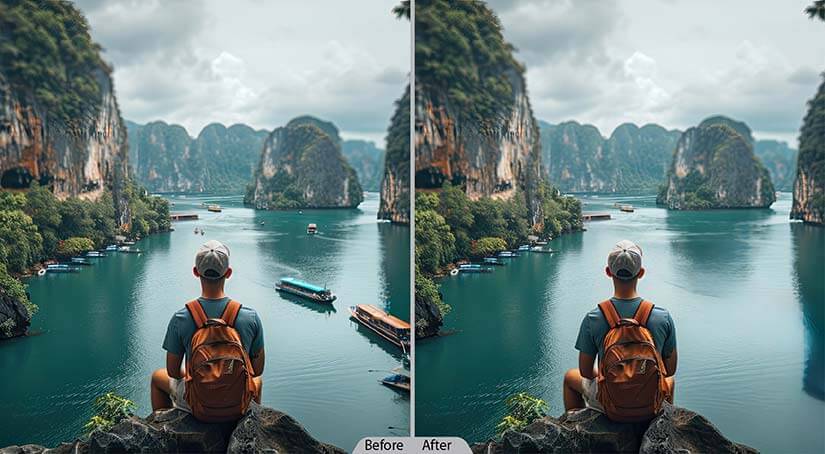
Image source: HitechDigital
What Can You Actually Do With Artificial Intelligence Editing Today?
Modern editing tools leverage Large Language Models (LLMs) and diffusion models to perform tasks that once required hours of painstaking work in software like Photoshop or After Effects. According to industry trends, the focus has moved toward accessibility and speed without sacrificing professional quality.
Generative Manipulation and Object Swapping
Generative manipulation allows users to interact with their media using natural language. Tools like Adobe Firefly and Canva Magic Edit enable you to highlight an area and type "add a vintage camera" or "change the shirt to blue silk." The AI analyzes the surrounding pixels, lighting, and perspective to ensure the new object looks like it was part of the original shot. This is particularly useful for marketing teams that need to update product photos for different seasons or regions without reshooting.
Advanced Object and Text Isolation
One of the most significant advancements is the ability to treat flat images as layered compositions. Canva’s "Magic Grab" feature can identify a subject in a photo and instantly turn it into a movable layer. Similarly, "Grab Text" allows users to edit the typography within an image as if it were a live text box. This level of non-destructive editing is a significant step forward for social media managers who need to repurpose static assets quickly.
Automated Video Post-Production
In the video realm, artificial intelligence edit workflows now handle the "grunt work" of post-production. Tools like Captions.ai can analyze a talking-head video and automatically insert relevant B-roll, generate dynamic zooms to emphasize key points, and even remove filler words like "um" and "uh." This automation allows creators to focus on storytelling rather than the technical minutiae of cutting clips.
Top Artificial Intelligence Photo Editors for Every Skill Level
Choosing the right tool depends heavily on your technical background and the specific requirements of your project. While some platforms prioritize creative control, others focus on speed and ease of use.
Why Adobe Firefly Is the Choice for Professional Brand Consistency
Adobe Firefly stands out as a top choice for professionals due to its integration with the Creative Cloud ecosystem. Its "Generative Match" feature is notably innovative, allowing users to upload a reference image to ensure that all AI-generated edits match the specific color palette and style of a brand. Firefly supports high-resolution files up to 100MB, making it suitable for print and high-end digital displays. The "Precision Flow" slider provides granular control, letting you decide exactly how much the AI should deviate from the original image.
How Canva Makes Complex Graphic Design Edits Accessible to Everyone
Canva has democratized the artificial intelligence edit by wrapping complex diffusion models in a user-friendly interface. Features like "Magic Expand" allow users to fix poorly framed shots by generating new scenery outside the original borders. For small business owners, Canva offers a strong value proposition by combining editing, layout, and publishing tools in one place, requiring virtually no prior design experience.
Why Pixlr Is a Budget-Friendly Multi-Model Powerhouse
For those who want to experiment with different AI architectures, Pixlr offers a unique interface that allows users to switch between models like Flux, Kling, and Google Veo. Starting at approximately $1.99 per month, it is widely regarded as one of the most affordable entry points for professional-grade AI editing. This multi-model approach is a significant advancement, as different models often excel at different tasks—Flux for realism and Google Veo for artistic flair.
How Leonardo AI Provides Granular Control for Digital Artists
Leonardo AI is a popular choice for digital artists who need more than just a "one-click" fix. Its "Canvas" editor allows for outpainting and refinement, giving users the ability to guide the AI through iterative steps. This tool is exceptionally strong for creating concept art or complex social media visuals where the creator needs to maintain a specific artistic vision across multiple edits.
Image source: Autoenhance.ai
Best Artificial Intelligence Video Editors for Content Creators
Video editing is computationally expensive and technically demanding. AI tools in this space focus on reducing the time between filming and publishing by automating the most tedious parts of the process.
How Runway Aleph 2.0 Maintains Consistency Across Video Scenes
Runway is a leader in temporal consistency—the ability to keep an edit looking the same from one frame to the next. Their Aleph 2.0 model allows for localized edits, such as changing a character's clothing or the background of a scene, that remain stable for up to 30 seconds at 1080p resolution. While it has technical limits, it sets a high standard for what is possible in browser-based video manipulation.
Why Captions.ai Is the Fastest Way to Edit Social Media Clips
For creators on TikTok, Reels, and Shorts, Captions.ai is a top-tier option. It uses AI to transcribe audio instantly and then uses that transcript to drive the edit. It can automatically add captions, insert relevant stock footage (B-roll), and even adjust the speaker's eye contact to look directly at the camera. This "Edit with AI" workflow can reduce editing time from hours to minutes.
How Opus.pro Repurposes Long Videos into Viral Short-Form Content
Opus.pro solves the problem of content distribution. By analyzing long-form videos (like podcasts or webinars), the AI identifies the most engaging "hooks" and automatically re-crops the footage for vertical viewing. It ranks clips based on their potential for virality, providing a data-driven approach to social media growth.
Which Artificial Intelligence Edit Tool Should You Choose?
Selecting a tool requires balancing your budget, technical skills, and the specific media type you are working with. The following table provides a structured framework for making that decision.
| Tool Name | Primary Use | Best For | Key Technical Limit |
|---|---|---|---|
| Adobe Firefly | Photo | Brand Consistency | 100MB File Limit |
| Canva | Photo/Design | Non-Designers | Limited Manual Control |
| Pixlr | Photo | Budget/Multi-Model | Ad-supported Free Tier |
| Runway | Video | Cinematic Effects | 30-Second Sequences |
| Captions.ai | Video | Social Media Clips | Mobile-First Interface |
| Opus.pro | Video | Repurposing | Requires Long Footage |
Choosing the Right Model Tier for Your Project
According to research by Ethan Mollick , AI models are generally categorized into three tiers. "Fast" models (like GPT-4o mini or Gemini Flash) are excellent for quick, simple edits like background removal. "Powerful" models (like Claude Opus or o3) are better suited for complex generative tasks that require deep contextual understanding. When performing an artificial intelligence edit, always check which model the tool is using; higher-tier models typically produce fewer hallucinations and better lighting matches.
How to Get Better Results Using the Chunking Prompt Strategy
A common challenge in AI editing is the "hallucination"—where the AI adds strange artifacts or distorts the subject. Insights from the Google AI Forum suggest that "chunking" your workflow is a highly impactful way to solve these issues.
Start With the Background and Environment First
Instead of asking the AI to change the entire scene at once, start by expanding or modifying the background. By setting the environment first, you provide the AI with a lighting and perspective "anchor." This prevents the subject from looking like they were poorly pasted into a new scene.
Add or Modify Subjects and Objects in Separate Stages
Once the background is set, use "Generative Fill" to add or modify specific objects one at a time. If you need to add a hat, a dog, and a car to a photo, do them in three separate steps. This reduces the computational load on the model and allows you to undo a single mistake without losing the rest of your progress.
Finalize Lighting and Color Grading as the Last Step
AI often struggles to match the lighting of a generated object with the original photo. Use tools like Adobe’s "Precision Flow" or Pixlr’s color match features as the final step. This ensures that the shadows and highlights are consistent across all "chunks" of your edit, creating a cohesive final product.
Image source: PetaPixel
Are Your Photos and Videos Safe With These AI Tools?
Privacy and data security are paramount when using cloud-based artificial intelligence edit tools. Users must understand how their data is being used to train future models and whether their content remains their own.
- Adobe Firefly
- Marketed as "commercially safe." Trained on Adobe Stock images; does not train on user-uploaded content by default.
- Claude (Anthropic)
- Known for strict privacy; does not train future models on user data, making it a strong choice for sensitive text-based editing.
- Canva
- Uses user data to improve models unless users opt-out in the settings. Generally safe for public marketing materials.
- Runway
- Retains rights to use generated content for model improvement on certain tiers. Check your specific subscription agreement.
Understanding Which Models Train on Your Data
As noted by Harvard AI Basics , generative AI is only as good as the data it is trained on. Some companies use "web scraping," which can include copyrighted or private material. If you are working on sensitive corporate assets, prioritize tools that offer "Enterprise" agreements or explicit "No-Training" clauses. Adobe Firefly is widely considered one of the safest options for commercial work because its training set is legally cleared.
The Importance of Human Review Before Publishing
The World Economic Forum emphasizes that AI is a "co-pilot," not a replacement. AI-generated edits can be inaccurate or biased. A "Human-in-the-loop" approach is required to check for technical errors, such as extra fingers in a photo or audio glitches in a video. Always perform a final manual review to ensure the content meets your quality and accessibility standards.

Image source: Technology Networks
Key Takeaways for Successful AI Edits
- Match the tool to the media: Use Adobe Firefly or Canva for photos, and Runway or Captions.ai for video.
- Verify commercial safety: Ensure the tool you choose does not train on your sensitive data and is legally cleared for commercial use.
- Implement the chunking method: Edit in stages (Background > Objects > Lighting) to avoid AI hallucinations and maintain control.
- Check technical limits: Be aware of file size limits (e.g., 100MB for Adobe) and duration limits (e.g., 30s for Runway) before starting a project.
- Prioritize human review: Never publish AI-generated content without a manual check for artifacts, errors, or biases.
- Leverage model tiers: Use "Powerful" models for complex creative work and "Fast" models for simple, repetitive tasks.
Start by applying a simple generative fill to a background today to see how these tools can immediately streamline your creative workflow.
Frequently Asked Questions
Can ChatGPT edit photos for free?
ChatGPT, through its integration with DALL-E 3, can perform basic image edits by following text instructions. However, it is not a dedicated photo editor. It lacks the precision tools, layers, and granular control found in platforms like Adobe Firefly or Canva. For professional results, it is better to use ChatGPT for brainstorming and a dedicated AI editor for the actual manipulation.
How do I edit videos with AI without a watermark?
Most AI video editors use a freemium model where the free version includes a watermark. To export clean, high-resolution video, you typically need a paid subscription. Tools like Captions.ai and Runway offer various tiers. Always check the pricing page for "Watermark-free exports" before committing to a platform for a major project.
Is AI photo editing detectable by social media platforms?
Yes, many AI-edited photos now include invisible metadata or watermarks, such as the C2PA standard, which identifies the content as AI-generated. Platforms like Instagram and Facebook are increasingly labeling AI-generated or heavily modified content to maintain transparency. While the edits may look seamless to the human eye, the underlying data often reveals the AI's involvement.
What is the best AI for removing unwanted objects from a photo?
While many tools offer this, Adobe Firefly's Generative Fill and Canva's Magic Eraser rank among the top options. Adobe is generally preferred for complex backgrounds where the AI needs to "invent" what was behind the object, while Canva is excellent for quick removals on simpler, social-media-style graphics.
Can AI edit audio and video at the same time?
Yes, tools like Captions.ai and Descript are designed for multimodal editing. They can remove background noise and filler words from the audio while simultaneously cutting the video to match the new audio length. This synchronized approach is a major improvement over traditional workflows where audio and video were often edited in separate software packages.
Final Thoughts on the Future of AI Editing
The field of artificial intelligence edit technology is moving toward a future where the barrier between imagination and execution is virtually non-existent. As models become more powerful and efficient, the role of the editor is shifting from a technician to a director. By mastering the tools and strategies outlined in this guide—particularly the chunking method and model selection—you can stay ahead of the curve and produce high-quality content with unprecedented speed. Remember that while AI provides the tools, your unique human perspective remains the most important element in any creative project.