Home
Home
Which Free Photo Editing Software Options Rank Among the Top for Your Creative Needs?
Choosing the right tool depends on your specific goals. For professional-grade manipulation, Photopea and GIMP are leading choices. If you need rapid social media templates, Canva stands out as a top option. For photographers handling RAW files, Darktable is widely considered one of the strongest open-source alternatives to paid subscriptions.
In 2026, the landscape of digital creativity has shifted significantly. While Adobe remains a standard in the industry, the rise of high-quality free photo editing software has made professional-level results accessible to everyone. However, "free" often comes with caveats. Many users find themselves trapped by "freemium" models that lock high-resolution exports behind paywalls or add intrusive watermarks to finished work.
This guide explores the most reliable tools available today, focusing on software that provides genuine value without hidden traps. Whether you are a "Photoshop refugee" looking for a familiar interface, a social media creator needing quick AI fixes, or a purist photographer seeking precise RAW development, there is a solution that fits your hardware and your skill level.
Why Many Free Photo Editors Include Hidden Costs and Limitations
The term "free" is frequently used as a marketing hook rather than a literal description of the service. Many popular web-based editors operate on a freemium model. According to Hinson Photography , the cost of "free" can quickly escalate if you require advanced features; for instance, Pixlr Premium and Canva Pro carry monthly or annual fees that rival professional suites.
Common limitations in free versions include:
- Watermarking: Some tools allow you to edit for free but place a logo over your image upon export, rendering it unusable for professional or clean social media use.
- Resolution Caps: You might be able to edit a 20-megapixel photo, but the free export might be limited to a low-resolution web version.
- AI Credit Systems: With the integration of generative AI, many tools now limit how many "magic" edits you can perform each month before requiring a subscription.
- File Format Restrictions: Professional formats like .PSD, .TIFF, or various RAW files are often reserved for paying users.
To avoid these traps, it is essential to identify tools like Photopea or GIMP , which offer "true" free exports without watermarks. Understanding these distinctions early in your creative process prevents the frustration of spending hours on an edit only to find you cannot save it in the quality you need.
Image source: YouTube
Top Free Alternatives to Adobe Photoshop for Advanced Users
For those who have spent years in the Adobe ecosystem, the transition to free software can be jarring. The primary goal for these users is to find a tool that supports layers, masks, blending modes, and non-destructive editing. Fortunately, several projects have matured into highly competitive options that mirror the Photoshop experience.
How Photopea Replicates the Photoshop Experience in a Browser
Photopea has emerged as a favorite for many because it requires no installation. It runs entirely within your web browser, yet it handles complex tasks with ease. One of its most significant advantages is its native support for .PSD files, allowing users to open and edit Photoshop projects without losing layer data. As noted by XDA Developers , Photopea's interface is so similar to Photoshop that the learning curve is almost non-existent for veteran editors.
Technically, Photopea is a raster and vector graphics editor that uses your computer's local resources through the browser. This means your photos aren't necessarily uploaded to a server for processing, which provides a slight performance and privacy edge over other cloud-based tools. It includes advanced features like Content-Aware Fill, Puppet Warp, and a wide array of filters that were once exclusive to paid software.
Is GIMP 3.0 Ready for Professional Creative Workflows?
The GNU Image Manipulation Program (GIMP) has long been the standard-bearer for open-source editing. However, it has historically been criticized for a "clunky" user interface that differs significantly from industry standards. With the release of GIMP 3.0, the development team has made significant strides in modernizing the UI and improving hardware acceleration.
GIMP remains a top-tier choice for users who want a fully offline, powerful desktop application. It excels in customization; you can script almost any action using Python or Scheme. While it still lacks some of the "one-click" AI polish found in newer web tools, its depth in manual retouching and complex compositing is exceptionally strong. For users who prioritize software freedom and zero cost, GIMP continues to set a high standard.
Clarifying the Current Pricing Status of Affinity Photo
There has been some confusion regarding Affinity Photo's pricing in recent years. While traditionally a one-time purchase model (Source 8), Affinity's official site has occasionally offered extended free trials and specific versions that are completely free for certain user groups or during promotional periods in 2026.
Affinity Photo is widely regarded as one of the most capable competitors to Photoshop, especially for users on M-series Macs. It is highly optimized for GPU acceleration, making it feel faster than many other options when handling large, high-resolution files. If you find it during a free promotion, it is a must-download, as it offers a level of polish and performance that few other free tools can match.
Efficient Free Tools for Social Media and Quick AI Enhancements
Not every project requires a complex layer-based workflow. For social media managers, small business owners, and casual users, speed and accessibility are the primary requirements. This is where template-based and AI-driven tools excel.
Why Canva and Adobe Express Lead the Template Movement
Canva has transformed the way non-designers approach visual content. By providing thousands of professionally designed templates, it allows users to create high-quality graphics in minutes. Its "drag-and-drop" philosophy removes the technical barriers of traditional editing. Canva's photo editor includes essential tools like background removal, basic filters, and text overlays that are perfectly tuned for platforms like Instagram and LinkedIn.
Adobe Express serves as Adobe's answer to Canva. It provides a simplified, web-based entry point into the Adobe ecosystem. While it doesn't offer the full power of Photoshop, it excels at quick tasks like resizing images for different social platforms or applying consistent branding to a series of photos. Both tools offer generous free tiers, though they are the most likely to nudge users toward a subscription for "premium" assets.
Leveraging Pixlr for Rapid AI Object Removal and Sharpening
Pixlr has pivoted heavily toward AI-assisted editing. Its "Pixlr Express" suite is designed for users who want the software to do the heavy lifting. Features like "Super Sharp" use machine learning to fix slightly blurry images, while their generative fill tools allow for the seamless removal of unwanted objects from a scene. According to Pixlr's feature documentation , these tools are designed to provide professional results with minimal manual input, making it a leading choice for quick touch-ups.
Professional RAW Processing Tools Without a Monthly Subscription
Photographers who shoot in RAW require software that can handle the massive amount of data captured by the camera sensor. Unlike raster editors (which change pixels), RAW editors are non-destructive, meaning they save a set of instructions on how to display the image rather than altering the original file.
- Highly advanced "lighttable" and "darkroom" workflow.
- Exceptional tethered shooting support.
- Complex masking and color grading tools.
- Steeper learning curve but more powerful for pros.
- Known for its high-fidelity demosaicing algorithms.
- Excellent for recovering detail in highlights and shadows.
- Interface is more technical and data-heavy.
- Widely considered one of the best for pure image quality.
Comparing Darktable and RawTherapee for Advanced Color Grading
Both Darktable and RawTherapee are open-source giants in the RAW processing world. Darktable is often compared to Adobe Lightroom because of its library management features and non-destructive workflow. It uses a "module" system that allows for incredibly precise control over every aspect of the image, from basic exposure to complex frequency separation.
RawTherapee, on the other hand, is often favored by those who prioritize technical perfection. Its tools for sharpening and noise reduction are among the strongest available, even when compared to paid software. While both tools can be intimidating for beginners, they offer a level of control that is essential for serious landscape and portrait photography.
The Benefits of Using Free Software from Your Camera Manufacturer
Many photographers ignore the software that comes with their camera, but this is a mistake. Manufacturers like Nikon and Canon spend millions developing color profiles that perfectly match their sensors. Using Nikon NX Studio , for example, ensures that the "Picture Control" settings you chose in-camera are perfectly replicated on your computer. These tools are often the most effective way to get accurate skin tones and color reproduction before moving the image into a tool like GIMP for final retouching.
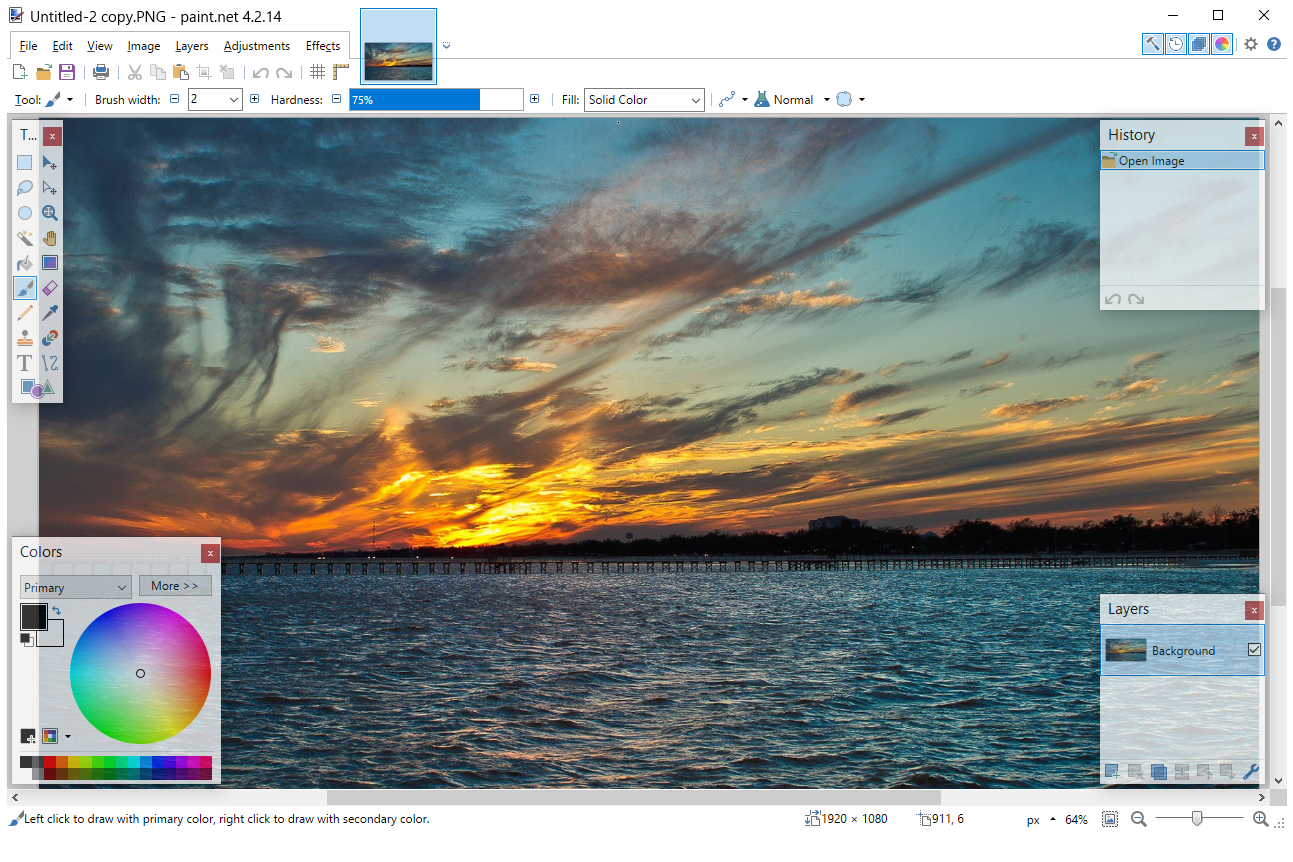
Image source: Lifewire
Selecting the Right Software Based on Your Hardware Performance
Your choice of software should be dictated by the machine you are using. Not all "free" software runs efficiently on all hardware. In 2026, optimization is key to a smooth creative workflow.
| Hardware Type | Recommended Software | Why It Fits |
|---|---|---|
| Low-Spec PC / Chromebook | Photopea / Pixlr | Browser-based; uses minimal RAM and no disk space. |
| M-Series Mac (M1/M2/M3) | Affinity Photo / Darktable | Optimized for Apple Silicon and Metal GPU acceleration. |
| High-End Windows Desktop | GIMP / RawTherapee | Can leverage multi-core CPUs and dedicated GPUs for rendering. |
| Mobile / Tablet Only | Snapseed | 100% free, no ads, and designed for touch interfaces. |
For users on older laptops or Chromebooks, browser-based tools are a significant advancement. They offload much of the heavy lifting to optimized web engines, allowing you to edit high-res photos without the system lag that often plagues desktop applications like GIMP on low-end hardware. Conversely, if you have invested in a powerful workstation, using a tool like RawTherapee allows you to take full advantage of your hardware for faster exports and smoother real-time previews.
Maintaining Data Privacy While Using Online Image Editors
A growing concern in 2026 is the privacy of personal data when using cloud-based editors. When you upload a photo to a free online service, you are often granting that service permission to process your data on their servers. For many, this is a fair trade for free tools, but for those working with sensitive or private imagery, it poses a risk.
This is where Bitmappery stands out. As a privacy-first, self-hosted, and open-source editor, it allows users to maintain full control over their files. Unlike Canva or Pixlr, which rely on cloud storage, Bitmappery can be run locally or on a private server, ensuring that your photos never leave your sight. For users who are wary of how AI models are trained on user data, choosing an offline tool like GIMP or a privacy-focused tool like Bitmappery is a wise move.
Building a Sustainable Workflow with Free Creative Tools
To get the most out of free software, you should adopt a structured workflow. This ensures that you maintain the highest possible image quality from start to finish. According to experts at Intentionally Lost, following a consistent sequence is the most effective way to avoid over-processing.
One "future-proof" tip is to export your favorite styles as LUTs (Look-Up Tables) or XML files. Many free tools allow you to save your color adjustments in these universal formats. This means that if one piece of software becomes defunct or changes its pricing model, you can take your "signature look" with you to a new application without having to start from scratch.
- Check the export resolution before finishing your edit.
- Verify if the tool adds a watermark on the "Free" plan.
- Use RAW formats whenever possible for maximum detail.
- Save a backup of your original, unedited file.
- Review the privacy policy if using a cloud-based AI editor.
Frequently Asked Questions About Free Photo Editing
Several high-quality options offer watermark-free exports. Photopea and GIMP are the most prominent desktop-style editors that do not add watermarks. For social media, Canva and Adobe Express allow for watermark-free downloads on their free tiers, though some specific "premium" elements or templates may require payment to unlock without a logo.
While no tool completely replaces the human eye, Pixlr and Luminar Neo (during trial periods) offer highly impactful AI features. Pixlr’s "Super Sharp" and generative fill can handle object removal and sharpening automatically. However, for professional results, these AI tools are best used as a starting point followed by manual refinements in a tool like GIMP.
Yes, Darktable and RawTherapee are the leading free alternatives for RAW processing. They offer non-destructive editing and advanced color grading that rivals paid software. Additionally, camera manufacturers like Nikon and Canon provide their own RAW editors for free, which are specifically optimized for their respective camera sensors.
For absolute beginners, the built-in Windows Photos app provides basic cropping and filtering. If you need more power without the complexity of Photoshop, Paint.NET is a highly recommended middle-ground tool. It is lightweight, easy to navigate, and supports a wide range of community-created plugins to expand its functionality.
GIMP is an open-source project that has been active for decades and is widely considered safe. However, you should only download it from the official gimp.org website. Avoid third-party download sites that may bundle the software with unwanted "bloatware" or advertisements. Being open-source, its code is constantly reviewed by the community for security vulnerabilities.
Key Takeaways for Choosing Your Software
Navigating the world of free photo editing software requires balancing your technical needs with the limitations of "freemium" models. Here is the distilled summary of our findings:
- Identify your persona: Use Photopea if you need Photoshop features, Canva for social media, and Darktable for RAW photography.
- Watch for traps: Always check for watermark and resolution limits before committing to a cloud-based editor.
- Leverage manufacturer tools: Use free software from Nikon or Canon for the most accurate color science with your specific camera.
- Match software to hardware: Use browser-based tools for low-spec PCs and GPU-optimized apps like Affinity for M-series Macs.
- Prioritize privacy: Consider offline tools like GIMP or self-hosted options like Bitmappery for sensitive images.
- Adopt a workflow: Follow a consistent sequence (Clean -> Color -> Sharpen) to maintain professional image quality.
- Future-proof your work: Save your custom styles as LUTs to ensure you aren't locked into a single software ecosystem.
Start by testing Photopea in your browser today to see if a professional-grade interface meets your current creative demands without the cost of a subscription.