Home
Home
What Are the Best Apps for Editing Pictures on Your Phone?
In 2026, the landscape of mobile photography has shifted from simple filters to sophisticated generative AI and haptic-based interfaces. Choosing the right tool no longer requires a degree in graphic design, but it does require understanding which app aligns with your specific workflow. Whether you are looking to fix a quick selfie or develop a professional RAW landscape shot, the options available today offer desktop-class power in your pocket.
Image source: Pro Photo Studio
Which Photo Editing App Is Right for You?
The "ideal" app is a moving target that depends entirely on your goals. Some users prioritize speed for social media, while others require deep technical control over metadata and color science. According to industry analysis, the shift toward subscription models has led many users to seek out "pay-once" or entirely free alternatives that do not sacrifice functionality.
| App Name | Best For | Price Model | Platform |
|---|---|---|---|
| Snapseed | All-around Free Power | 100% Free | iOS / Android |
| Lightroom | Professional Sync | Subscription | iOS / Android |
| Luminar Neo | AI Enhancements | Sub / One-time | iOS / Android |
| Photomator | Apple Ecosystem | One-time / Sub | iOS / Mac |
| Photo Editor (iudesk) | Technical Metadata | Free (Ads) | Android |
Based on testing from NYT Wirecutter , the price-to-power ratio of Snapseed remains a significant benchmark for the industry. However, for those already invested in the Adobe ecosystem, the seamless transition between mobile and desktop remains a compelling reason to stick with Lightroom.
Best Overall Apps for Professional Results
Why Adobe Lightroom Remains the Industry Standard
Adobe Lightroom Mobile is widely regarded as one of the most robust options for photographers who need a consistent workflow across multiple devices. Its primary strength lies in the Creative Cloud ecosystem, which allows you to start an edit on your iPhone and finish it on a desktop with every slider adjustment intact. This synchronization is a cornerstone of modern professional photography [Source 7] .
However, it is important to note the performance differences between platforms. In recent years, users have reported that the iOS version often provides a smoother experience, while the Android version can occasionally suffer from device-specific bugs [Source 9] . Despite this, Lightroom’s advanced HSL (Hue, Saturation, and Luminance) controls are exceptionally strong, allowing for precise color grading that few competitors match.
Luminar Mobile and the Rise of Haptic Editing
Luminar Neo has introduced a notably innovative approach to mobile editing through its haptic-based interface. Instead of traditional sliders that can feel cramped on a small screen, Luminar uses touch-based grids and tactile feedback to make the editing process feel more physical. This "haptic editing" allows for more intuitive adjustments of light and color.
The app is also a leader in AI-driven features. Tools like sky replacement and automatic object removal are highly impactful for travel photographers who need to clean up busy backgrounds quickly. While it offers a subscription, it also provides a one-time purchase option, which appeals to those suffering from subscription fatigue.
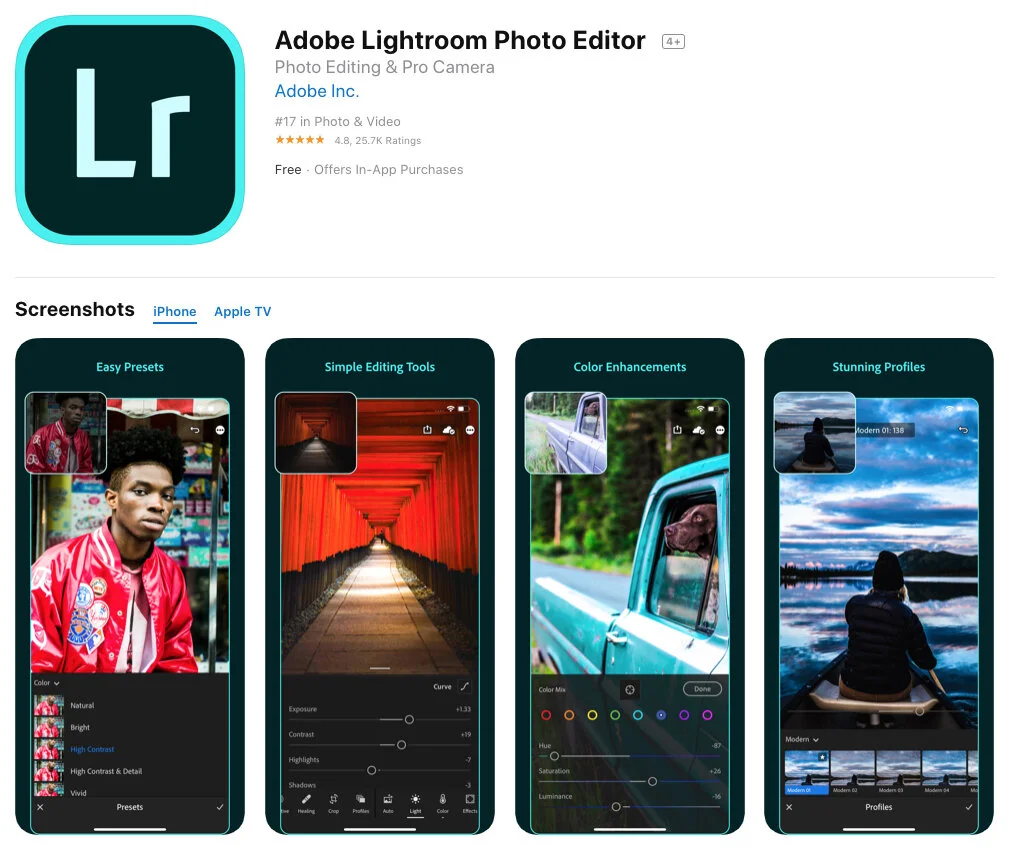
Image source: BeArt Presets
Photomator for the Apple Ecosystem
For users strictly within the Apple ecosystem, Photomator stands out as a top-tier option. It is built from the ground up using Apple's core technologies, such as Metal and Core ML, which results in incredibly fast processing speeds on iPad and iPhone. Its deep integration with the Photos app means you don't have to "import" photos; you simply edit your library directly, and changes sync via iCloud automatically.
Top Free Apps That Don't Require a Subscription
Snapseed Is Still the King of Free Editors
Developed by Google, Snapseed remains a popular choice because it is 100% free with no ads, no watermarks, and no hidden costs. It offers features that are usually reserved for paid software, including RAW development, selective masking, and a "healing" tool for removing blemishes. Its "Expand" tool, which uses content-aware filling to grow the edges of a photo, is remarkably effective for fixing tight crops [Source 3] .
Photo Editor (iudesk) for Technical Users
While it may not have the sleekest interface, Photo Editor by iudesk is a "Swiss Army Knife" for technical users. It includes niche features like SVG rasterizing, webpage capture, and the ability to edit PDF files. For those who need to manage large volumes of images, its batch processing capabilities for compression and cropping are among the strongest available on Android [Source 6] .
Google Photos for Basic Android Enhancements
For casual users, Google Photos is an excellent choice for "set it and forget it" editing. Its "Magic Editor" uses generative AI to move subjects or change the sky with a single tap. While it lacks the deep manual controls of Lightroom, its simplicity makes it a top-rated option for quick daily adjustments.
How to Fix Common Photo Problems Like a Pro
The "Neon Green" Fix for Nature Photography
A frequent issue in nature photography is "neon green" grass or leaves that look unnaturally bright. This often happens when a phone's auto-HDR over-processes the scene. To fix this, use an app with HSL sliders (like Lightroom or Snapseed):
- Shift the Hue: Move the Green hue slider slightly toward Yellow (+10 to +15). This makes the green look more organic and less like "radioactive" grass.
- Reduce Saturation: Lower the Green saturation (-15 to -20) to take the "sting" out of the color.
- Adjust Luminance: Lower the Green luminance to add depth and richness to the foliage.
Avoiding the "Over-Edited" Look
One of the most common mistakes is over-processing skin tones, which can result in an "orange or muddy yellow" appearance. Expert photographer Michelle Loufman suggests a "Light First" rule: prioritize fixing the exposure and lighting before touching color or background elements [Source 2] . If the light is natural, the skin tones will usually follow suit.
"Good light first, background second. If you have a beautiful background but terrible light on your subject, the photo will never look professional, no matter how much you edit it." — Michelle Loufman
Non-Destructive Editing and History Management
A hallmark of a high-quality editor is non-destructive editing. This means the app saves your "history" of edits separately from the original file. Apps like Snapseed and Lightroom allow you to go back and change a specific step (like a crop or a filter) hours or days later without starting over. This is a critical feature for maintaining image quality over time [Source 4] .
Best Apps for Social Media and Selfies
A Color Story for Bright and Airy Aesthetics
A Color Story is a favorite for users who want a "bright and airy" look for their Instagram grid. Unlike many apps that focus on moody or dark filters, this app prioritizes clean whites and vibrant colors. It also allows you to save custom "editing workflows," which helps maintain brand consistency across all your posts [Source 2] .
VSCO for Film-Style Presets
VSCO remains a strong contender for those who love the look of traditional film stock. Its presets are modeled after real films like Kodak and Fujifilm, providing a subtle grain and color shift that feels more "analog" than digital. While many of its features are now behind a subscription, its free tier still offers some of the most acclaimed filters in the industry.
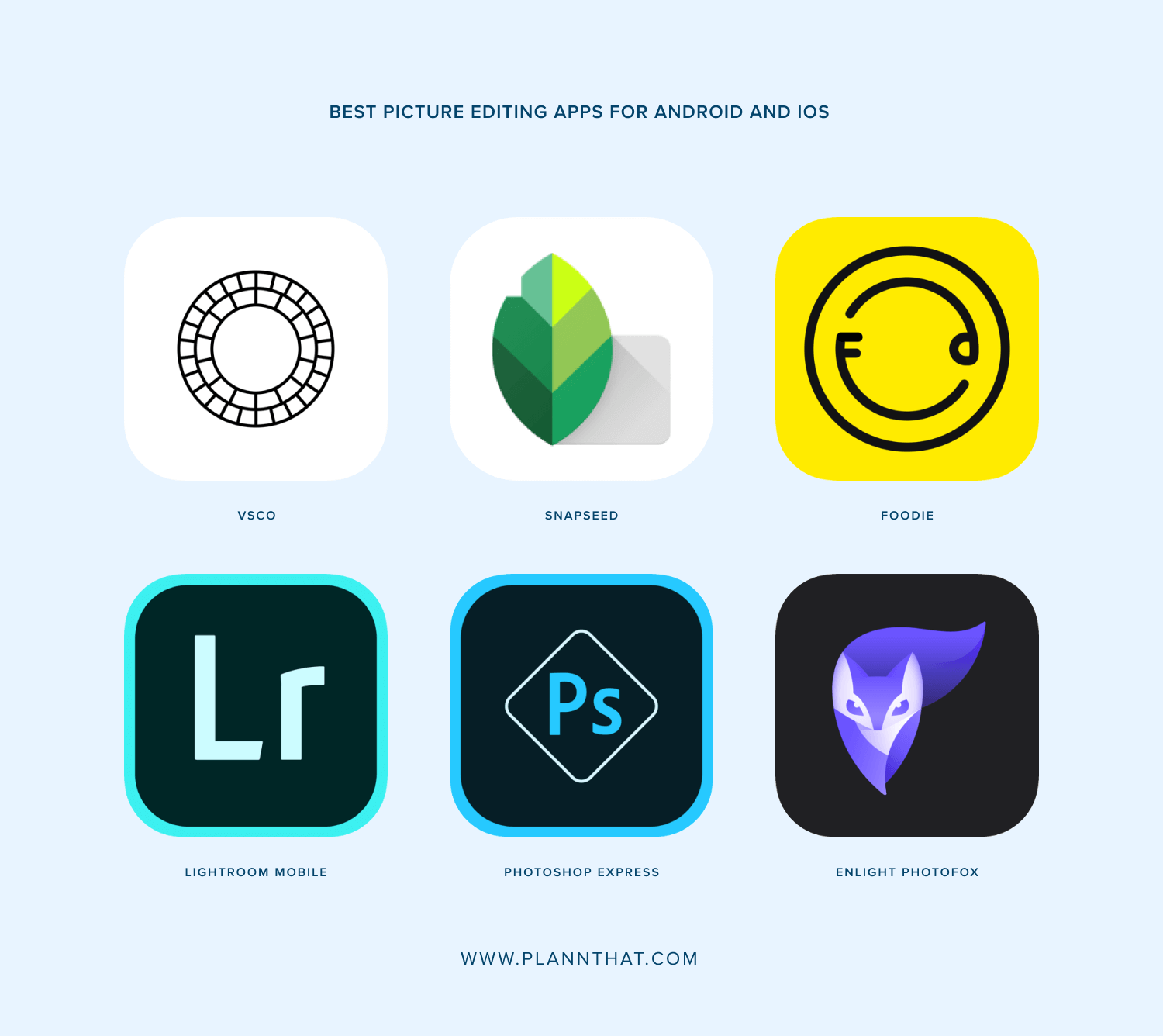
Image source: Plann
How to Edit Like a Professional Without Paying for Adobe
You do not need a monthly subscription to achieve professional-grade results. By stacking specific free apps, you can replicate the workflow of expensive software suites. This "No-Subscription Pro Workflow" is a significant advancement for budget-conscious creators.
- Step 1: RAW Development in Snapseed. Start by opening your RAW file in Snapseed. Use the "Tune Image" tool to recover highlights and shadows. This provides a clean, balanced base for further editing.
- Step 2: Creative Filtering in Polarr. Export your balanced photo and open it in Polarr. Polarr allows you to apply complex, layer-based filters and even create your own using QR codes shared by the community.
- Step 3: Technical Cleanup in Photo Editor (iudesk). Finally, use Photo Editor to perform any necessary batch resizing or metadata scrubbing. This ensures your file is optimized for the web and your privacy is protected.
Protecting Your Privacy While Sharing Photos
Most users are unaware that every photo taken on a smartphone contains hidden metadata known as EXIF data. This includes the date, time, camera settings, and—most importantly—GPS coordinates. While this is helpful for organizing your own library, it poses a security risk when shared publicly.
Apps like Photo Editor (iudesk) allow you to view and delete this data before uploading. Furthermore, choosing apps that offer offline editing (like Snapseed) ensures that your photos are processed locally on your device rather than being uploaded to a third-party server for processing. This is a vital consideration for users who prioritize data sovereignty [Source 6] .
Best One-Time Purchase Alternatives to Subscriptions
If you prefer to own your software outright, several powerful options exist that avoid the "rent-your-software" model of Adobe:
- Affinity Photo: Widely considered the primary "Photoshop alternative" for iPad users. It offers full layer-based editing and professional retouching tools for a single flat fee.
- ON1 Photo RAW: A powerful hybrid for those who want desktop-class RAW processing on mobile without a recurring bill [Source 7] .
- Pixelmator Photo: A highly streamlined, AI-focused editor for iOS that offers a simple one-time payment for lifetime access.
Key Takeaways for Choosing Your App
Selecting the right photo editor is about balancing power, price, and privacy. Here is a summary of how to choose:
- Snapseed is the top choice for users who want professional features for $0.
- Adobe Lightroom is the standard for those who need seamless mobile-to-desktop synchronization.
- Luminar Neo offers a notably innovative haptic interface and powerful AI automation.
- Photo Editor (iudesk) provides exceptional technical control over metadata and batch processing.
- Photomator is a premier option specifically optimized for the Apple ecosystem.
- Privacy matters: Always use tools to scrub EXIF data before sharing photos publicly.
- Avoid over-editing: Focus on natural skin tones and organic colors to stay ahead of current trends.
Start by downloading Snapseed to explore professional tools for free before committing to a paid subscription.
Frequently Asked Questions
Which photo editor is 100% free without watermarks?
Snapseed is widely considered one of the best 100% free photo editors. It is developed by Google and contains no ads, no watermarks, and no subscription fees. It offers a full suite of professional tools, including RAW support and selective editing, making it a top-rated choice for both beginners and advanced users.
What is a top-rated photo editing app for beginners on iPhone?
For beginners on iPhone, Luminar Mobile or the native Apple Photos editor are excellent choices. Luminar uses AI to automate complex tasks like sky replacement, while the native Photos app provides a simple, intuitive interface for basic adjustments like brightness, contrast, and cropping without needing to download extra software.
Do professional photographers actually use mobile apps?
Yes, many professional photographers use mobile apps as part of their daily workflow. Adobe Lightroom Mobile is the most common choice because it allows pros to sync their work between their phone and desktop. This allows them to begin culling or basic editing while on location and finish the detailed work later in the studio.
Can I edit RAW photos on my smartphone?
Absolutely. Modern apps like Snapseed, Lightroom, and Photomator all support RAW file formats (like .DNG). Editing in RAW allows you to recover much more detail from highlights and shadows compared to standard JPEGs, which is why it is the preferred format for high-quality photography.
Which app is best for removing unwanted objects from photos?
Luminar Neo and Google Photos (via the Magic Eraser tool) are among the strongest options for object removal. They use generative AI to analyze the background and fill in the space left behind by the removed object, often producing results that look completely natural.