Home
How to Choose and Use a Professional AI Email Composer for Better Writing
A modern composer mail tool uses Large Language Models (LLMs) like GPT-4 to draft context-aware messages, manage tone, and automate formatting. For general users, Mailmeteor and Edison Mail stand out as top choices for speed and mobile integration. Developers should look toward the Expo Mail Composer SDK for native app functionality, while enterprise users often require specific configurations in platforms like ServiceNow or Veracross to enable full client capabilities.
Comparing Leading AI Email Composer Tools for Business and Personal Use
The landscape of digital communication has shifted significantly as of 2026. We no longer rely on static templates; instead, we use dynamic AI writers that understand the nuance of a conversation. Choosing the right "composer mail" tool depends heavily on your platform and specific needs, whether you are a high-volume sales professional or a mobile-first entrepreneur.
Mailmeteor AI: The Web-Based Efficiency Leader
Mailmeteor has established itself as a prominent player in the email productivity space, serving over 6 million professionals globally. Their AI email writer is widely regarded as one of the most accessible tools for those who work primarily within a browser. It offers a "100% free" tier that allows users to generate drafts by simply describing the intent of the message. According to Mailmeteor’s official documentation , their tool focuses on high deliverability and avoiding spam triggers, which is a critical concern for professional outreach.
Edison Mail: Mobile-First Intelligence
For users who manage their inbox on the go, Edison Mail offers a highly integrated AI experience. It features an "AI Compose" function that can rewrite existing drafts to change the tone or length instantly. One of its most useful features is the ability to "un-subscribe" from mailing lists directly within the composer interface, streamlining inbox management. Many users find it a strong contender for personal use due to its intuitive mobile UI and smart categorization features.
CrossBox: The Power User's Choice
CrossBox caters to enterprise and power users who need more than just text generation. It offers a comprehensive suite of over 25 formatting options and, notably, supports attachments up to 1GB—a significant advancement over the standard 25MB limit found in Gmail. For those managing multiple identities, CrossBox allows for seamless "From" address switching, making it a popular choice for agency owners and department heads.
| Tool Name | Primary Strength | AI Model | Max Attachment | Price Range |
|---|---|---|---|---|
| Mailmeteor | Web Accessibility | GPT-4 / Custom | 25MB (Gmail standard) | Free to Premium |
| Edison Mail | Mobile Experience | Proprietary LLM | 25MB | $2.99/wk - $44.99/yr |
| CrossBox | Large Attachments | Optional Plugin | 1GB | Enterprise Pricing |
| Gmail Native | Ecosystem Integration | Google Gemini | 25MB (Drive links) | Included / Workspace |
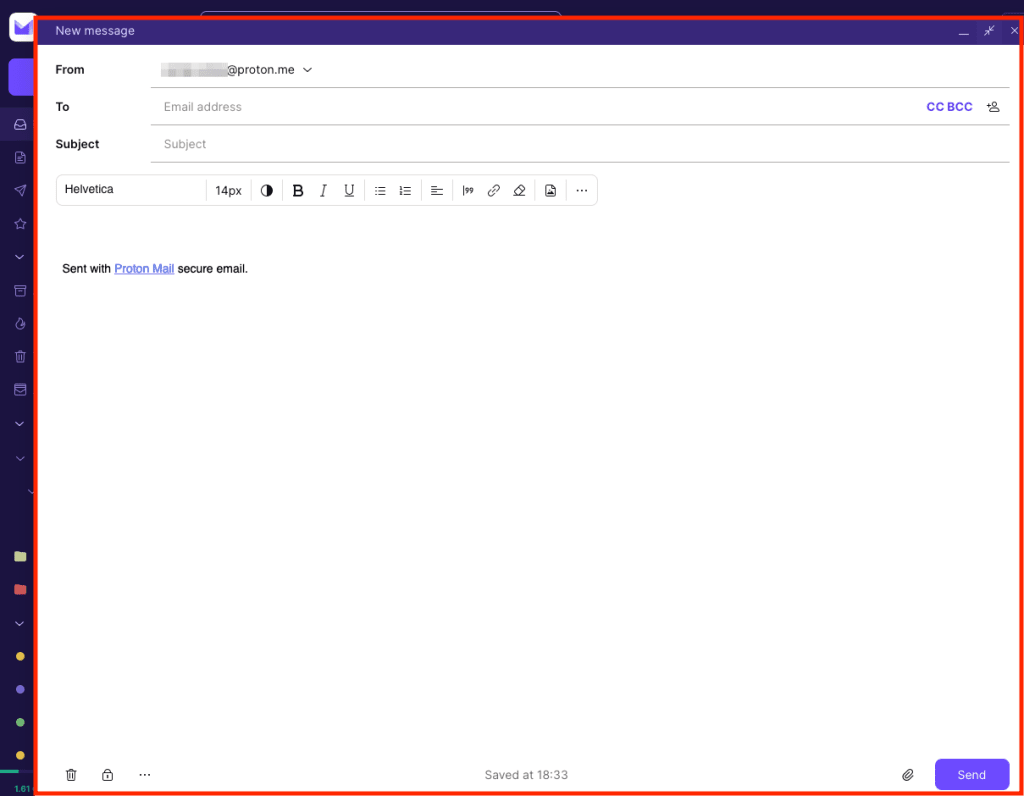
Image source: Proton
Professional Formatting Techniques to Improve Your Email Clarity
Even with the assistance of AI, the final structure of an email determines whether it is read or ignored. Expert communicators like Lazarus Iridakos emphasize that professional emails should be designed for "scannability." In an era of information overload, your recipient is likely reading your message on a mobile device while multitasking.
The "Specific Date" Rule for AI Prompts
One common pitfall when using an AI email writer is the use of relative time descriptors like "tomorrow," "yesterday," or "next week." As noted in Iridakos' professional communication guide , these terms are inherently risky. If you draft an email at 11:00 PM on a Tuesday and the recipient reads it at 8:00 AM on Wednesday, "tomorrow" becomes ambiguous. Always prompt your AI to use specific dates (e.g., "Tuesday, October 14th") to ensure clarity across time zones and reading schedules.
Using Bolding to Highlight the "Ask"
A long, well-written email can still fail if the recipient cannot find the action item. A top-tier strategy is to use the composer's bolding feature specifically for the "Call to Action" (CTA). Instead of burying the request in the third paragraph, bold the specific question or deadline. This allows the reader to grasp the purpose of the email in under three seconds of scanning.
Implementing Native Email Functionality with the Expo Mail Composer SDK
For software developers, "composer mail" refers to the technical implementation of email triggers within mobile applications. The
expo-mail-composer
library is a significant tool for React Native developers, allowing them to open the native OS mail UI with pre-filled fields.
Basic Implementation of composeAsync
The core of the Expo SDK is the
composeAsync
function. This allows your app to pass recipients, subject lines, and body text directly to the user's preferred mail app. According to the
Expo Documentation
, this ensures a consistent user experience by leveraging the security and familiar interface of the system's native composer.
import * as MailComposer from 'expo-mail-composer';

const sendEmail = async () => {
  const isAvailable = await MailComposer.isAvailableAsync();
  if (isAvailable) {
    MailComposer.composeAsync({
      recipients: ['support@example.com'],
      subject: 'App Feedback',
      body: 'I would like to report a bug...',
    });
  } else {
    alert('Mail services are not available on this device');
  }
};
isAvailableAsync
check will return false. You must test this functionality on a physical iPhone or iPad.
Handling Attachments in Mobile Apps
When sending files through the Expo composer, you must provide a local URI to the file. Developers often make the mistake of passing a remote URL directly, which can cause the composer to fail or send a broken link. Always download the file to the local cache first, then pass the local URI to the
attachments
array in the configuration object.
Configuring Enterprise Email Clients in ServiceNow and Veracross
In large-scale institutional environments, the email composer is often a module within a larger CRM or ERP system. Configuring these correctly is essential for maintaining professional standards across a whole organization.
Enabling the Full Email Composer in ServiceNow
ServiceNow administrators often face issues where the email client does not appear on custom tables. To resolve this, you must navigate to the table dictionary and ensure the
email_client=true
attribute is added. Furthermore, as detailed in
ServiceNow Community discussions
, the UX Screen record must be properly aligned with the workspace configuration to allow the "Compose" button to render correctly in the sidebar.
The "Send on Behalf Of" Workflow in Veracross
Educational institutions using Veracross rely on the composer to send mass communications. A key feature here is the "Send on Behalf Of" permission. This allows an administrative assistant to draft an email that appears to come from the "Admissions Department" or the "Head of School." This requires specific security role mapping to ensure that the "From" field can be toggled without compromising account security.
Maintaining Data Privacy While Using AI Writing Assistants
As AI tools become more integrated into our workflows, the risk of data leakage increases. When you use a free AI email writer, your prompts may be used to train future iterations of the model. This is a significant concern for legal, medical, and financial professionals.
Understanding Zero-Retention Policies
Some premium tools, such as Mailmeteor, claim to offer higher privacy standards where prompts are not stored for training purposes. However, it is a top-tier practice to never paste sensitive personal information (SPI) or trade secrets into an AI composer. Instead, use placeholders like "[Client Name]" or "[Project X]" and fill in the actual details manually after the AI has generated the structure.
Gmail's Confidential Mode and AI Drafts
A highly effective workflow for sensitive communication involves generating a draft with AI and then applying Gmail's "Confidential Mode." This feature allows you to set an expiration date for the email and require a passcode for the recipient to open it. It also prevents the recipient from forwarding, copying, or printing the content, providing a layer of security that AI tools alone cannot offer.
Troubleshooting Common Issues with Email Composer Windows and Buttons
Few things are more frustrating than finishing a perfect draft only to find that the "Send" button has disappeared or the formatting has glitched.
Why Did My Send Button Disappear?
This is a common issue often caused by browser extension conflicts. Ad-blockers or grammar checkers (like Grammarly) can sometimes overlay invisible elements that block the "Send" or "Compose" buttons. If this happens, try the following steps:
- Disable all browser extensions and refresh the page.
- Clear your browser cache and cookies for the specific mail site.
- Check for a "pop-out" icon; sometimes the button is hidden in a condensed window view.
Resolving Formatting Glitches
When copying text from an AI generator into a composer, you may notice "weird" background colors or inconsistent fonts. This is due to hidden HTML styling carried over from the source. Most professional composers have a "Clear Formatting" button (often represented by a 'Tx' icon). Highlight your text and click this to reset it to the default system font before applying your own bolding or links.
Key Takeaways for Mastering Your Digital Correspondence Workflow
- Choose the right platform: Use Mailmeteor for web speed, Edison for mobile, and Expo SDK for developer integrations.
- Apply the "Specific Date" rule: Avoid relative terms like "tomorrow" to prevent confusion across time zones.
- Format for scannability: Bold your Call to Action (CTA) and use bookmarkable links instead of bulky attachments.
- Test on physical devices: Remember that the Expo Mail Composer will not open on iOS simulators.
- Prioritize privacy: Use placeholders for sensitive data and leverage Gmail's Confidential Mode for high-stakes messages.
- Audit your extensions: If buttons disappear, browser extensions are the most likely culprit.
-
Leverage enterprise features:
Ensure
email_client=trueis set in ServiceNow to enable full composer functionality.
By combining the efficiency of AI with these professional standards, you can significantly improve the impact and clarity of your daily communications.
Frequently Asked Questions
Yes, several tools offer free tiers. Mailmeteor provides a web-based AI writer that is widely considered a top choice for free drafting. Additionally, Gmail has integrated "Help me write" features for users in specific regions or those with Google Workspace Labs access. These tools allow you to generate professional drafts without an upfront subscription cost.
The Expo Mail Composer SDK requires a physical device because it relies on the native Mail app and a configured email account to function. Simulators do not have these components set up by default. To test your implementation, you must use a physical device running the Expo Go app or a development build.
Standard email services like Gmail and Outlook limit attachments to 20-25MB. If you need to send larger files, tools like CrossBox support up to 1GB. Alternatively, the most professional approach is to upload the file to a cloud service (Google Drive, Dropbox) and include a link in the composer window rather than attaching the file directly.
Most modern AI email writers powered by GPT-4 or Gemini support over 50 languages. You can prompt the AI in English to "Write a formal reply in French," and it will handle the translation and cultural nuances of the tone. This makes AI composers exceptionally capable for international business communication.
An email editor (like Stripo or Mailchimp) is typically used for designing complex HTML layouts, newsletters, and marketing campaigns. An email composer is the interface used for drafting individual, text-based messages. While editors focus on design, composers focus on speed, AI assistance, and direct communication.
To enable the email client, an administrator must go to the "Dictionary" entry for the specific table (e.g., Incident or Case). In the "Attributes" field, add
email_client=true
. You may also need to configure the "Email Client Configuration" record to define which fields are pre-populated when the composer opens.