Home
How to Use Mailmeteor AI to Draft Professional Gmail Responses Faster
What Is the Mailmeteor AI Email Response Tool?
In the modern workplace, email overload is a significant barrier to productivity. According to recent industry data, the average office worker receives approximately 121 emails per day. Managing this volume manually often leads to "inbox fatigue," where the quality of communication drops as the day progresses. The Mailmeteor AI Email Response tool was developed to address this specific challenge by automating the drafting process without sacrificing the professional tone required for business interactions.
Powered by OpenAI’s GPT models, this tool functions as a sophisticated writing assistant that understands the context of an ongoing conversation. Unlike basic templates, the AI analyzes the incoming message and generates a reply based on specific instructions provided by the user. This ensures that every draft is relevant to the thread, rather than a generic "canned" response.
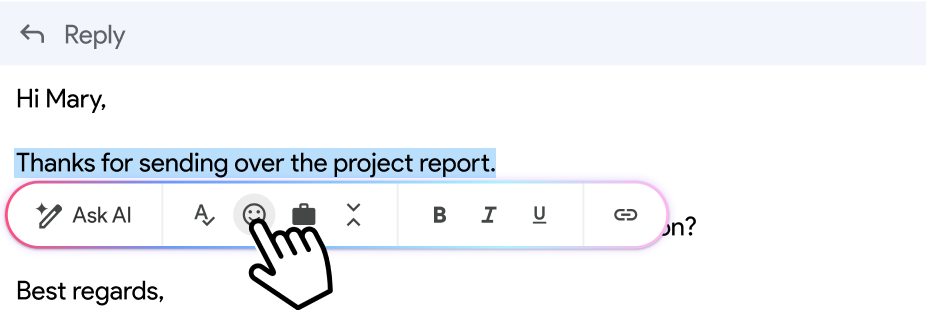
Image source: Mailmeteor
Currently trusted by over 6 million professionals, Mailmeteor has expanded its suite from simple mail merge capabilities to a comprehensive AI-driven ecosystem. The AI Response tool is available in two formats: a standalone Web Tool that requires no installation for quick drafts, and a Gmail Extension that integrates directly into your inbox for a seamless workflow.
How to Set Up Mailmeteor AI in Your Gmail Inbox
To get the most out of the AI features, installing the browser extension is highly recommended. This places the AI capabilities directly where you need them: inside the Gmail "Reply" and "Compose" windows.
1. Installation
Visit the Chrome Web Store and search for the Mailmeteor extension. Click "Add to Chrome" to begin the integration process.
2. Authorization
Once installed, open Gmail. You will be prompted to authorize the extension. This allows Mailmeteor to securely interact with your drafts.
3. Accessing the Tool
Open any email thread. You will notice a new "AI" icon or a "Help me reply" button near the standard reply box.
For users who operate in environments where browser extensions are restricted, the Mailmeteor AI Web Tool serves as a top-tier alternative. You simply copy the email you received, paste it into the web interface, provide your instructions, and the AI generates the text for you to copy back into your mail client.
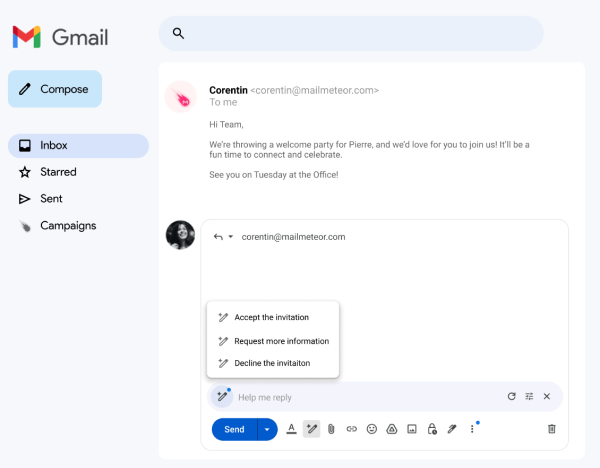
Image source: Mailmeteor
How to Write a Perfect AI Brief for Better Email Drafts
The most common mistake users make with AI email writers is providing vague instructions. A prompt like "reply to this" often results in a generic, overly formal message that lacks personal touch. To solve this, we recommend using the CGC Framework (Context + Goal + Constraint) . This proprietary method ensures the AI has enough information to produce a high-quality draft on the first try.
1. Context: Who are you talking to?
The AI needs to know the relationship dynamic. Are you speaking to a long-term client, a new lead, or a direct supervisor? Providing context helps the AI choose the right level of formality and vocabulary.
Example: "This is a follow-up to a client I've worked with for three years."
2. Goal: What is the desired outcome?
Be explicit about what you want the recipient to do next. Do you want to schedule a meeting, decline a request, or provide a status update?
Example: "I need to decline their request for a discount but offer them a free month of service instead."
3. Constraint: What should the AI avoid?
Constraints are just as important as goals. You might want to keep the email under 50 words, avoid using corporate jargon, or ensure the tone is "polite but firm."
Example: "Keep it under three sentences and do not sound apologetic."
The Comprehensive Power User Workflow for Email Productivity
While the AI Response tool is highly effective on its own, its true value is realized when combined with the broader Mailmeteor suite. A "Power User" workflow connects multiple tools to handle the entire lifecycle of an email thread.
- Phase 1: The Digest: Use the AI Email Summarizer to extract key action items from long, complex threads. This saves you from re-reading dozens of messages to find a single deadline.
- Phase 2: The Draft: Use the AI Response tool with the CGC framework to generate a reply based on the summary you just created.
- Phase 3: The Polish: Run the draft through the AI Grammar Checker . This ensures that even if the AI used a slightly awkward phrasing, the final output is polished and professional.
- Phase 4: The Protection: If you are replying to a new contact or a lead, use BounceShield ($0.01 per email) to verify the recipient's address. This prevents your reply from bouncing and protects your sender reputation.
- Phase 5: The Analytics: Enable Email Tracking . As of 2025, Mailmeteor has made tracking free for all users, allowing you to see exactly when the recipient opens your AI-generated message.
Mailmeteor AI vs. Google Gemini — Which One Should You Use?
With Google integrating Gemini (formerly Bard) directly into Workspace, many users wonder if third-party tools like Mailmeteor are still necessary. While Gemini is a highly capable general assistant, Mailmeteor offers specific advantages for professional email management.
| Feature | Mailmeteor AI | Google Gemini (Native) |
|---|---|---|
| Primary Focus | Purpose-built email tuning | General-purpose LLM |
| Briefing Interface | Dedicated "Brief" box for structured input | Open-ended chat prompt |
| Privacy Policy | 30-day deletion; no model training | Integrated into Google's data ecosystem |
| Workflow Tools | Includes Summarizer, Tracker, and Verifier | Primarily focused on text generation |
| Ease of Use | One-click integration in Gmail | Requires navigating Workspace menus |
In our assessment, Google Gemini is excellent for creative brainstorming or writing long-form reports. However, for high-volume professional emailing, Mailmeteor stands out as a top choice because it is pre-tuned for subject lines, professional sign-offs, and concise business communication.
Is Mailmeteor AI Safe to Use With Your Private Data?
Privacy is a primary concern when using AI in a private inbox. Mailmeteor takes a transparent approach to data handling. When you generate a response, the text of the email you are replying to and your brief are sent to OpenAI via a secure API.
- Data Retention
- OpenAI may retain the data for up to 30 days solely for the purpose of monitoring for abuse. After this period, the data is permanently deleted.
- Model Training
- Crucially, Mailmeteor explicitly states that your private emails are NOT used to train their AI models or OpenAI's models. Your data remains your own.
- Human Oversight
- Corentin Brossault, CEO of Mailmeteor, emphasizes that AI should be viewed as a "starting point." Users are encouraged to perform a final review of every draft to ensure accuracy and personal voice.
How to Avoid the "AI Voice" and Keep Your Emails Personal
One of the significant pitfalls of AI-generated content is the "stiff" or "robotic" tone that can trigger spam filters or alienate recipients. Professional users must bridge the "Style Gap" to ensure their emails feel human.
To maintain a personal touch, utilize Mailmeteor’s support for
Personalization Variables
. Even when using AI, you can insert tags like
{{firstname}}
or
{{company}}
. This ensures the AI draft includes specific details that prove the message wasn't just a mass-generated template.
Furthermore, always use the Mailmeteor Spam Checker before sending. AI sometimes uses repetitive phrasing or specific keywords that can land your email in the "Promotions" tab or, worse, the junk folder. A quick 10-second edit to add a personal anecdote or a specific reference to a previous conversation can significantly improve your response rates.
The Bottom Line
Mailmeteor AI is a significant advancement in email productivity, offering a balance of speed and professional control. By integrating directly into Gmail, it allows users to reclaim hours of their day while maintaining high communication standards.
- Install the Gmail extension to access AI features directly in your inbox.
- Use the CGC Framework (Context, Goal, Constraint) for every brief to ensure high-quality drafts.
- Combine tools like the Summarizer and Tracker for a comprehensive workflow.
- Prioritize privacy by choosing a tool that does not train models on your private data.
- Always review AI drafts for 10-30 seconds to add your personal "voice" before hitting send.
Start by testing the free web tool today to see how AI can transform your daily email routine into a streamlined, high-efficiency process.
Frequently Asked Questions
How do I enable Mailmeteor AI in my Gmail account?
Is Mailmeteor AI free to use?
Does Mailmeteor AI learn from my private email data?
Can I use Mailmeteor AI for cold emailing?
What languages does the AI support?
What is the cost of email verification with BounceShield?
How does the AI Summarizer help with long threads?
Can I customize the tone of the AI responses?