Home
How to Use AI in Gmail to Write Better Emails and Generate Unlimited Aliases
- Generative Writing: Using Google Gemini (formerly Workspace Labs) to draft, refine, and summarize emails.
- Address Generation: Creating unlimited aliases using the "Dot Trick" or "Plus Trick" to manage sign-ups and spam.
What Does "Gmail Generate AI" Actually Mean?
In the current landscape of 2026, the term "gmail generate ai" has become a catch-all phrase for two very different workflows. For many users, it refers to the generative AI capabilities integrated directly into the Google Workspace ecosystem. This includes the ability to prompt an LLM (Large Language Model) to draft a difficult resignation letter, summarize a 50-email thread, or polish a rough draft into a professional proposal.
However, a significant portion of search intent revolves around email address generation . Users often look for ways to "generate" new identities or aliases to protect their primary inbox from marketing clutter. While this isn't "AI" in the sense of neural networks, the automation of these aliases is often perceived as an intelligent feature. Understanding this "intent fracture" is crucial because the solution to your problem depends on whether you want to generate content or generate addresses .
According to recent data from Jotform , information workers spend approximately 25% of their workday managing email. This high volume of communication has driven the demand for tools that can automate both the writing and the organization of the inbox. Whether you are a recruiter needing to scale outreach or a privacy-conscious user trying to avoid spam, the intersection of AI and Gmail offers a variety of sophisticated solutions.
How to Use Google Gemini to Write and Refine Emails
Google’s native AI, Gemini, is now deeply embedded in the Gmail interface. Formerly known as "Help me write" under the Workspace Labs program, this feature allows you to generate full drafts from simple natural language prompts. It is designed to reduce the "blank page syndrome" that often leads to procrastination in professional settings.
To access these features, you generally need to be enrolled in Google Workspace Labs or have a Google One AI Premium subscription. Once active, a small pencil icon with a spark appears in the compose window. Clicking this opens a prompt box where you can describe the email you want to send. For example, you might type: "Write a polite follow-up to a client who hasn't responded to my proposal in three days."
Image source: Google Blog
The real power of Gemini lies in its Refine menu. After generating an initial draft, you can choose from several options to adjust the output:
- Formalize: Converts casual language into a professional tone suitable for corporate communication.
- Elaborate: Adds more detail and context if the initial draft was too brief.
- Shorten: Trims the fat, making the email concise and direct.
- I'm Feeling Lucky: Introduces creative variations in tone and style.
How to Pull Data from Google Drive Using the "@" Command
One of the most significant advancements in the Gmail AI workflow is the ability to reference external documents directly within the compose window. This cross-app integration allows Gemini to "read" your files and incorporate their data into your email draft.
This feature eliminates the need to toggle between tabs, copy-pasting information from a document into an email. It ensures that the AI has the most accurate, up-to-date context for the message you are sending. This workflow is widely considered one of the top choices for project managers and sales professionals who frequently communicate complex data points found in their Drive folders.
How to Use Smart Compose and Contextual Smart Replies
While generative AI handles full drafts, Gmail also uses predictive AI for real-time assistance. Smart Compose uses Tensor Processing Units (TPUs) to suggest words and phrases as you type. By pressing the "Tab" key, you can accept these suggestions, significantly increasing your typing speed.
Similarly, Contextual Smart Replies appear at the bottom of received emails. Unlike the generic "Thanks!" or "Got it!" of the past, these modern replies are nuanced. If you receive an invitation, the AI might suggest "I'd love to join, what time?" or "I can't make it, but let's connect next week." According to Google's official documentation , these features currently support English, Spanish, French, and Italian.
How to Generate Unlimited Gmail Addresses Using the Dot Trick
If your goal is to "generate" new email addresses rather than text, you don't actually need a neural network. Gmail has a unique routing logic that allows for virtually unlimited aliases within a single account. This is often referred to as the "Dot Trick" or the "Plus Trick."
Google’s mail servers ignore periods in your username. This means that
john.doe@gmail.com
,
j.o.h.n.d.o.e@gmail.com
, and
johndoe@gmail.com
all point to the exact same inbox. You can use these variations to sign up for different services, allowing you to track which companies are sharing your data or to filter incoming mail more effectively.
Gmail ignores dots.
my.name@gmail.com
is the same as
myname@gmail.com
. Use this for subtle variations.
Add a plus sign and any word:
name+newsletter@gmail.com
. This is exceptionally strong for creating filters.
The "Plus Trick" is even more powerful for organization. By adding a
+
followed by any string of text before the
@
symbol, you create a unique alias. For example, if you sign up for a gym membership using
yourname+gym@gmail.com
, you can set a filter in Gmail to automatically label any mail sent to that specific address. This is a top-tier strategy for maintaining a "Zero Inbox" and identifying the source of spam.
Which Third-Party AI Email Generators Are Actually Worth Using?
While Google’s native tools are convenient, they may not meet the needs of every professional. Third-party extensions often offer more specialized features, such as HTML template generation or enhanced privacy controls. For users who need more than what Gemini offers, several tools stand out as top choices.
| Tool | Primary Strength | Privacy Focus | HTML Support |
|---|---|---|---|
| Google Gemini | Ecosystem Integration | Standard Google Terms | Basic |
| Mailmeteor | Privacy & Personalization | High (No model training) | Advanced |
| GMass | Marketing & Outreach | Campaign Focused | Full HTML |
| Writecream | Quick Drafts (No Login) | Variable | Basic |
Mailmeteor ranks among the top options for privacy-conscious professionals. With a user base of over 6 million, it allows users to generate personalized emails using GPT models without the AI provider training on their specific prompts. This is a significant step forward for those handling sensitive corporate data.
For marketers, GMass offers a notably innovative AI template builder. Unlike Gemini, which focuses on plain text, GMass can generate full HTML layouts directly within the Gmail compose window. This is highly impactful for users who need to send visually appealing newsletters or sales pitches without leaving their inbox.
Privacy and Security: Is Your Data Safe with AI Email Tools?
The "Privacy Gap" is a major concern for users adopting AI email tools. It is important to distinguish between how Google handles data for personal accounts versus Workspace accounts. In the Workspace Labs environment, Google may use human reviewers to look at anonymized prompts to improve the model. Therefore, you should never include sensitive personal information or trade secrets in an AI prompt.
Third-party extensions present a different set of risks. Before granting an extension access to your Gmail account, you should review their data handling policies. A reliable tool should:
- Explicitly state that they do not store the content of your emails on their servers.
- Confirm that your prompts are not used to train their underlying AI models.
- Use OAuth for secure authentication rather than asking for your Google password.
According to Mailmeteor's privacy policy , they prioritize user confidentiality by ensuring that prompts are processed for generation but never retained for model improvement. This sets a high standard for the industry and makes them a popular choice for legal and medical professionals.
How to Turn Off AI Features in Gmail if You Don't Want Them
Not every user finds the new AI features helpful. In fact, community discussions on platforms like Reddit suggest that some find the "Help me write" button and Smart Compose suggestions to be intrusive UI clutter. If you prefer a traditional, distraction-free writing experience, you can easily disable these features.
- Open Gmail Settings: Click the gear icon in the top right corner and select "See all settings."
- Navigate to the General Tab: Scroll down to the "Smart Compose" and "Smart Reply" sections.
- Toggle Off: Select the "Writing suggestions off" and "Smart Reply off" radio buttons.
- Opt-out of Labs: If you are in Workspace Labs, you may need to visit the Labs settings page to fully remove the generative AI "spark" icon.
- Save Changes: Scroll to the bottom of the page and click "Save Changes."
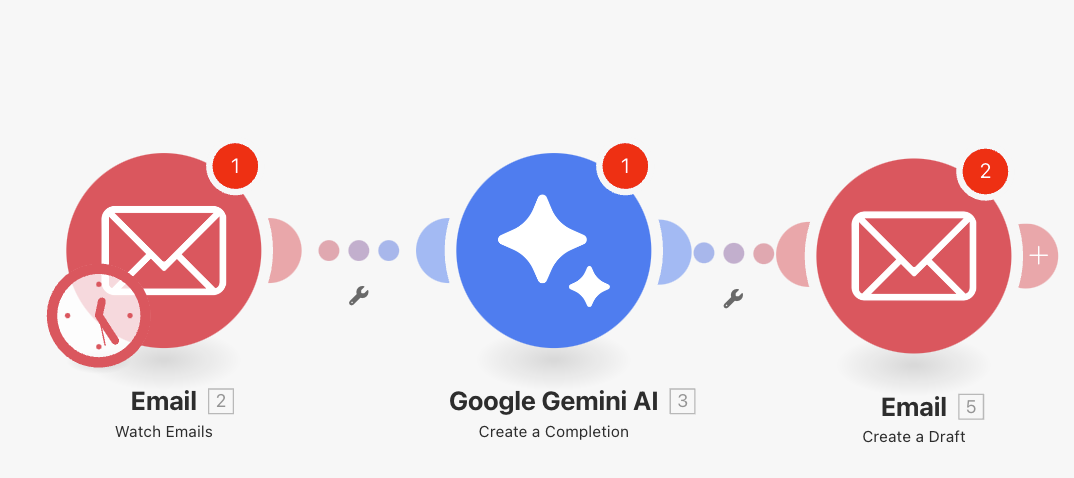
Image source: Make Community
How to Use AI to Triage and Clean Your Inbox
Beyond writing, AI is becoming an excellent choice for inbox management. The sheer volume of daily emails makes manual triaging nearly impossible for many. Gemini now offers a "Summarize this email" button at the top of long threads, providing a bulleted list of the conversation's key points and any pending action items.
For more advanced management, some users are turning to external LLMs like Claude or GPT-4. By using APIs or simple copy-paste workflows, you can ask an AI to categorize your last 50 emails into "Urgent," "Informational," or "Spam." This helps in identifying patterns—such as which newsletters you never read—allowing you to unsubscribe and declutter systematically.
In recent months, the use of "AI Agents" has also grown. Tools like the Jotform Gmail Agent can automate responses based on form submissions, ensuring that leads are contacted immediately without manual intervention. This type of automation is widely regarded as one of the best ways to handle high-volume administrative tasks.
Frequently Asked Questions
- How do I turn on AI in Gmail?
- To enable generative AI features, you must either enroll in the Google Workspace Labs program or subscribe to the Google One AI Premium plan. Once active, the "Help me write" icon will appear in your compose window automatically.
- Is Gmail AI free to use?
- Basic features like Smart Compose and Smart Reply are free for all users. However, the more advanced generative AI features (Gemini) typically require a paid subscription or participation in a beta testing program.
- Can I generate a completely new Gmail account with AI?
- No. While AI can write the content for your emails, creating a new Gmail account still requires manual verification, including a phone number, to prevent automated bot creation and spam.
- Which AI tools are highly recommended for professional emails?
- For users within the Google ecosystem, Gemini is a top-tier option. For those who prioritize privacy or need advanced HTML templates for marketing, Mailmeteor and GMass are among the strongest alternatives available.
- Does the Gmail dot trick still work in 2026?
- Yes, the dot trick is a permanent feature of Google’s mail routing system. It is not an "AI" feature but a fundamental way that Gmail handles usernames, and it remains a reliable way to create aliases.
Key Takeaways for Gmail AI Generation
- Dual Intent: "Gmail generate AI" refers to both AI-powered writing (Gemini) and address generation (aliases).
- Native Drafting: Use the "Help me write" feature to generate drafts and the "Refine" menu to adjust tone and length.
- Drive Integration: Save time by using the "@" command to pull data from Google Docs or PDFs directly into your emails.
- Unlimited Aliases: Utilize the Dot Trick and Plus Trick to create unique addresses for sign-ups and better inbox filtering.
- Third-Party Options: Consider tools like Mailmeteor for enhanced privacy or GMass for professional HTML marketing templates.
- Privacy First: Avoid sharing sensitive personal data in AI prompts, as these may be reviewed to improve the models.
- UI Control: You can disable Smart Compose and other AI features in the "General" settings tab if you prefer a cleaner interface.
Start by testing the "@" command in your next draft to see how quickly you can reference your existing documents.