Home
How to Use and Optimize Gmail AI Overviews for Better Email Productivity
Gmail AI Overviews are Gemini-powered summaries that synthesize long email threads into concise bullet points at the top of your inbox. To use them, you must enable "Smart features and personalization" in your Gmail settings. While native tools focus on thread text, third-party options like MailMaestro are often preferred for summarizing attachments like PDFs. For those seeking the company Overview.ai , they specialize in vision systems and can be reached at contact@overview.ai.
What Are Gmail AI Overviews and How Do They Work?
In the current landscape of digital communication, managing a flooded inbox has become a significant challenge for professionals. Gmail AI Overviews represent a major advancement in how users interact with their messages. Powered by Google's Gemini large language model (LLM), these overviews appear at the top of email threads, providing a synthesized version of the conversation's key points.
The core functionality of these AI Overviews is to save time by preventing the need to scroll through dozens of individual replies. According to Google Support , the system can also suggest reminders for tasks that include specific due dates, effectively turning your inbox into a proactive personal assistant. This feature is particularly useful for project management threads where action items are often buried in long-winded discussions.
It is important to distinguish between the Gmail feature and the specific company Overview.ai . While the search term "overviewai email" often leads users to Google's productivity tools, Overview.ai is actually a San Francisco-based firm specializing in AI-driven vision systems for manufacturing and quality control. If you are looking for technical support for industrial cameras or automated inspection, you are likely seeking the company rather than the email summarization feature.
For the average user, the Gmail AI Overview acts as a "Glance-and-Go" layer. It doesn't just summarize; it interprets intent. If a thread contains a question about a meeting time, the AI might highlight the proposed time and offer a "Add to Calendar" shortcut. This level of integration makes it a top choice for users within the Google Workspace ecosystem who prioritize speed and efficiency.
How to Enable AI Overviews in Your Gmail Account
Accessing AI summaries isn't always automatic. Depending on your account type—whether it's a personal @gmail.com address or a corporate Google Workspace account—the steps to activation may vary slightly. The feature is currently rolling out across Desktop, iOS, and Android platforms, but it requires specific permissions to be active.
Navigate to the gear icon in the top right corner of your Gmail dashboard and select "See all settings."
Under the "General" tab, scroll down to find "Smart features and personalization." This must be checked for Gemini to process your email data for summaries.
Once enabled, open a long email thread. You should see a "Summarize this email" button or a Gemini star icon near the top of the message pane.
On mobile devices, ensure your app is updated to the latest version. The summary typically appears as a card at the top of the thread once you tap into the conversation.
One critical requirement often overlooked is the "Smart Features" toggle. Many privacy-conscious users disable this by default, but doing so completely removes the ability for Google's LLMs to generate overviews. If you find the button missing, this is the first place to check. Furthermore, the feature currently has language restrictions; it performs most reliably when the primary language of the thread matches your account's display language.
Why Your Marketing Emails Need a New Strategy for AI Summaries
The rise of AI summarization is fundamentally changing how brands communicate with their customers. We are moving away from the era of "Subject Line Supremacy" into an era of "Structural Clarity." Data from Backstroke indicates that the average brand email receives only 9 seconds of human attention. With AI Overviews, that window might shrink even further as users rely on the summary rather than reading the body text.
Research from BuzzStream reveals a startling statistic: subject lines only influence approximately 40% of the content generated in an AI summary. This means that even if you have a catchy, click-bait subject line, the AI might ignore it entirely if the body of the email doesn't support the claim. The LLM looks at the actual substance of the message to decide what the user needs to know.
The Image-Only Penalty
For years, marketers have used beautiful, image-heavy "hero" sections to grab attention. However, AI models struggle to "read" images without robust metadata. If your email is essentially one large graphic, the AI summary will often default to a vague statement like "This email contains images and promotional content." This is a significant disadvantage compared to competitors who use structured text.
To optimize for AI, ensure your most critical information is placed in the first two sentences of the email body. Use descriptive Alt-text for every image, as LLMs use this data to understand visual context when generating summaries.
A successful AI-optimized email should follow these guidelines:
- Prioritize Plain Text: Use HTML text for your main offer rather than embedding text inside a JPEG.
- Use Semantic Headings: Clear H2 and H3 tags within your email help the AI understand the hierarchy of information.
- Bullet Points: Just as humans love lists, AI models find them easy to parse and synthesize into summaries.
Comparing Gmail Gemini with Third-Party AI Email Tools
While Google's native integration is convenient, it is not the only option available. Depending on your specific workflow—especially if you deal with many attachments—third-party tools might offer a more robust solution. For instance, native Gmail Gemini currently lacks the ability to summarize the contents of a PDF or Word document attached to an email.
| Feature | Gmail Gemini | MailMaestro | GoInsight | Outlook Copilot |
|---|---|---|---|---|
| Thread Summaries | Excellent | Strong | Strong | Excellent |
| Attachment Summaries | Limited | Full (PDF/Word) | Moderate | Full |
| Daily Briefings | No | No | Yes | Partial |
| Privacy Focus | Standard | High (On-device) | Standard | Enterprise-grade |
MailMaestro stands out as a top choice for users who need to process heavy documentation. According to Maestro Labs , their tool includes sensitive data detection that happens on-device before any information is sent to the cloud, providing an extra layer of security that native tools may lack.
On the other hand, GoInsight is widely considered one of the best options for "Daily Briefings." Instead of summarizing one thread at a time, it can scan your entire inbox, filter for specific keywords or senders, and generate a single report that covers your entire morning's worth of unread messages. This workflow is a significant advancement for executives who need a high-level overview before diving into specific tasks.
Troubleshooting Common Issues with Gmail AI Summaries
It can be frustrating when the "Summarize" button simply doesn't appear. There are several technical reasons why this might happen, ranging from account permissions to the specific nature of the email thread itself. Understanding these limitations can help you get the feature back online quickly.
Why Is the Summarize Button Missing?
First, check your account type. AI Overviews are currently prioritized for Google Workspace Enterprise and Business subscribers, as well as Google One AI Premium members. Standard free accounts may see a delayed rollout or limited functionality. If you are on a corporate account, your IT administrator may have disabled "Generative AI" features at the organizational level.
Second, consider the thread length. Gemini requires a minimum amount of text to generate a meaningful summary. If an email only says "Thanks!" or "See you then," the AI will not trigger an overview because there is nothing to synthesize. Typically, you need at least three to four exchanges or a single long-form message to see the summary option.
Finally, language settings play a major role. As of late 2026, Gemini's most advanced summarization features are optimized for English. If you are communicating in a language that isn't fully supported yet, the button may not appear, or the summary may be inaccurate. Providing feedback via the "thumbs down" icon helps Google improve the LLM's performance in these edge cases.
Managing Your Privacy and Smart Feature Settings
The convenience of AI comes with a privacy trade-off. To summarize your emails, Google's models must process the text of your messages. While Google maintains that this data is not used to train their models for other users, the "Smart Features" toggle is an all-or-nothing switch. If you disable it to protect your privacy, you also lose access to Smart Compose, automatic category tabs (Social/Promotions), and summary cards for travel or packages.
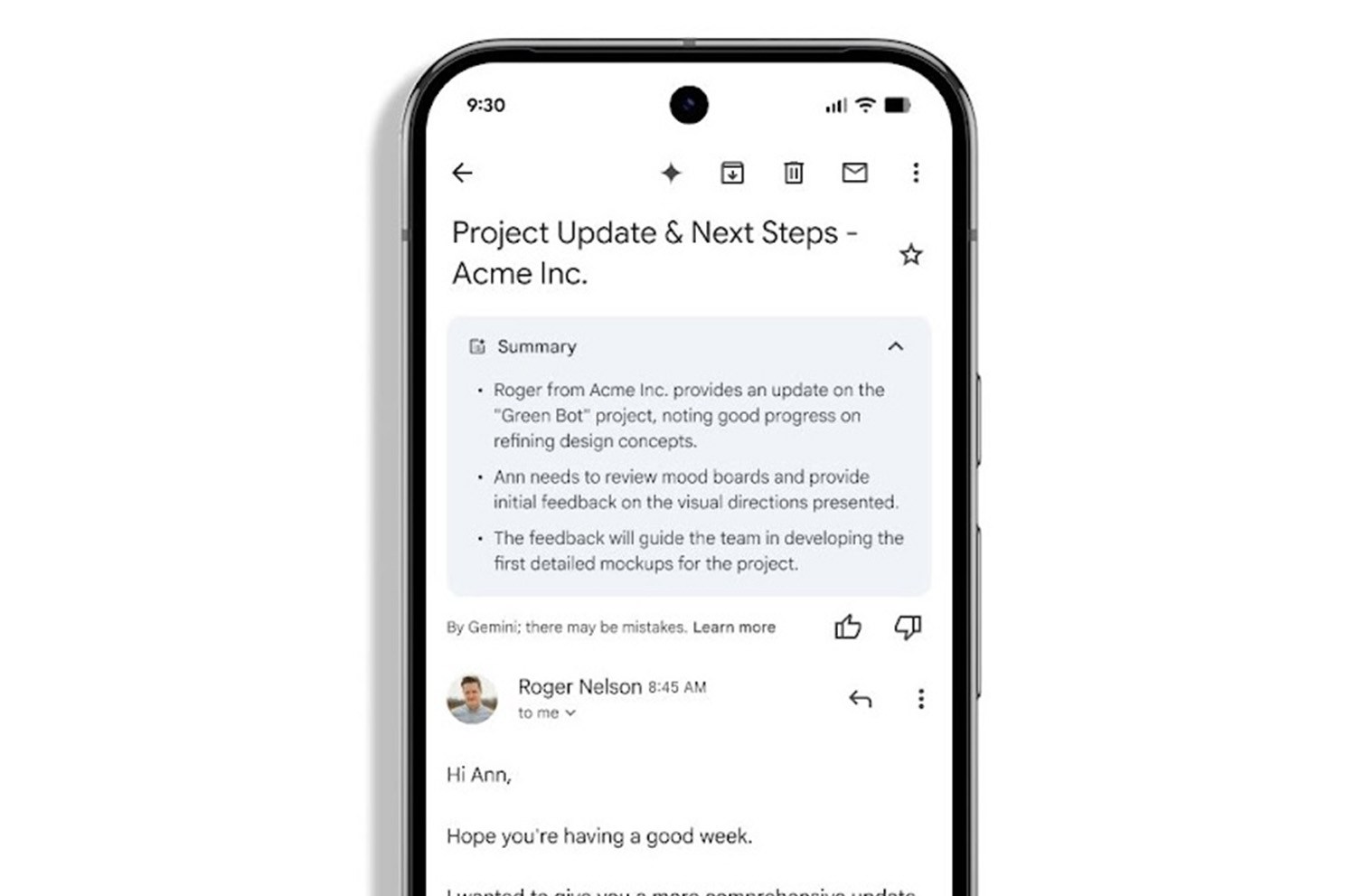
Image source: The Verge
Google's official documentation warns users not to include sensitive, private, or confidential information in their feedback to the AI. While the automated processing of your emails is governed by Workspace privacy agreements, human reviewers may occasionally look at feedback snippets to improve the system. If you work in a highly regulated industry like law or medicine, you should consult your compliance officer before enabling these features.
For those who require higher privacy standards, third-party tools like MailMaestro offer a compelling alternative. By detecting sensitive information like credit card numbers or social security numbers locally, they ensure that the most private data never leaves your machine, even while the rest of the email is summarized by an LLM.
How to Contact Overview.ai for Vision System Support
As mentioned earlier, many users searching for "overviewai email" are actually looking for the industrial AI company Overview.ai . This company is a leader in automated inspection and does not produce email summarization software. If you are a customer or partner looking for their contact information, here are the verified details:
- Support Email: contact@overview.ai
- Phone Number: +1 (844) 799-7044
- Headquarters: San Francisco, California
- Official Website: overview.ai
Overview.ai focuses on helping manufacturers reduce waste and improve quality through deep learning vision systems. Their platform integrates with factory cameras to identify defects in real-time. If your inquiry is related to manufacturing technology, these are the correct channels to use.
The Future of AI Email Agents and Response Speed
The next phase of email evolution isn't just about reading summaries; it's about automated action. Data from 6sense shows that companies are 100x more likely to connect with a lead if they respond within 5 minutes. In a world where humans cannot be online 24/7, AI email agents are filling the gap.
Tools like Quillbot and Gemini are already moving toward "suggested replies" that are more than just three-word phrases. They can now draft entire paragraphs based on the context of the summary. This creates a powerful workflow: the AI summarizes the incoming request, you verify the key points, and the AI drafts a professional response for your final approval. This "Human-in-the-loop" system ranks among the top ways to maintain high productivity without sacrificing the personal touch.
As we move toward 2027, expect to see even tighter integration between your email summaries and your calendar, task manager, and CRM. The "overviewai email" query will likely evolve from a search for a simple summary tool into a search for a fully autonomous inbox manager.
Key Takeaways for Mastering AI Email
- Enable Smart Features: You cannot use Gmail AI Overviews without checking the "Smart features and personalization" box in settings.
- Optimize for Structure: Marketers should prioritize plain text and clear headings, as subject lines only influence 40% of AI summaries.
- Use Third-Party Tools for Attachments: If you need to summarize PDFs or Word docs, tools like MailMaestro are currently a top-tier choice.
- Check Thread Length: If the "Summarize" button is missing, ensure the conversation is long enough to warrant a synthesis.
- Distinguish the Brand: Remember that Overview.ai is an industrial vision company, not an email tool provider.
- Privacy Matters: Be aware that enabling AI summaries involves Google processing your email data; use enterprise-grade tools for sensitive work.
Start by checking your Gmail settings today to see if the Gemini icon is available for your next long email thread.
Frequently Asked Questions
To disable AI Overviews, you must go to Gmail Settings > General and uncheck "Smart features and personalization." Note that this will also disable other helpful features like Smart Compose and automatic email categorization. There is currently no way to disable only the AI summaries while keeping other smart features active.
Native Gmail Gemini focuses primarily on the text within the email thread itself. While it can see that an attachment exists, its ability to summarize the internal content of PDFs or Word documents is currently limited compared to specialized third-party tools like MailMaestro or Outlook's Copilot integration.
The most common reasons include: using a personal account without an AI Premium subscription, having "Smart Features" disabled in settings, the email thread being too short to summarize, or the thread being in a language not yet fully supported by Gemini's LLM.
If you are looking for AI summarization in Outlook, you should look into Microsoft 365 Copilot. Alternatively, third-party add-ins like MailMaestro work across both Gmail and Outlook, providing a consistent summarization experience regardless of your email provider.
Basic smart features are free, but the advanced Gemini-powered AI Overviews and side-panel assistance typically require a paid subscription, such as Google Workspace Business/Enterprise or a Google One AI Premium plan for personal accounts.