Home
How to Draft Professional Emails Faster Using AI Tools and Proven Frameworks
Drafting emails in 2026 has evolved from manual composition to AI-assisted prompting . By using tools like Microsoft Copilot or Mailmeteor , professionals can generate structured drafts in seconds. The key to success lies in the "Context + Intent + Tone" formula: provide the AI with the background, your specific goal, and the desired professional vibe. Always verify facts manually, as AI can occasionally misinterpret dates or names, and ensure your subject lines remain between 4–8 words for optimal engagement.
Why the Way We Draft Emails Is Changing
For decades, the process of drafting emails was a solitary, often time-consuming task. Professionals would stare at a blinking cursor, agonizing over the perfect opening line or the right level of assertiveness in a follow-up. However, as of 2026, the primary intent behind "drafting emails" has shifted significantly. It is no longer just about "how to write," but rather "how to prompt."
The efficiency gap in modern communication is stark. While over 6 million professionals have adopted specialized tools like Mailmeteor to streamline their workflows, many still struggle with technical hurdles such as IMAP sync issues or the "hallucination" of facts in AI-generated text. The goal of this guide is to bridge that gap, offering a hybrid approach that leverages the speed of artificial intelligence while maintaining the human oversight necessary for legal and professional safety.
"The shift toward AI-assisted drafting isn't just about speed; it's about reducing the cognitive load of repetitive communication tasks." — Industry Insight, 2026
How to Use AI to Draft Your Emails in Seconds
Modern email clients have integrated AI directly into the composition window, making it easier than ever to generate a first draft. Whether you are using a native enterprise solution or a third-party tool, the process follows a similar logic.
Native Integration with Microsoft Copilot
Microsoft Copilot has become a standard feature across the Outlook ecosystem, including the New Outlook for Windows, Mac, Web, and Mobile. According to Microsoft Support , the "Draft with Copilot" feature allows users to generate text based on short descriptions.
- Open a New Message: Click the "New Mail" button or reply to an existing thread.
- Locate the Copilot Icon: In the toolbar or within the message body, look for the Copilot logo.
- Enter Your Prompt: Type a brief summary of what you want to say (e.g., "Ask the team for a status update on the Q3 project").
- Adjust Options: You can select the tone (Professional, Casual, etc.) and the length of the draft.
- Generate and Refine: Review the generated text and click "Keep it" or "Regenerate" for a different version.
Using Purpose-Built Tools vs. General LLMs
While general Large Language Models (LLMs) like ChatGPT or Claude are excellent for creative brainstorming, they often require extensive prompting to get the formatting of an email right. In contrast, purpose-built tools like Mailmeteor are pre-tuned for business communication. These tools are specifically designed to handle greetings, sign-offs, and subject lines without the need for "extra prompting" to avoid hallucinations.
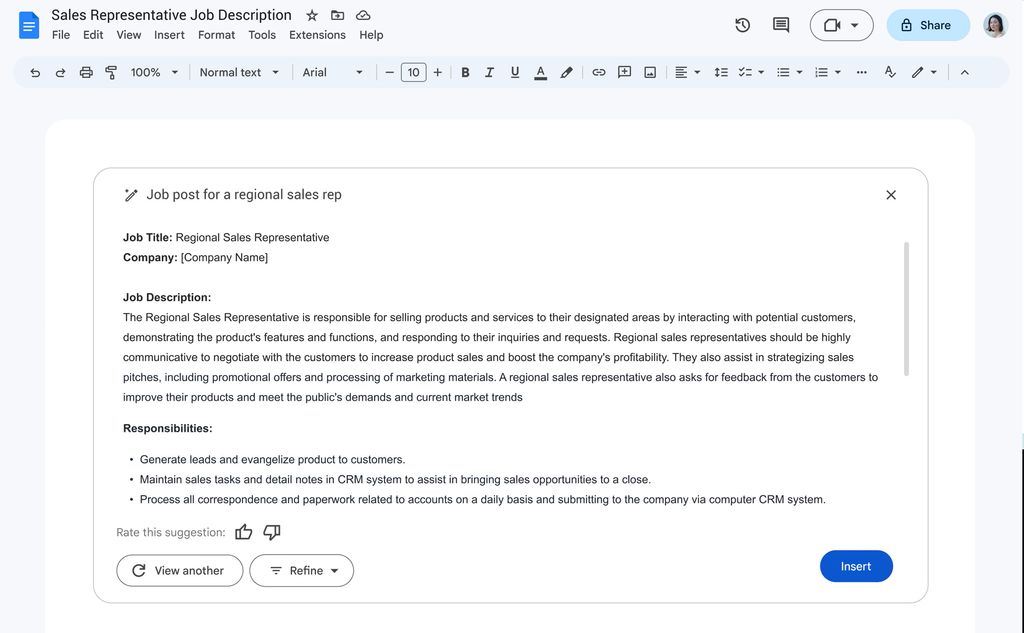
Image source: Trimbox
Highly Effective AI Prompts for Drafting Specific Business Emails
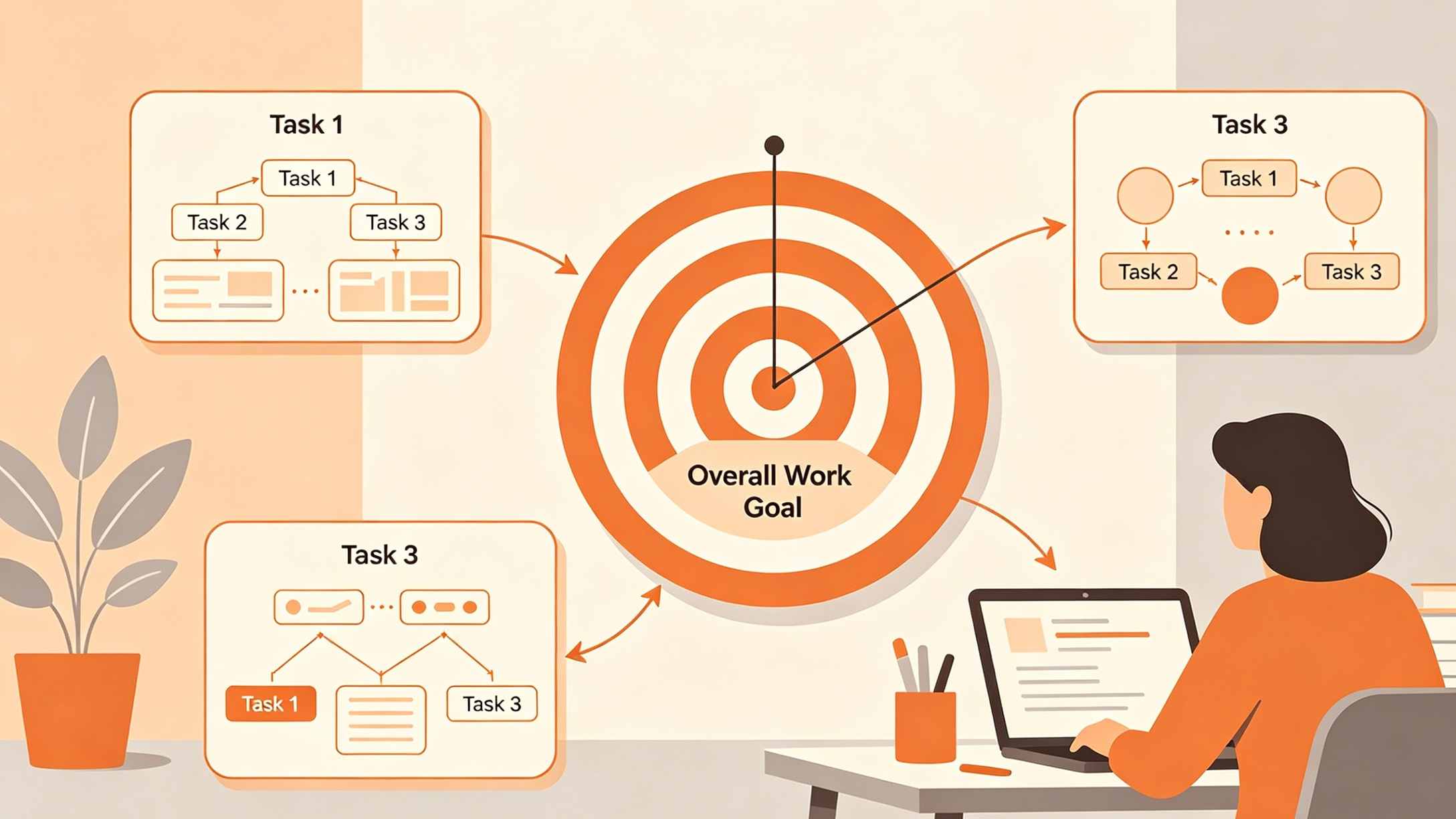
The quality of an AI-generated draft is directly proportional to the quality of the prompt. A generic prompt like "Write an email about a meeting" will yield a generic, often robotic result. To get the most out of these tools, use the Context + Intent + Tone formula.
The Context + Intent + Tone Formula
This framework ensures the AI has enough information to sound like a human professional rather than a template. Here is how to break it down:
- Context: Who are you writing to? What is the history of the conversation?
- Intent: What is the specific action you want the recipient to take?
- Tone: Should this be firm, apologetic, enthusiastic, or neutral?
Specific Scenarios for AI Drafting
Here are three high-impact prompts you can copy and adapt for your daily workflow:
Prompt: "Draft a follow-up to a cold lead who opened my last email twice but didn't reply. Context: We discussed the software demo last week. Tone: Persistent but low-pressure. Length: Under 50 words. Intent: Get them to book a 5-minute call."
Prompt: "I am frustrated that the project deadline was missed again. Rewrite my draft to remove passive-aggressive phrasing and focus on a solution-oriented professional message. Context: Internal team email. Intent: Schedule a sync to fix the bottleneck."
Prompt: "Draft a meeting request for a potential partner. Context: We met at the networking event yesterday. Intent: Propose a coffee chat next Tuesday. Tone: Professional and concise. Include a clear call-to-action."
A Comparison of the Top AI Email Drafting Tools
Choosing the right tool depends on your specific needs, privacy requirements, and existing software stack. Below is a comparison of the most popular options available in 2026.
| Tool | Best For | Privacy & Data Handling | Cost |
|---|---|---|---|
| ChatGPT (Free/Plus) | Creative brainstorming & long-form drafts | May use data for training (unless opted out) | Free / $20/mo |
| Microsoft Copilot | M365 Power Users & Enterprise security | Enterprise-grade DPA; data stays within tenant | Subscription-based |
| Mailmeteor AI | High-volume professional mail & simplicity | No storage of prompts; privacy-focused | Freemium |
How to Structure a Professional Email Draft Manually
Even with AI assistance, understanding the underlying structure of a successful email is vital for the final review process. A well-structured draft respects the recipient's time and increases the likelihood of a response.
The Purpose-First Framework
According to experts like Marc Roche , business and legal drafting requires precision to avoid ambiguity. The "Purpose-First" framework prioritizes clarity above all else.
- Subject Lines: The "sweet spot" for open rates is between 4–8 words. It should be a summary, not a teaser.
- The First Sentence Rule: State the core request or the most important information immediately. Do not "bury the lead" under pleasantries.
- Scannability: Use bullet points for lists, dates, or technical details. Large blocks of text are often ignored on mobile devices.
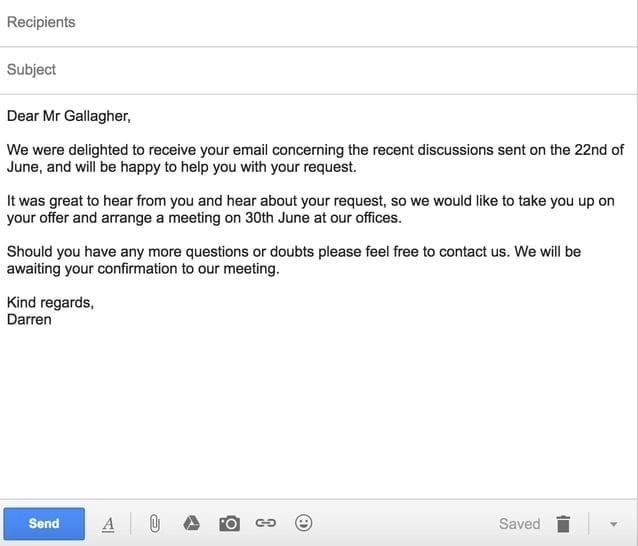
Image source: HubSpot Blog
The 3-Check Rule for Rapid Drafting
Before you hit send on any draft—especially one generated by AI—perform this 60-second scan:
- Alignment: Does the subject line actually match the first sentence of the email?
- Verification: Are all names, dates, and attachments verified? AI tools are known to "hallucinate" specific numbers or calendar dates.
- Pruning: Remove any sentence that does not directly advance the "ask" or provide necessary context.
Why You Should Never Put Sensitive Data in an AI Email Draft
While AI tools offer remarkable speed, they introduce new risks regarding data sovereignty and legal liability. It is essential to understand that emails sent from a work address are the property of the employer and are subject to legal warrants in many jurisdictions.
As noted by Drexel University , professional communication should always be treated as a permanent record. Admitting wrongdoing or promising a *quid pro quo* in a draft can create significant legal liability for both the individual and the organization.
How to Fix Common Technical Issues When Drafting Emails
Technical glitches can derail even the most efficient drafting workflow. Two of the most common issues reported by users involve synchronization and version control.
The Ghost Draft Problem
Many users of clients like eM Client or Thunderbird have reported a "Ghost Draft" issue where the software saves dozens of incremental versions of the same email. According to community forum discussions , this usually happens when the "Save to Drafts" frequency is set too high, causing the IMAP server to create a new file for every few seconds of typing.
To fix this, navigate to your account settings and increase the auto-save interval to at least 2 or 3 minutes. This reduces server load and prevents your Drafts folder from becoming cluttered with unfinished fragments.
IMAP Sync Failures
Another frequent pain point is the failure of drafts to delete after they have been sent. This is particularly common with private domains and services like Shaw Business Mail. If you find that your sent emails are still sitting in the Drafts folder, it often indicates a mismatch between the local client's "Sent" folder mapping and the IMAP server's expectations. Re-mapping the folders in your mail settings typically resolves this bug.
Professional Etiquette and Modern Standards
Etiquette in 2026 is a balancing act between traditional standards and the casualization of the digital workplace. There is a notable conflict between academic standards and AI suggestions.
- The Emoji Debate: While Drexel University traditionally recommends a "No Emojis" rule for professional drafts, many AI tools offer a "friendly" tone that includes them. The best approach is to mirror the culture of your specific organization rather than following a rigid rule.
- Signature Safety: Avoid including religious or exclusionary quotes in your professional signature. Keep it limited to your name, title, and contact information to maintain a neutral, inclusive professional presence.
- Legal Clarity: Marc Roche emphasizes that precise punctuation in drafts is not just about grammar; it is about avoiding contractual ambiguity. A misplaced comma in a draft can change the entire meaning of a business agreement.
Frequently Asked Questions
How do I write a draft email?
To write a draft, open your email client and click "New Message." Type your recipient's address, a clear subject line, and your message. Most modern clients like Gmail and Outlook will automatically save your progress in the "Drafts" folder. If you are using AI, look for the "Draft with AI" or "Copilot" icon to generate the initial text based on a prompt.
Is it "draft email" or "email draft"?
Both are linguistically correct but serve different grammatical functions. "Drafting an email" is the action or verb phrase describing the process of writing. An "email draft" is the noun referring to the unfinished message itself. In professional settings, you might say, "I am drafting the email now," or "Please review the email draft in the shared folder."
Can ChatGPT be used for email drafting?
Yes, ChatGPT is a highly capable tool for drafting emails, especially for complex or long-form messages. However, users should be cautious about privacy. The free version of ChatGPT may use your inputs to train its models. For sensitive business communication, it is safer to use enterprise-grade tools like Microsoft Copilot or specialized privacy-focused writers.
Why did my draft disappear in Outlook?
If a draft disappears, first check the "Drafts" folder. If it isn't there, it may have been accidentally moved to the "Deleted Items" or "Recoverable Items" folder. Occasionally, sync issues between the mobile app and desktop client can cause a delay in the draft appearing. Refreshing your folder list or checking the web version of Outlook often resolves this.
Does AI proofread my drafts automatically?
Integrated tools like Microsoft Copilot and Grammarly provide real-time proofreading for drafts. However, standalone AI writers usually proofread the text they generate but may not monitor your manual edits unless specifically prompted. It is always recommended to perform a final manual scan using the "3-Check Rule" to ensure accuracy.
Key Takeaways for Mastering Your Email Workflow
Drafting emails efficiently in 2026 requires a blend of technological leverage and human intuition. Here are the essential points to remember:
- Leverage AI for structure and tone, but always manually verify facts, dates, and names to avoid hallucinations.
- Use the Context + Intent + Tone formula to generate high-quality prompts that sound professional and human.
- Keep subject lines concise , ideally between 4–8 words, to ensure they are fully readable on mobile devices.
- Adjust IMAP settings if you encounter "ghost drafts" or synchronization errors between your devices.
- Protect sensitive data by avoiding public AI tools for HR, legal, or proprietary business communications.
- Follow the 3-Check Rule before sending to ensure your subject line, first sentence, and attachments are all aligned.
By implementing these strategies, you can significantly reduce the time spent on communication while maintaining the high standards required in a professional environment.