Home
Home
How to Find and Use Top-Rated Free Draw Tools Online Without a Subscription
For users seeking a high-quality free draw experience, three platforms stand out: Kleki (best for layers and blend modes), AutoDraw (best for AI-assisted sketching), and KRESKA.art (best for professional brushes and Chromebook optimization). Most of these tools require no login and offer immediate canvas access for sketching, doodling, or technical diagrams.
Digital art has undergone a significant transformation in recent years. While professional software suites often carry heavy subscription fees, the rise of browser-based "free draw" applications has democratized creativity. Whether you are a student on a school-issued Chromebook, a professional looking for a quick brainstorming canvas, or a hobbyist exploring digital sketching, the current landscape of free drawing tools offers remarkable functionality without the barrier of a paywall.
In this guide, we explore the technical capabilities of the most popular online drawing canvases, compare their features for different user personas, and provide advanced techniques to help you achieve professional results—even if you are only using a standard computer mouse.
Why You Should Start Doodling to Boost Your Productivity
The act of "free drawing" is often dismissed as a simple distraction, but scientific research suggests otherwise. Engaging in spontaneous sketching can significantly improve cognitive function and information processing. According to research cited by Altenew , individuals who doodle during tasks retain nearly 30% more information than those who do not. This phenomenon, often called the "29% Retention Rule," suggests that doodling keeps the brain in a state of "readiness," preventing it from daydreaming or losing focus during long meetings or lectures.
The Power of Intentional Practice
Beyond productivity, free drawing serves as a vital tool for artistic development. Expert artist Daisy Yellow Art emphasizes that skill growth is often a long-term game. According to her insights, real progress is best measured in 24-month increments rather than days or weeks. To build the necessary hand-eye coordination for digital art, she recommends daily warm-ups consisting of "ordinary thing" drawings and repetitive circle exercises. These simple movements translate directly into better line control when using a digital stylus or mouse.
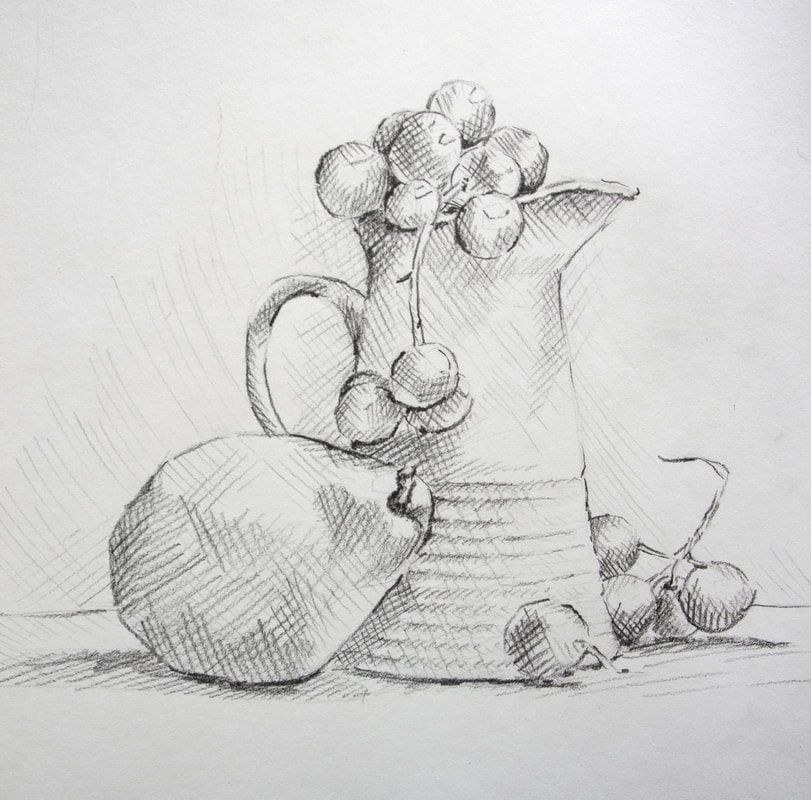
Image source: Erika Lancaster
Which Free Drawing Tool Fits Your Specific Needs?
Choosing the right tool depends heavily on your hardware and your creative goals. Some users need the complexity of layers and blend modes, while others simply want a clean whiteboard for collaborative brainstorming. The following matrix compares the top-rated free draw options available in 2026.
| Tool Name | Best For | Layers | AI Features | Pressure Support |
|---|---|---|---|---|
| Kleki | Browser Illustration | Yes | No | Yes |
| KRESKA.art | Chromebooks/Pro Brushes | Yes | No | Emulated |
| AutoDraw | Quick Icons/Doodles | No | Yes | No |
| Canva Draw | Collaboration/Layouts | Limited | Yes | No |
| Sketchbook | Mobile/Tablet Art | Yes | No | Full |
| Excalidraw | Technical Diagrams | No | No | No |
Understanding the Freemium Trap
When searching for a free draw tool, it is important to distinguish between "truly free" and "freemium" models. Platforms like Kleki and AutoDraw are 100% free with no hidden tiers. In contrast, tools like Canva and Adobe Express offer free versions but lock their most powerful brushes, stock assets, and high-resolution export options behind a "Pro" subscription. For example, Canva provides 5GB of free cloud storage, but users often hit this limit quickly if they work on high-resolution illustrations.
Top-Performing Tools for Immediate Access and No-Login Sketching
For many users, the primary appeal of an online drawing canvas is the ability to start creating instantly. These tools require no account creation, making them ideal for school environments or quick creative bursts.
Kleki
Kleki stands out as a top choice for those who need a Photoshop-like experience in a browser. It supports layers, various blend modes (like Multiply and Screen), and a wide range of brush settings. It is remarkably lightweight and requires no plugins.
AutoDraw
Developed by Google, AutoDraw uses machine learning to guess what you are trying to draw. If you sketch a rough bicycle, the AI suggests professionally drawn bicycle icons to replace your doodle. It is an excellent choice for non-artists.
Sketchpad
Available at Sketch.io , this tool is highly recommended for quick exports. It allows users to save work as PNG, JPEG, or even PDF, making it a popular choice for social media creators.
Advanced Web Apps for Digital Artists and Students
As web technology has advanced, browser-based apps have begun to rival desktop software in terms of performance and feature sets. This is particularly important for students who rely on Chromebooks, which often lack the processing power for heavy desktop applications.
KRESKA.art — Professional Power on a Chromebook
One of the most notably innovative tools in recent years is KRESKA.art . It uses a proprietary engine designed specifically to run smoothly on low-spec hardware. Unlike many basic tools, KRESKA.art offers over 180 handmade brushes and 50+ adjustable parameters per brush. This level of customization allows artists to create textures and strokes that feel organic rather than digital.
Sketchbook — The Mobile Powerhouse
While Sketchbook is widely regarded as one of the strongest options for tablets and mobile devices, its transition from a free Autodesk product to a paid desktop app has changed the landscape. However, the mobile version remains a top-tier option for artists who prefer a minimalist interface that stays out of the way of the canvas. Its layer management and "Copic" color library are exceptionally strong features for character designers.
Image source: Microsoft Store
Collaborative Drawing for Teams and Classrooms
Free drawing isn't just for solo artists; it is a powerful communication tool for teams. Collaborative canvases allow multiple users to sketch on the same board in real-time, which is highly impactful for remote brainstorming sessions.
- Canva Draw for Mind-Mapping: Canva's drawing tool is integrated into its larger design suite. It allows teams to sketch ideas directly onto presentation slides or social media layouts. The "Shape Assist" feature automatically smooths out hand-drawn circles and squares, making diagrams look professional.
- Excalidraw for Technical Diagrams: This tool is a popular choice for software engineers and product managers. It uses a "hand-drawn" aesthetic for boxes and arrows, which makes technical diagrams feel less formal and more like a collaborative whiteboard session.
- Augmented Reality (AR) Tracing: Some advanced tools, like KRESKA.art, now support AR tracing. By using a mobile camera feed as a background, users can trace real-world objects or preview how their digital art would look on a physical wall.
How to Get Professional Results Using Only a Mouse
Many beginners believe they need an expensive Wacom or Huion tablet to create good art. While a stylus is helpful, you can achieve remarkable results with a standard mouse by utilizing specific software features.
Tools like KRESKA.art offer "pressure emulation" for mouse users. This feature calculates the speed of your mouse movement. If you move the mouse quickly, the line tapers off; if you move slowly, the line remains thick. This mimics the behavior of a pressure-sensitive pen and allows for much more dynamic line art.
The Liquify Hack
One of the most useful tools for mouse users is the "Liquify" or "Warp" brush. In professional software like Photoshop, this is used to subtly shift pixels. In browser tools like KRESKA.art, you can use it to fix proportions after you've finished drawing. If a character's eye is slightly too high, you can "nudge" it into place without having to redraw the entire face—a major time-saver for those who lack the precision of a stylus.
Solving Real-World Problems with Digital Drawing
Free draw tools are not just for art; they are practical problem-solvers. From home renovation to education, the digital canvas has numerous utilitarian applications.
Scale Drawing for DIY Projects
If you are planning a room layout, you can use grid overlays in tools like Sketchpad to create scale drawings. By setting a rule (e.g., 2 grid squares = 1 meter), you can accurately map out furniture placement. This is a highly effective way to visualize a space before moving heavy items or purchasing new decor.
Creating Custom Coloring Pages
Parents and teachers can use AI-assisted drawing tools to create unique coloring pages for children. By using a "text-to-image" generator or sketching a simple outline and using a "clean line" filter, you can produce high-quality coloring sheets that are tailored to a child's specific interests, such as "a cat wearing a space helmet."
Image source: Pinterest
Tips for Long-Term Artistic Growth
Consistency is the most important factor in improving your drawing skills. To stay motivated, it is helpful to adopt a growth mindset and utilize the technical shortcuts built into modern web apps.
One highly recommended technique is learning Gesture Controls . Many web-based drawing apps now support multi-touch gestures. For example, a two-finger tap often serves as "Undo," while a three-finger tap is "Redo." Mastering these shortcuts can significantly speed up your workflow, allowing you to focus more on the creative process and less on navigating menus.
Additionally, remember the "24-Month Rule" mentioned earlier. Digital art has a steep learning curve, especially when transitioning from paper to a screen. By saving your work in a dedicated folder and only comparing your current sketches to those from two years ago, you will see the significant step forward you have made in your technical ability.
Frequently Asked Questions
- Which drawing app is totally free without a subscription?
- Kleki and AutoDraw are among the top options that are completely free. They do not require a login, have no "Pro" tiers, and offer all their features to every user immediately upon opening the website.
- What is a good free drawing site for kids?
- AutoDraw is widely regarded as a top choice for children. Its AI-suggestion tool turns rough scribbles into recognizable icons, which helps build confidence in young creators who may feel frustrated by their current technical skill level.
- Can I use these free drawing tools for commercial work?
- It depends on the tool's licensing. Open-source tools like Kleki generally allow for commercial use of the art created. However, platforms like Canva have specific licensing rules regarding the use of their built-in elements (icons, photos) in commercial projects.
- How do I save my online drawing as a high-resolution file?
- Most top-performing tools offer PNG or JPEG exports. For the highest quality, look for tools that support SVG (Scalable Vector Graphics) exports, such as Sketchpad. SVG files can be scaled to any size without losing clarity or becoming pixelated.
- Do these tools work on school Chromebooks?
- Yes, most browser-based tools are designed for compatibility. KRESKA.art is specifically optimized for low-spec hardware like Chromebooks, ensuring that the brush strokes remain smooth even when the device's processor is under load.
Key Takeaways for Digital Artists
Free drawing tools have evolved into sophisticated platforms that rival traditional software. Here is how to make the most of them:
- Doodling increases retention by nearly 30%, making it a valuable productivity tool for students and professionals.
- Choose the right tool for the job: Kleki for layers, AutoDraw for AI help, and KRESKA.art for professional brush engines.
- Use speed-based pressure emulation to achieve tapered, professional-looking lines even if you are only using a mouse.
- Leverage the Liquify tool to correct proportions and shapes without having to redraw your entire composition.
- Measure progress in years , not days, to maintain a healthy and sustainable growth mindset in your artistic journey.
- Master gesture shortcuts like the two-finger undo to significantly increase your drawing speed and efficiency.
Start by opening a blank canvas in Kleki or KRESKA.art today and spend just ten minutes doodling to see how it impacts your focus and creativity.