Home
Home
How to Find the Top Freeware Drawing Tools for Your Device and Skill Level
As of late 2024 and throughout 2026, the freeware drawing market has shifted significantly. If you are looking for the most effective tool for your specific needs, here is the current landscape:
Why the Digital Art Landscape Changed in 2025 and 2026
The world of digital creation has undergone a massive transformation in recent years. For a long time, the industry was bifurcated: you either paid a heavy subscription for professional tools or struggled with limited "freemium" versions that locked the best features behind a paywall. However, as we move through 2026, that model has largely collapsed in favor of full-access freeware.
The most significant catalyst for this change was the "Fresco Flip" of late 2024. Adobe, facing stiff competition from mobile-first apps and open-source giants, made the strategic decision to make Adobe Fresco completely free for anyone with an Adobe account. This wasn't just a trial; it unlocked over 1,000 brushes, including the highly acclaimed "Live Brushes" that simulate the physics of oil and watercolor paint. According to Sarah Renae Clark , this move positioned Fresco as a primary alternative for those looking to avoid the costs associated with Procreate or Photoshop.
Furthermore, "subscription fatigue" has reached an all-time high. Artists are increasingly wary of "renting" their creativity. This has led to a resurgence in open-source projects like Krita, which are developed by artists, for artists. These tools are no longer seen as "budget" options but as legitimate professional platforms that respect user ownership and data privacy.
Which Professional Freeware Matches Your Artistic Style?
Choosing a drawing tool is a deeply personal decision that depends on your specific workflow. Not every "free" app is built for the same purpose. To find the right fit, you must match the software's engine to your artistic goals.
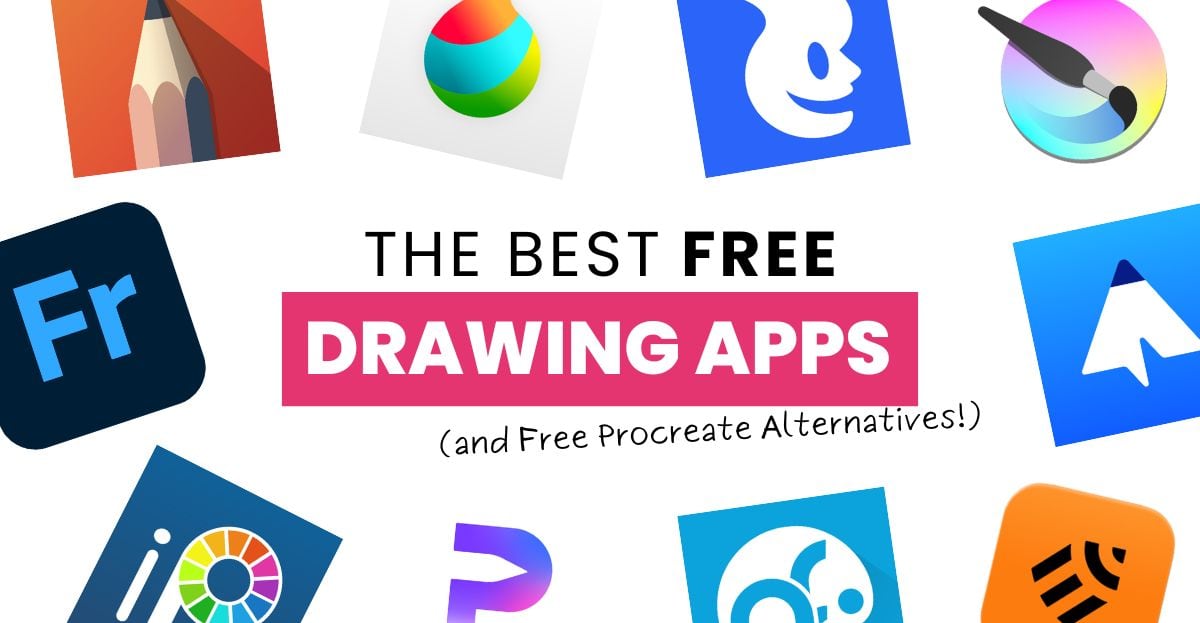
Image source: Sarah Renae Clark
Krita for Concept Art and Illustration
Krita stands out as a top-tier choice for desktop users on Windows, Linux, and macOS. It is specifically designed for concept artists, illustrators, and matte painters. Unlike many free tools that feel like simplified versions of Photoshop, Krita includes advanced features like brush stabilizers for shaky hands, a pop-up color palette for quick access, and an extensive resource manager for importing custom brush packs. Many professionals find that Krita’s wrap-around mode is one of the most effective ways to create seamless textures and patterns for game design.
Adobe Fresco for Natural Media
If your style leans toward traditional painting, Adobe Fresco is a remarkable option. Its "Live Brushes" use artificial intelligence to mimic how real paint behaves. For example, watercolor strokes will bleed into each other on the digital canvas, and oil paints will show thick texture and blend realistically when two colors meet. Since the late 2024 update, these premium features are available to all users, making it a popular choice for iPad and Windows tablet users who want a tactile, organic feel to their work.
Sketchbook for Minimalist Sketching
For those who find complex interfaces distracting, Sketchbook (formerly by Autodesk) offers a clean, "zen" environment. The UI stays hidden while you draw, allowing you to focus entirely on your lines. It is widely regarded as one of the most intuitive tools for quick ideation and character sketching. While it may lack the deep layer-processing power of Krita, its simplicity makes it a top recommendation for beginners and mobile artists using Android or iOS devices.
How to Choose Between Raster and Vector Freeware
One of the most common mistakes beginners make is choosing the wrong type of software for their project. Digital art is generally split into two categories: Raster and Vector. Understanding this distinction is vital for your professional success.
| Tool Name | Type | Best For | OS Compatibility |
|---|---|---|---|
| Krita | Raster | Digital Painting / Animation | Win Mac |
| Adobe Fresco | Raster/Vector | Natural Media / Sketching | Win iPad |
| Linearity Curve | Vector | Logos / Marketing Assets | Mac iPad |
| Sketch | Vector | UI/UX Design | Mac (Sequoia+) |
For those on macOS, Sketch remains a highly respected platform for vector-based UI/UX design. However, users should note that modern versions of Sketch often require macOS Sequoia 15.0.0 or newer to function correctly. If you are working on a logo or a scalable icon, a vector tool like Linearity Curve or Sketch is a much stronger choice than a painting app like Krita.
Top Browser-Based Drawing Tools for Quick Projects
Sometimes, you don't want to download a massive software package just to make a quick sketch or a social media graphic. Browser-based freeware has improved significantly in 2026, offering near-desktop performance without the installation hassle.
- Canva Draw and Shape Assist: Canva's Draw tool is an excellent choice for non-artists. Its "Shape Assist" feature automatically detects when you are trying to draw a circle, square, or star and snaps your messy lines into perfect, polished vectors. This is incredibly useful for creating quick diagrams or social media posts.
- Sketchpad for Collaborative Work: Sketchpad is a web-based utility that supports layers and a wide variety of stamps and brushes. It is a popular choice for educators and students because it requires no login and allows for quick exporting to PNG or PDF formats.
- AutoDraw for Rapid Iconography: Google’s AutoDraw uses machine learning to guess what you are doodling. If you draw a rough shape of a bicycle, it will suggest professionally drawn bicycle icons that you can swap in instantly. While not for "fine art," it is a highly impactful tool for rapid prototyping.
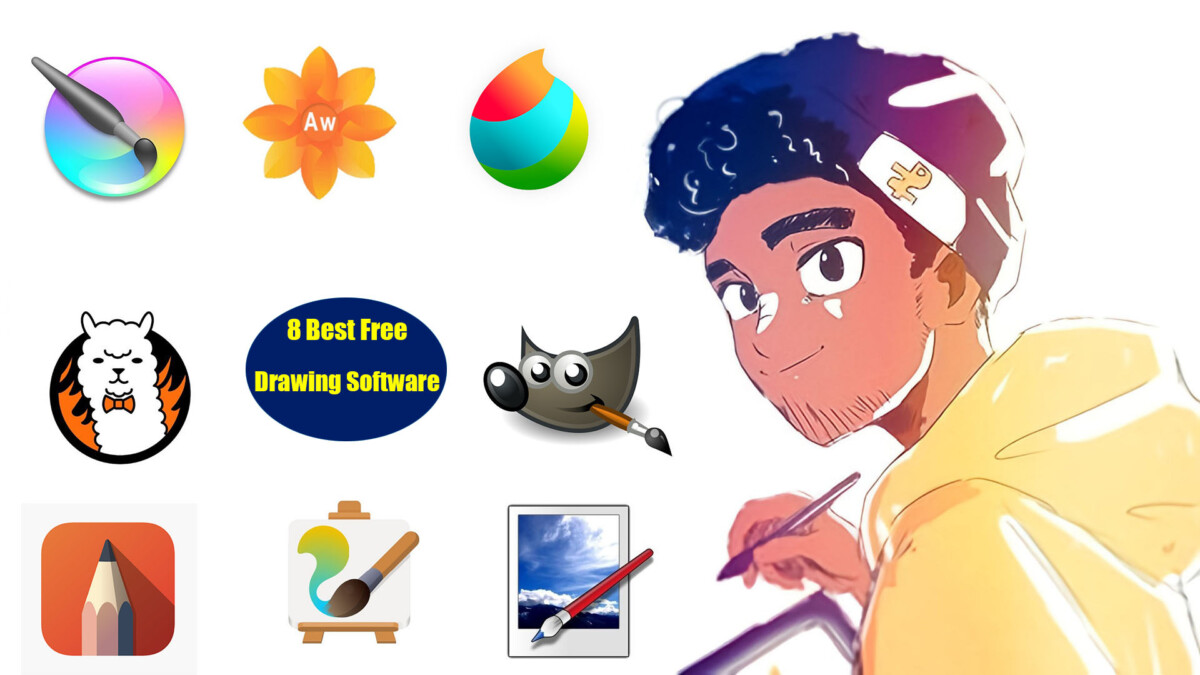
Image source: Vocal Media
Social Drawing and Multiplayer Canvas Features
In 2026, drawing is no longer a solitary activity. A new wave of freeware focuses on the "Social Learner" persona—artists who want to grow by interacting with others in real-time. This gamification of art has helped many beginners overcome the "blank canvas" anxiety that often leads to quitting.
Apps like ArtLoop have introduced "Multiplayer Drawing Battles" and cooperative canvases. In these environments, you can join a "Private Room" with friends or strangers to brainstorm a single piece of art together. This collaborative approach allows you to watch how more experienced artists handle line weight or shading in real-time, providing a learning experience that static tutorials cannot match.
These platforms often include community challenges and "drawing prompts" that refresh daily. By participating in these social features, you can build a portfolio while receiving immediate feedback from a global community. For many, this social accountability is the most effective way to maintain a daily drawing habit.
How to Fix Common Performance Issues in Free Software
Even the most advanced freeware can suffer from technical glitches. Community forums are often filled with users complaining about lag or cluttered interfaces. Fortunately, most of these issues have simple fixes that are rarely mentioned in official documentation.
Removing the "Selection Square" Clutter
In many free tools, the UI can become cluttered with "selection squares" or bounding boxes that don't disappear after you've finished a transformation. This is a common pain point in tools that lack deep UI customization. To fix this, look for the "View" or "Canvas" menu and ensure "Show Selection Extras" is toggled off. In some Adobe-based freeware, hitting
Ctrl+H
(or
Cmd+H
) will hide these distracting visual aids without deselecting your object.
Reducing Lag in Browser Drawing Apps
If you experience a delay between your pen stroke and the line appearing on the screen (stroke lag), the issue is often related to how the browser handles hardware acceleration. Based on community debugging tips, you should try the following:
- Uncheck "Shift Dynamic Scheduling": This setting in some browser-based engines can cause the CPU to prioritize UI updates over brush strokes.
- Limit Record Rates: If your app has a "Time Lapse" or "Record" feature, lowering the capture rate can free up significant system resources.
- Disable Browser Extensions: Ad-blockers or grammar checkers can sometimes interfere with the input lag of a drawing canvas.
Setting Up Your Hardware for a Natural Drawing Experience
No matter how good your software is, the experience will feel "digital" and clunky if your hardware isn't calibrated correctly. Whether you are using a dedicated Wacom tablet, a Huion, or an iPad, a few tweaks can make a world of difference.
Pressure Sensitivity Calibration: Most freeware tools like Krita and GIMP have a "Global Pressure Curve" setting. If you find yourself pressing too hard to get a thick line, you should adjust the curve so that it peaks earlier. This prevents hand fatigue and protects your tablet surface from scratches. On the iPad, the Apple Pencil is widely regarded as providing the most natural experience, especially when paired with Adobe Fresco’s tilt and pressure support.
System Requirements Check: As software becomes more sophisticated, hardware requirements rise. For instance, if you are using vector tools on a Mac, ensure you are running macOS Sequoia or later to take advantage of the latest rendering engines. For Windows users, having at least 8GB of RAM is recommended if you plan on working with high-resolution canvases (above 300 DPI) in Krita.
A Simple Workflow for Digital Coloring Pages
Many users seek out freeware drawing tools specifically for coloring. Whether you are coloring a scanned sketch or a downloaded PDF, using the right workflow will save you hours of frustration.
- Import with Transparency: When bringing in line art, ensure it is a PNG with a transparent background if possible. If you are importing a white-background JPEG, set the layer blend mode to "Multiply." This makes the white parts of the image transparent, allowing you to see the colors you place on the layers below.
- The "Under-Painting" Technique: Always create a new layer underneath your line art. This ensures that your coloring never accidentally erases or overlaps your clean black lines.
- Use AI for Cleanup: If your scanned sketch is messy, use a tool like AutoDraw or Canva’s "Shape Assist" to trace over the rough parts. This creates a clean vector base that is much easier to color than a grainy pencil sketch.
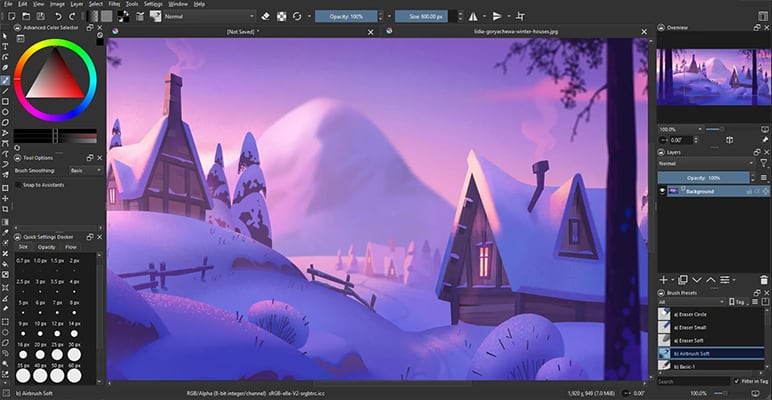
Image source: Sarah Renae Clark
Frequently Asked Questions
- Is Adobe Fresco really free now?
- Yes. As of late 2024, Adobe transitioned Fresco to a completely free model. While you still need an Adobe ID to log in, all the premium brushes, including the "Live Brushes" and the full library of 1,000+ pixel brushes, are available without a subscription. This makes it a top-rated choice for iPad and Windows users.
- What is the top free drawing software for beginners on PC?
- For those starting out on a PC, Krita is often recommended for its professional feature set, while Sketchbook is a popular choice for those who prefer a simpler, more intuitive interface. If you are doing quick graphics rather than fine art, Canva Draw is an excellent entry point due to its ease of use.
- Can I use these free tools for commercial work?
- Generally, yes. Krita is open-source (GPL license), meaning you own everything you create with it. Adobe Fresco also allows for commercial use of your creations. However, always check the specific terms for browser-based tools like Canva, as some "free" elements or templates may have specific licensing restrictions for commercial resale.
- Why is my drawing tablet lagging in my browser?
- Browser lag is typically caused by high "record rates" for time-lapse features or "Shift Dynamic Scheduling" conflicts in the browser's engine. Try disabling any screen-recording features within the app and ensure hardware acceleration is turned on in your browser settings (Chrome/Edge/Safari).
- Is there a free version of Procreate for Android?
- Procreate remains an iPad-exclusive app. However, Android users have several strong alternatives. Ibis Paint X and Medibang Paint are widely regarded as the top-performing free options for Android tablets, offering similar layer and brush functionality to Procreate.
Key Takeaways for Choosing Your Drawing Software
Navigating the freeware market in 2026 requires matching your hardware to your specific artistic goals. Here is a summary of the most effective paths forward:
- Adobe Fresco is the current leader for iPad users who want a professional, natural-media experience for $0.
- Krita remains the gold standard for desktop-based digital painting and complex illustration projects.
- Canva Draw is the most efficient choice for non-artists who need to create clean, polished graphics quickly.
- Vector tools like Linearity Curve or Sketch are necessary for logos and icons to ensure they stay sharp at any size.
- Social features in apps like ArtLoop can help beginners stay motivated through community challenges and co-op drawing.
- Technical lag can usually be fixed by adjusting browser settings or hardware pressure curves.
Download one of these tools today and start with a simple 15-minute sketch to test the brush feel on your specific device.